Last updated: November 2026 · By Ben Gorski, founder of Swum
I make the Swum app (swum.ai), so read this knowing I'm biased. I've tried to say plainly where another tool fits better. The plan itself works with any system.
The short answer
Pick a quiet week and freeze your spreadsheet. Then move in this order: clean your family list, import it quietly, build your classes and prices, add your waivers, test with a few families, and only then tell everyone.
The order matters more than the software. If families hear about the switch before their accounts, classes and waivers are ready, you'll spend the next month answering the same five questions.
This is a week of your own work, not a vendor promise. A big school or a messy sheet can take longer. In the Swum app (swum.ai), the import is called Switch to Swum, and it's quiet: no family gets an email until you turn emails back on.
What your new system should handle
Use this as a checklist, whatever you choose:
- Import from CSV or Excel, and let you check how columns match before anything is saved.
- Stay quiet during the import, so families aren't emailed by accident.
- Run your classes the way you do now: weekly classes, sessions or monthly plans.
- Bill the way you bill, with registration fees and sibling discounts.
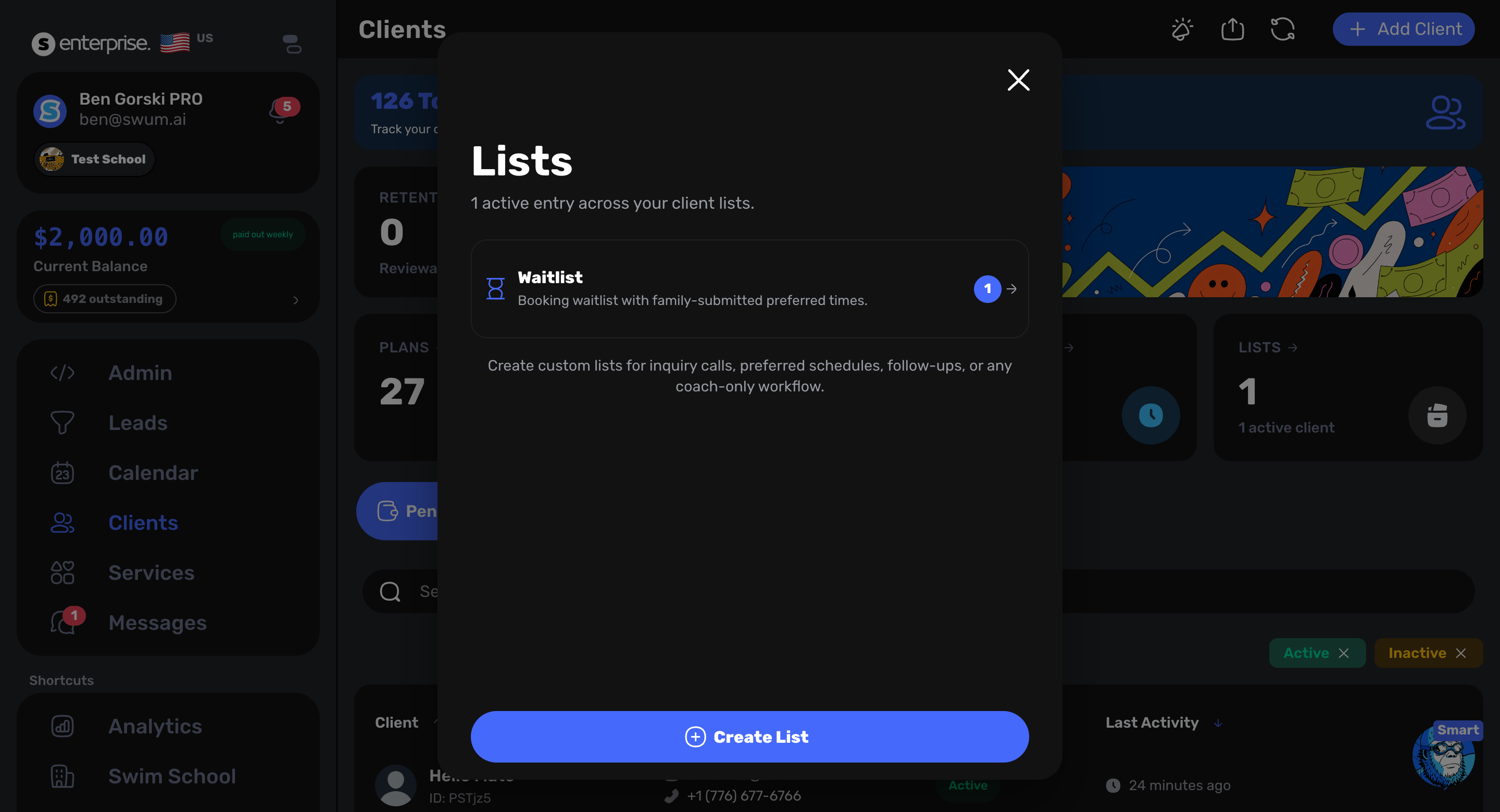
- Handle makeups and a waitlist without a side spreadsheet.
- Collect signed waivers online, before the first lesson.
- Keep medical notes for staff only.
- Let families book and pay from one link, and let you email everyone at once.
- Show what each instructor taught and is owed.
- Export everything back out, so you're never stuck again.
The 7-day plan, day by day (in the Swum app)
Each day has what to do with any system, then the real Swum steps.
Day 1: Export and freeze your spreadsheet
Pick a switch date at a natural break, like between sessions or months. Make a copy of your spreadsheet, put today's date in the name, and stop editing the old one. Anything that changes this week goes on a short "since the freeze" list.
Export each tab as CSV or Excel: families and swimmers, class rosters, prepaid lessons or makeup credits, and who already paid this year's registration fee.
Day 2: Clean the columns
Get to one row per swimmer (or per family). Siblings get their own rows with the same parent email.
The Swum spreadsheet import reads these columns: Swimmer Name, Birthday, Parent Name, Email, Phone, Level, Pool and Health Notes (Staff Only). Plain names work best, and common ones like "child name" or "DOB" match on their own.
Then fix the usual mess:
- One email per cell, and no typos in it. The email is how each family will log in.
- Real dates for birthdays, in one format.
- No duplicate families.
- Families who left go in a separate tab, not the import.
Day 3: Set up the school
- Settings → Swim School → New School: your name, photo and banner. A school needs Pro or higher.
- Settings → Locations: add each pool.
- Settings → Availability: set your hours.
- Instructors: in Settings → Swim School, tap Add Instructor (Create account or Invite existing), or send the Instructors invite link from Share Links.
- Settings → Bank Account → Set up Direct Payments, so you can take cards.
Day 4: Import your families, quietly
Go to Clients → Add Client → Switch to Swum.
- Where Are You Coming From? Pick Spreadsheet.
- Add your file (CSV or Excel).
- Check the Columns. Swum shows how it matched your columns and how the first rows will import. Change any match that looks wrong, or set a column to Don't Import.
- Tap Preview My Import, review it, then Confirm & Import. Swum checks for duplicates first, and nobody gets an email or text.
Coming from Jackrabbit or Acuity? You run the same import yourself from their exports. From iClassPro or SportsEngine, you add the exports and tap Request My Import. Swum reviews the files and contacts you before making any changes.
Prepaid lessons from a spreadsheet are added one family at a time, after the family has an account (Day 6): open the client, go to Billing and tap Adjust credits.
Day 5: Build classes, plans and prices
- Groups: in Settings → Booking Controls → Participant Groups, set your age or level groups.
- Classes: go to Settings → Groups & Classes → Create New → From Scratch. Set the schedule, pool, instructors and class size. Group Lesson billing charges weekly, and families can join or leave. Turn on Allow Waitlist for classes that fill. To make many time slots of the same class, use Quick Mode in bulk.
- Plans: for private or semi-private lessons on a schedule, go to Settings → Pricing → Plans → New Plan. Pick Subscription (renews monthly) or Fixed Term (a set number of weeks).
- Registration fee: set it in Settings → Pricing. Next to "Families who already paid", tap Manage families, then Mark as Paid for anyone who paid this year, so they aren't charged twice.
- Cancellations: in Settings → Booking Controls → Cancellations, set your notice window and what an on-time cancel gets back.
Day 6: Waivers, then a test with a few families
- Waivers: go to Settings → Waivers & Contracts → New Waiver. Upload your document or type it in, then turn on Waiver Required and Requires Signature. Turn on Waivers First if families should agree to your policies before picking a time.
- Questions: on Pro, Settings → Client Questions asks your intake questions at booking.
- Turn emails back on: reopen Switch to Swum, tap Review Communication Settings, then Restore Original Settings. Restoring sends no messages by itself.
Now pick 3 to 5 families you know well. Open each in Clients and tap Create account on the Manual contact banner. Swum emails them a login.
Ask them to book and pay. Check that each one lands in the right class at the right price, signs the waiver, and gets a confirmation. Open Balance → Upcoming to see the charges coming next month. Fix what they hit before Day 7.
Day 7: Go live and tell families
- Create accounts for the rest of your families the same way.
- Send one clear email: Communications → Campaigns → New campaign, all clients, Email.
- Share your school's booking link: Settings → Swim School → Share Links → Share with Clients.
- Keep the old spreadsheet read-only for a while, in case you need to look something up.
What to tell families
Keep it short. Say what changes, when the old way stops, and who to ask. Something like:
Hi [first name], starting [date], [school name] is moving sign-ups and payments to the Swum app. You'll get an email with your login. When you sign in, you'll sign our waiver once, add a card and book [your class or next session]. [Your class time stays the same.] Questions? Just reply to this email. – [your name]
Send it once, then a short reminder a few days before the old way stops.
When another tool is a better fit
- Your spreadsheet still works. If you have one pool, a handful of classes and families pay on time, you may not need to switch yet.
- You want the longest track record. Class-first systems like Jackrabbit Swim and iClassPro have been around longer and have many more reviews. Swum has 3 reviews on Capterra, against 227 for Jackrabbit Swim and 477 for iClassPro.
- You're mid-session. Wait for the break between sessions. Switching in the middle is what makes it hard.
What it costs
Swum Standard is $0 a month, and Swum takes a larger cut of each booking instead (the pricing page says "23% total fees per transaction"). Pro is $98 a month with 5% total fees. Pro Max is $200 a month with 2.9% + $0.30 per transaction. Enterprise starts at $500 a month.
A swim school, group classes and plans need Pro or higher. Schools with several instructors should book a demo and check Swum against their real schedule.
FAQ
How long does it take to move a swim school off spreadsheets?
Plan on about a week of your own work for a typical school: two days on your data, two on setup, one on the import, and one each for testing and going live. A messy sheet takes longer.
Will families get emails while I import?
Not in the Swum app (swum.ai). Switch to Swum imports quietly, and no family gets an email or text until you restore your communication settings.
Can I import from Jackrabbit, iClassPro or Acuity instead?
Yes. From Jackrabbit or Acuity, you import your exports yourself. From iClassPro or SportsEngine, you send the files and Swum runs the import.
Do families have to sign waivers again?
Yes. Turn on Waiver Required, and each family signs your waiver in Swum before their first lesson.
What about families who prepaid for lessons?
Add their credits one family at a time from the client's Billing tab with Adjust credits, after they have an account.
Can I get my data back out later?
Yes. Clients → Export Data downloads your data as Excel spreadsheets.