Our last update had 19 new features. This one has 65.
Some are big new tools, like free swim evaluations, a swim team view, and moving your families over from your old software yourself. Most of them came straight from schools asking for something they needed. All of it is live in the Swum app and on the web now.
New Tools
1. Free Swim Evaluations and Swim Passport
Access: Settings -> Pricing -> General -> Swim Evaluation
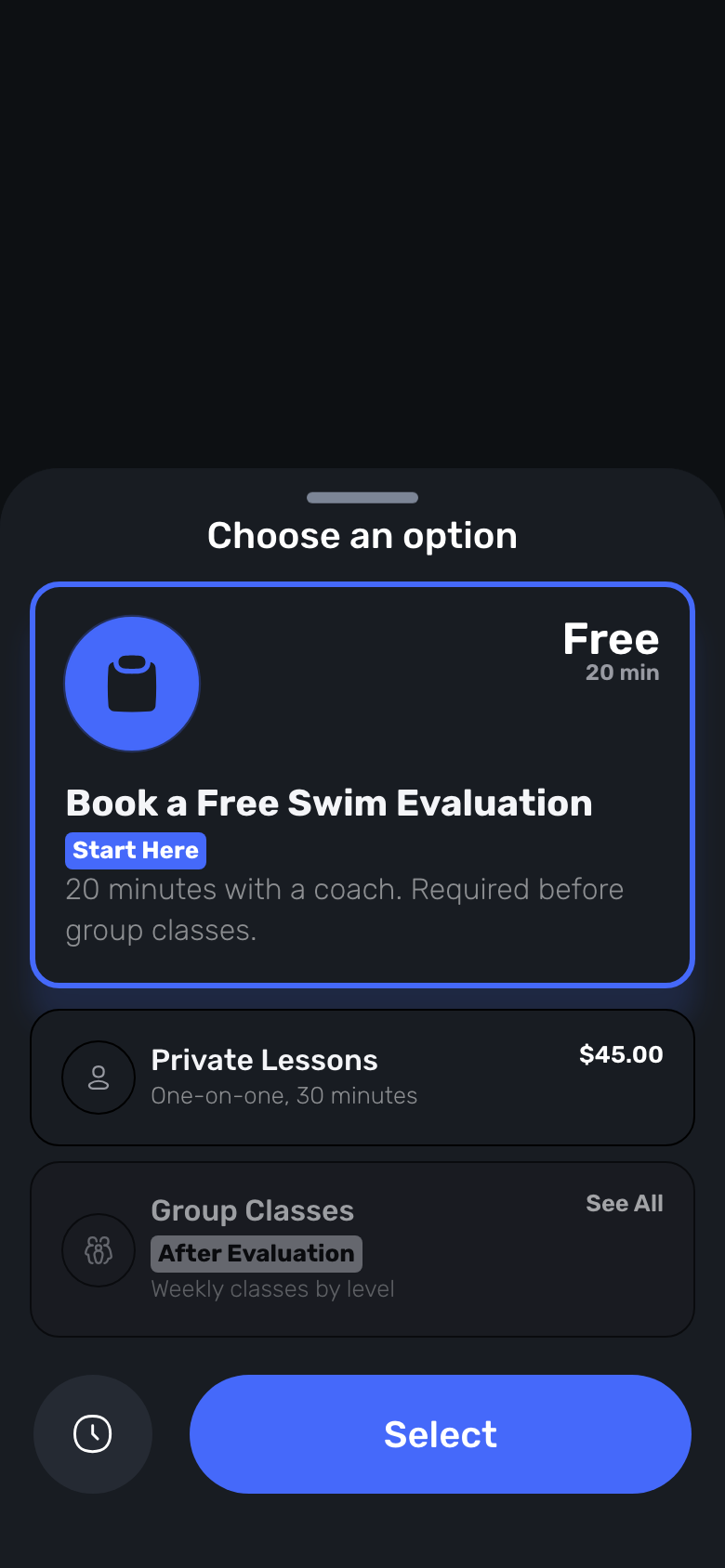
Offer a free first swim at the pools and with the coaches you choose. You can make it required before a family books group classes. The coach picks a level, scores key skills and taps Send Enrollment Invite. On Max, families also get a Swim Passport with a stamp for each level and a certificate PDF with your logo, and you can move swimmers up with one tap from Ready to Move Up.
2. Run a Swim Team
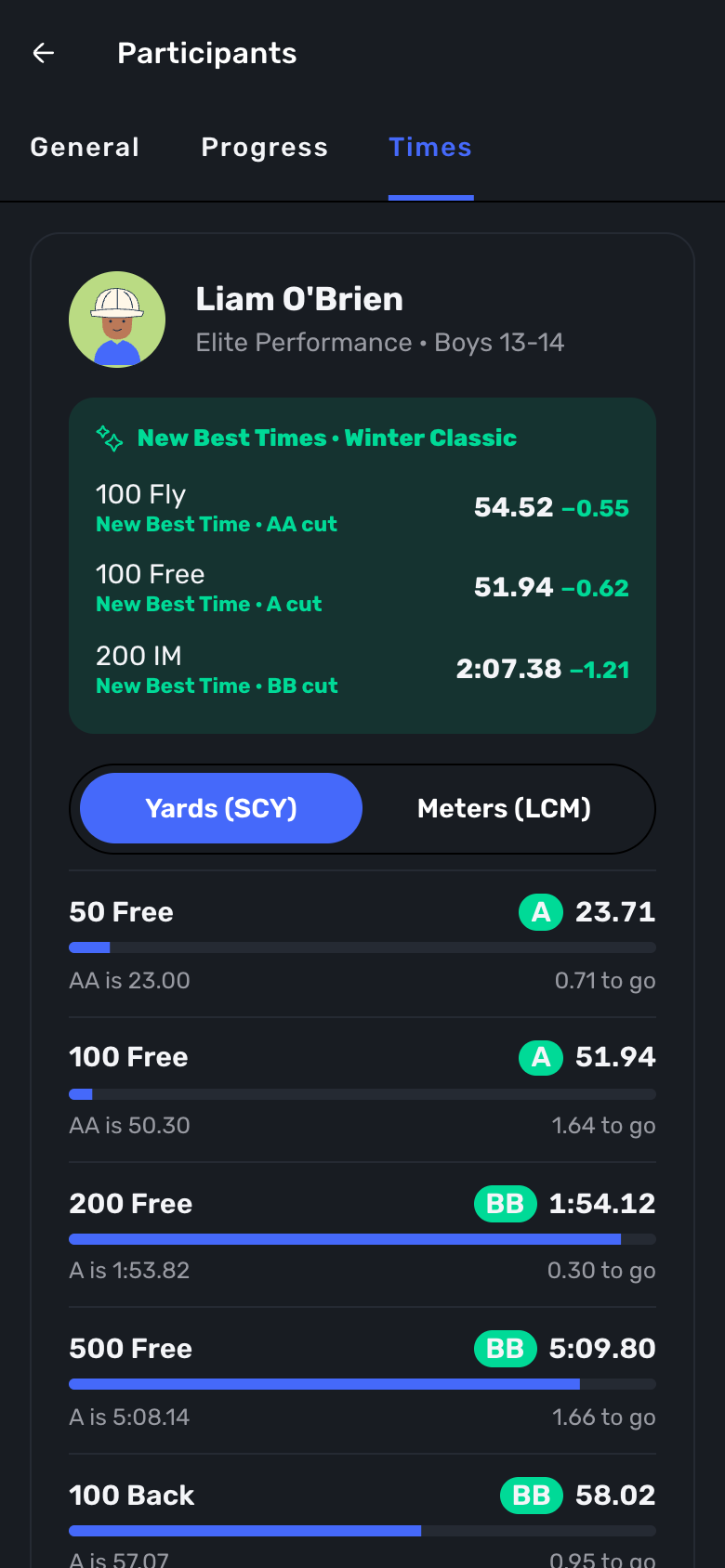
Access: Settings -> Run a Swim Team
Turn it on and a Team view appears with a roster, training groups, practice times and meets. Ask Families asks if each swimmer will swim a meet and collects the entry fee. You can export entries and import results files. Families see best times, new best times, and how far each swimmer is from the next time standard.
3. Switch to Swum
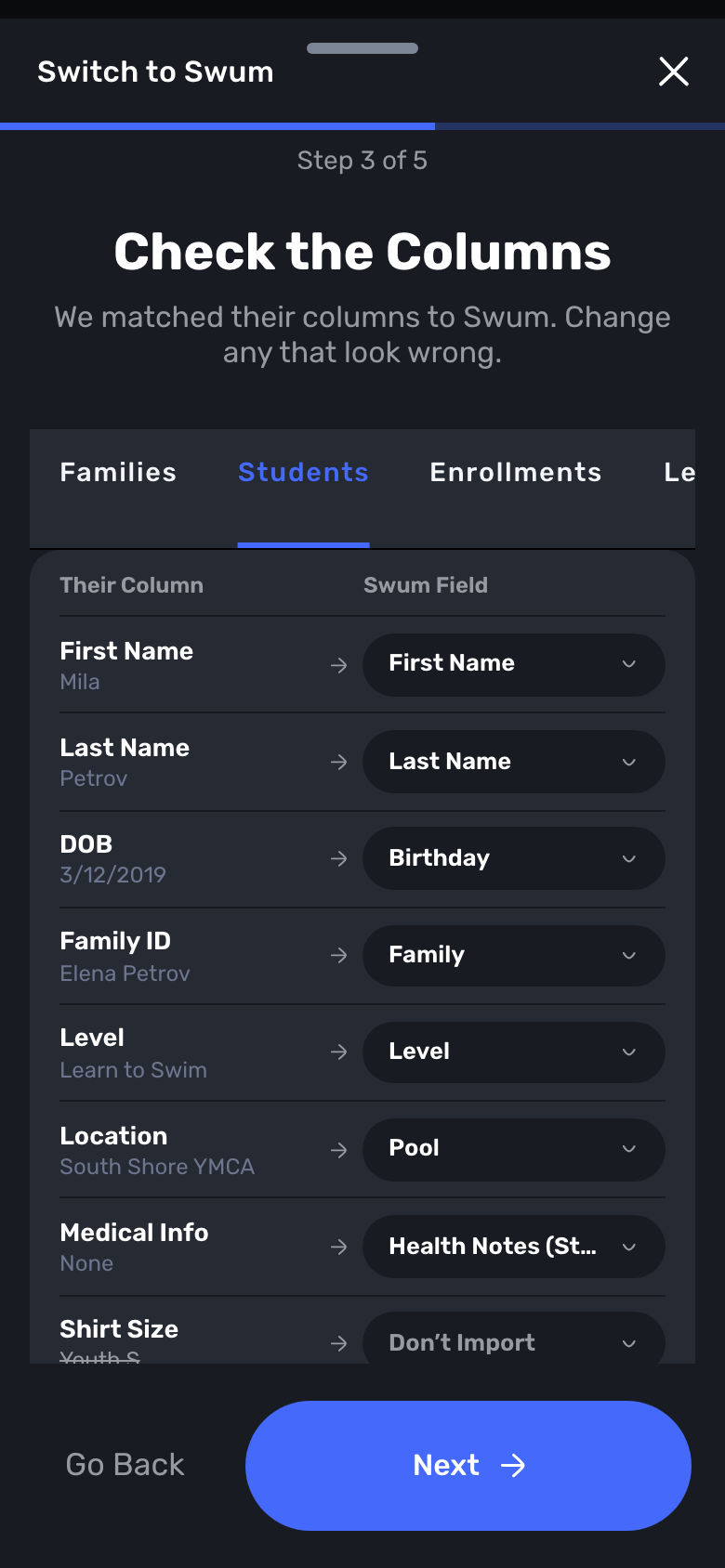
Access: Clients -> Add Client -> Switch to Swum
Moving from Jackrabbit, Acuity or a spreadsheet? Upload your export, check the columns, preview, and import it yourself. Coming from iClassPro or SportsEngine? Send us your files and we run the import for you. Imports are quiet: no family gets an email until you turn emails back on.
4. Export Everything
Access: Clients -> Export Data -> Export All
One switch turns the export into Export Everything: one workbook with your families, swimmers, levels, skills, notes, waivers, balances, credits and activity. Swum can email you a link when it's ready. The link works for 7 days.
5. A Security Page With an Activity Log
Access: School Settings -> Team -> Security
One page for roles and permissions, your data export, and an Activity Log that shows who viewed or changed a child's info, exported data, gave a refund or changed someone's role.
6. Swum API, Webhooks and AI Agents
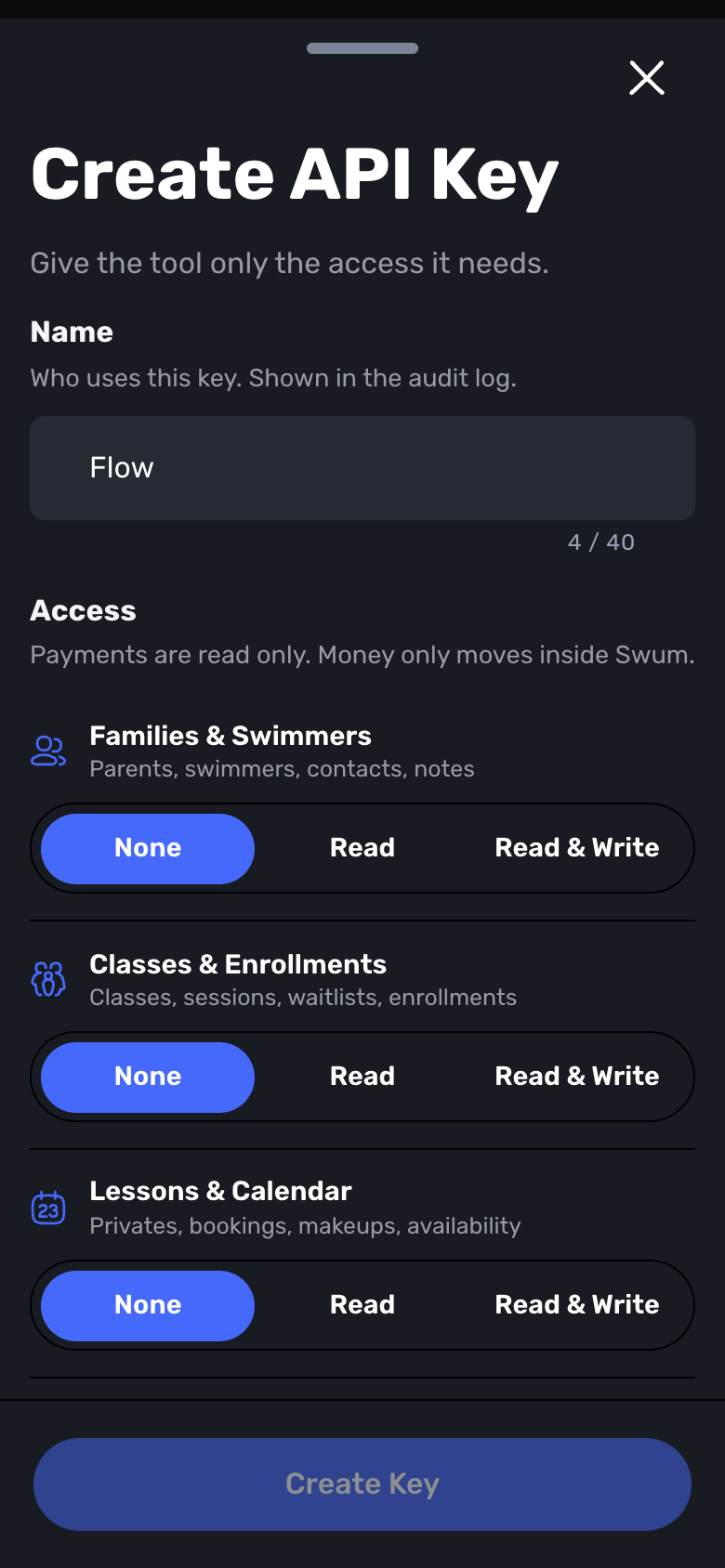
Access: Settings -> Developers & Integrations (Beta)
Enterprise schools can create API keys with exactly the access a tool needs (none, read, or read and write, area by area), and limit a key to certain pools. Webhooks send your systems a signed message when something happens. AI agents can connect after you approve them. Payments are read only.
7. Zapier, Make and n8n
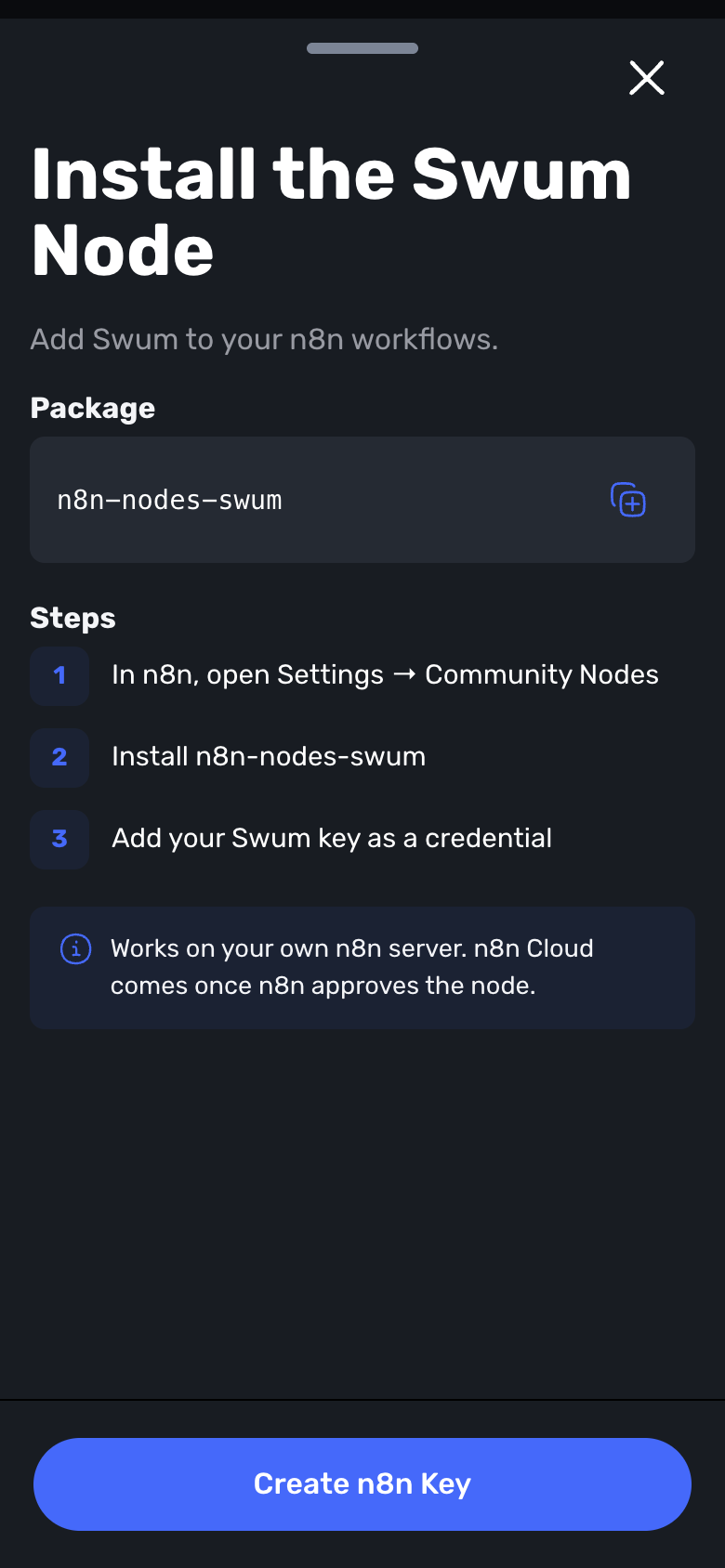
Access: Settings -> Developers & Integrations -> Apps
Connect Swum to Zapier or Make with one tap, or install the Swum node in your own n8n server. QuickBooks moved here too, as a tile in the same Apps tab.
8. Owner Reports in Analytics
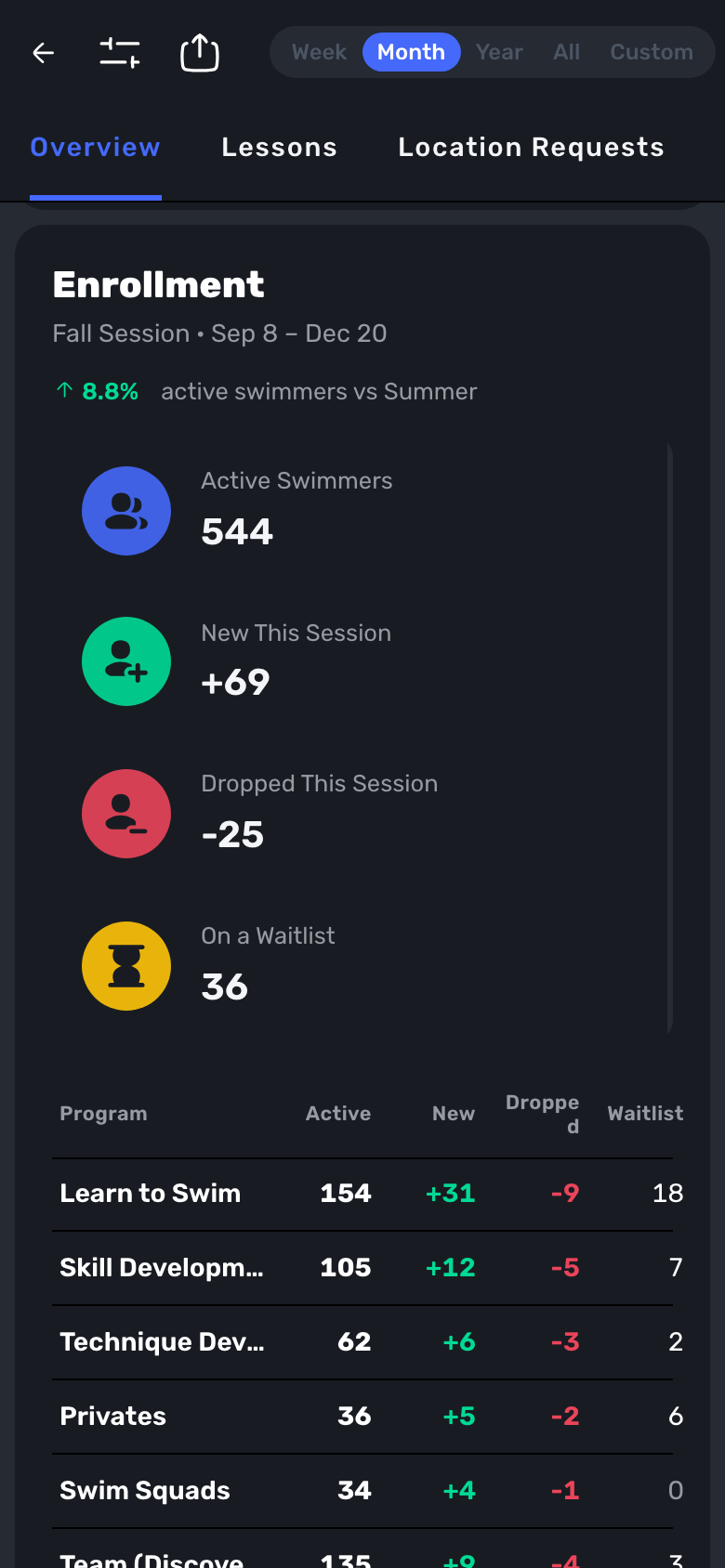
Access: View Analytics -> Overview and Booking
New cards for enrollment, new and dropped swimmers, waitlists, customer growth, who stays, staff productivity, pool use and marketing. Filter by pool or session, export them to a spreadsheet, or get them by email every week.
9. Payroll
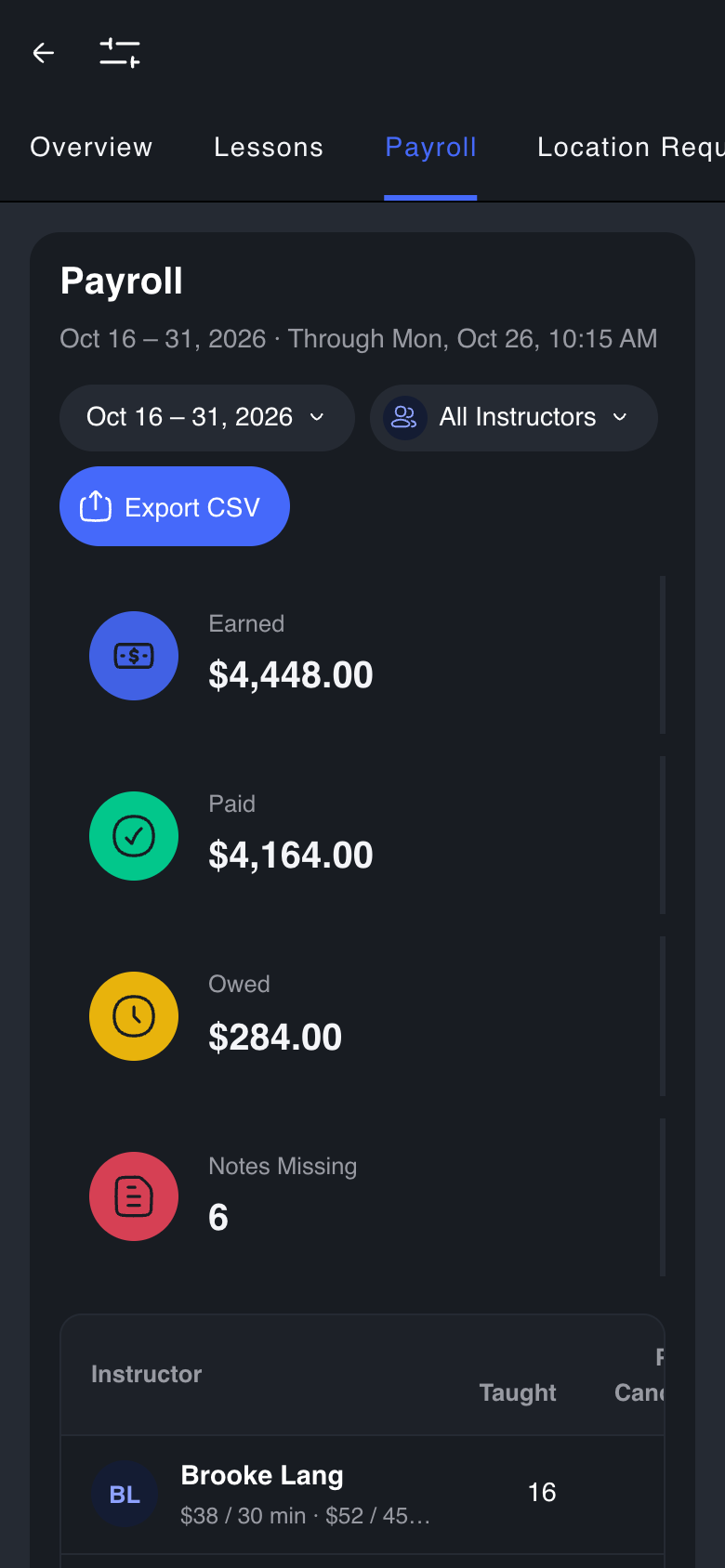
Access: Analytics -> Payroll
See what each staff instructor earned, was paid and is owed for a pay period, and how many lesson notes are missing. Export it as a CSV. If you run payroll outside Swum, Mark Period Paid records it so those lessons are never paid twice. Pay periods can be weekly, every 2 weeks, twice a month or monthly.
Waivers and Forms
10. Waivers Families Fill In and Sign
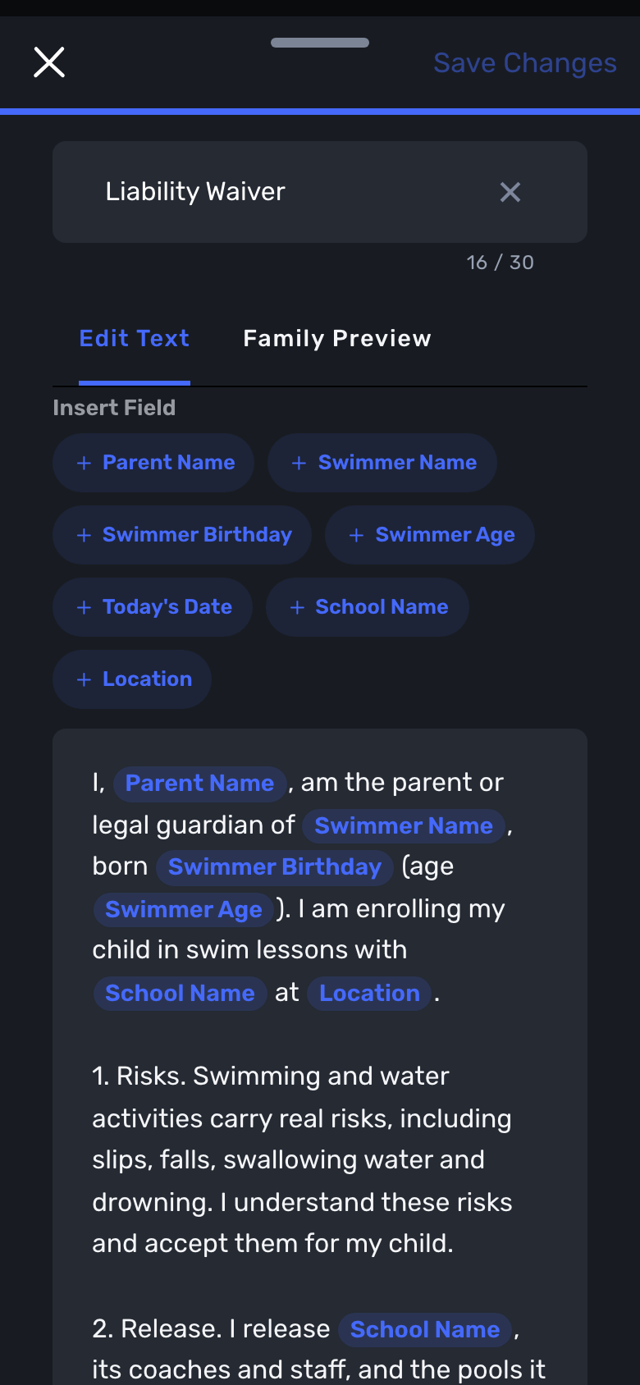
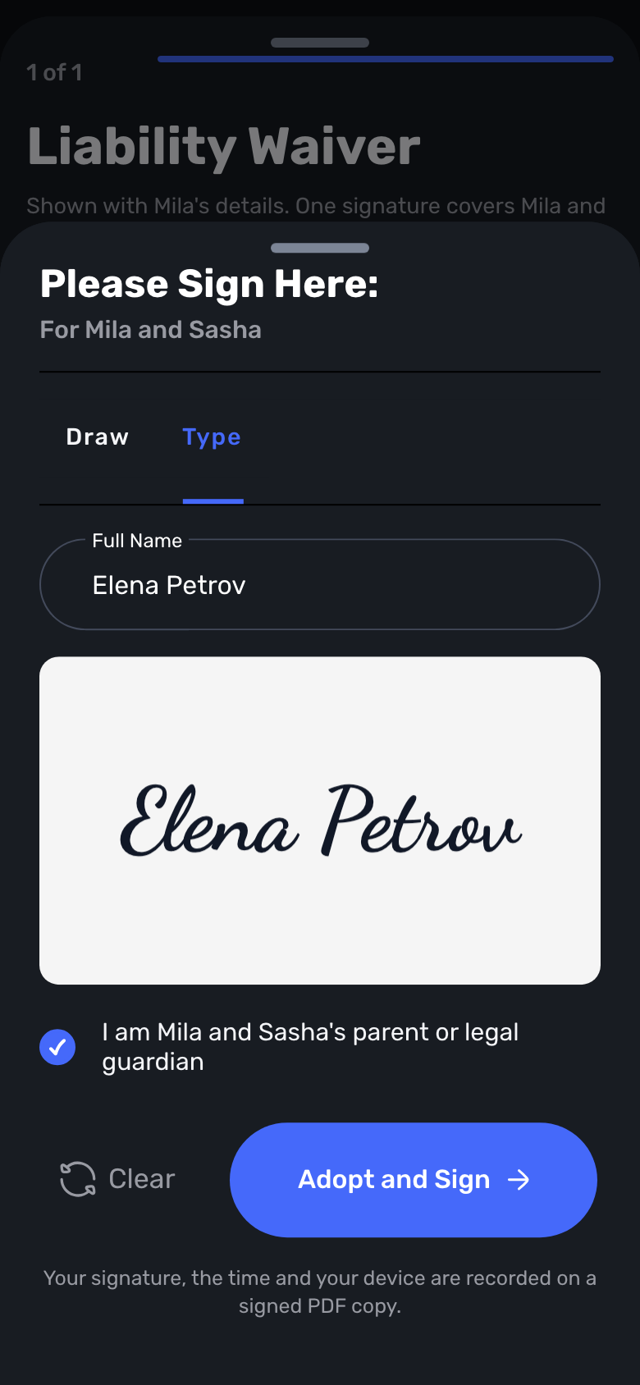
Access: Settings -> Waivers & Contracts
Drop fields like the parent's name, the swimmer's name and age, and your school name right into your waiver text, then check it with Family Preview. Parents sign by drawing or typing their name. You choose one signature for all swimmers or one per swimmer. Every signature becomes a signed PDF on the family's Waivers tab.
11. Questions Inside a Waiver
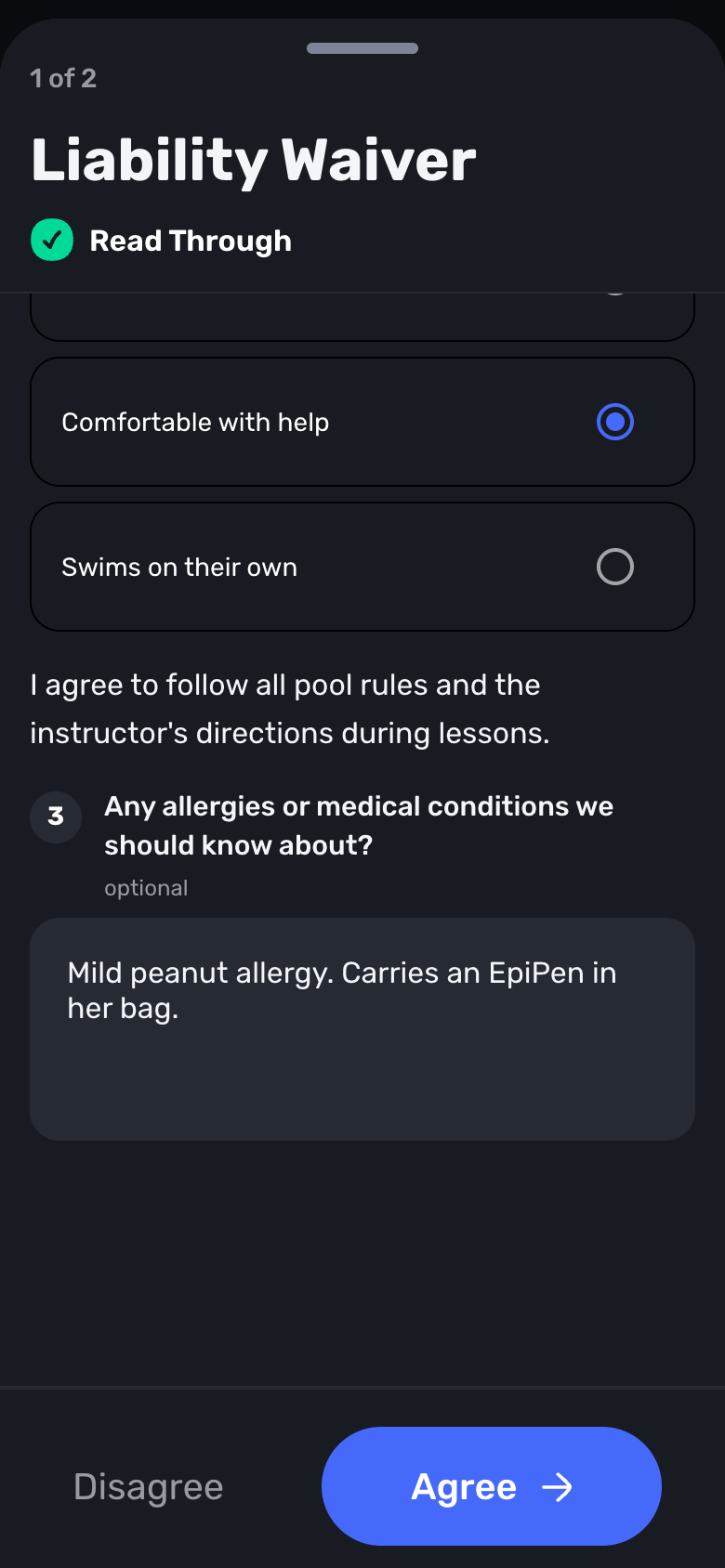
Access: Settings -> Waivers & Contracts -> a waiver -> Edit Text -> Add Question
Add check boxes, multiple choice or short answers anywhere in a waiver, and mark any of them required. Agree stays locked until the required ones are answered. Answers show on the family's Waivers card and in the signed PDF.
12. Upload Your Own PDF Form
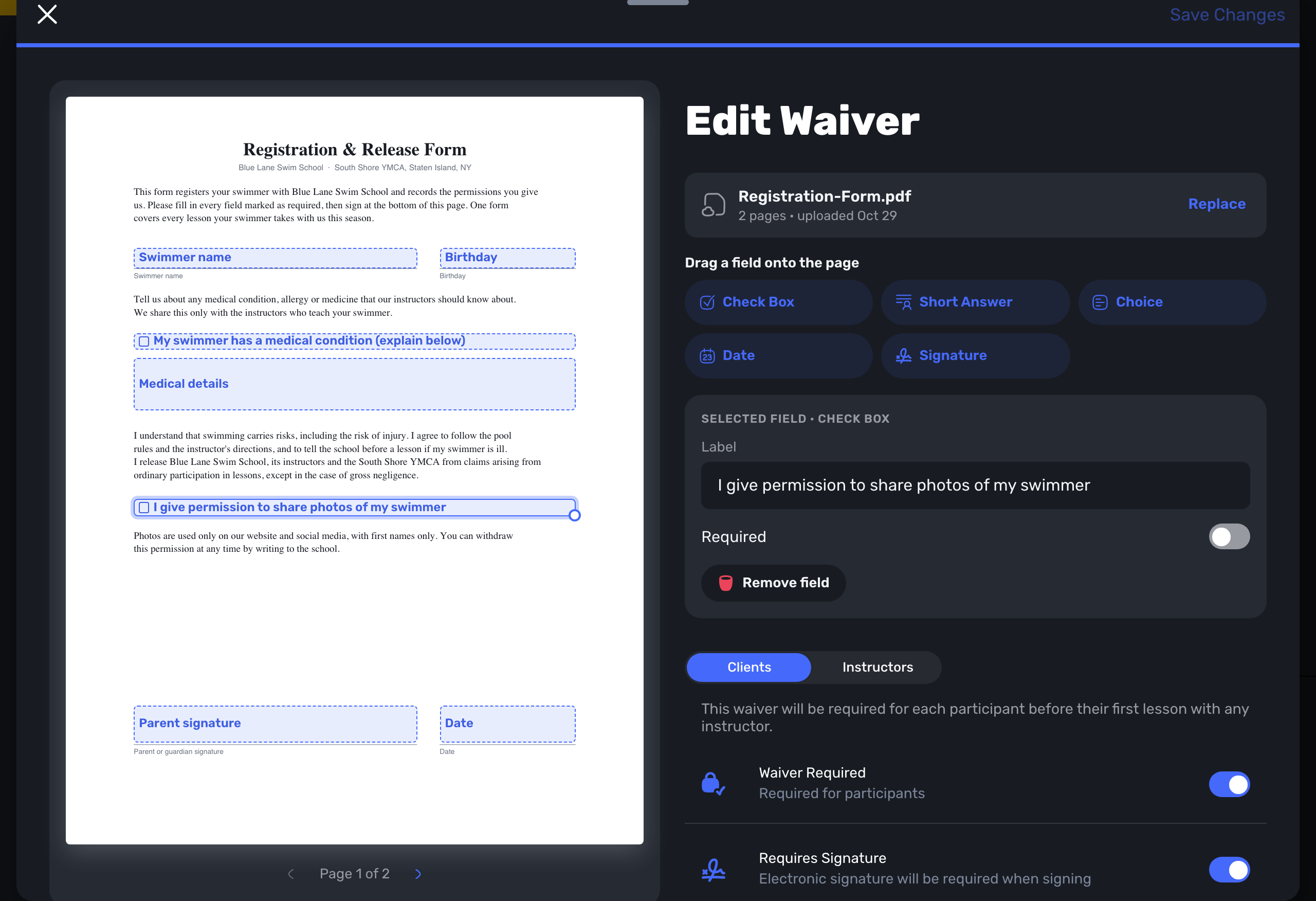
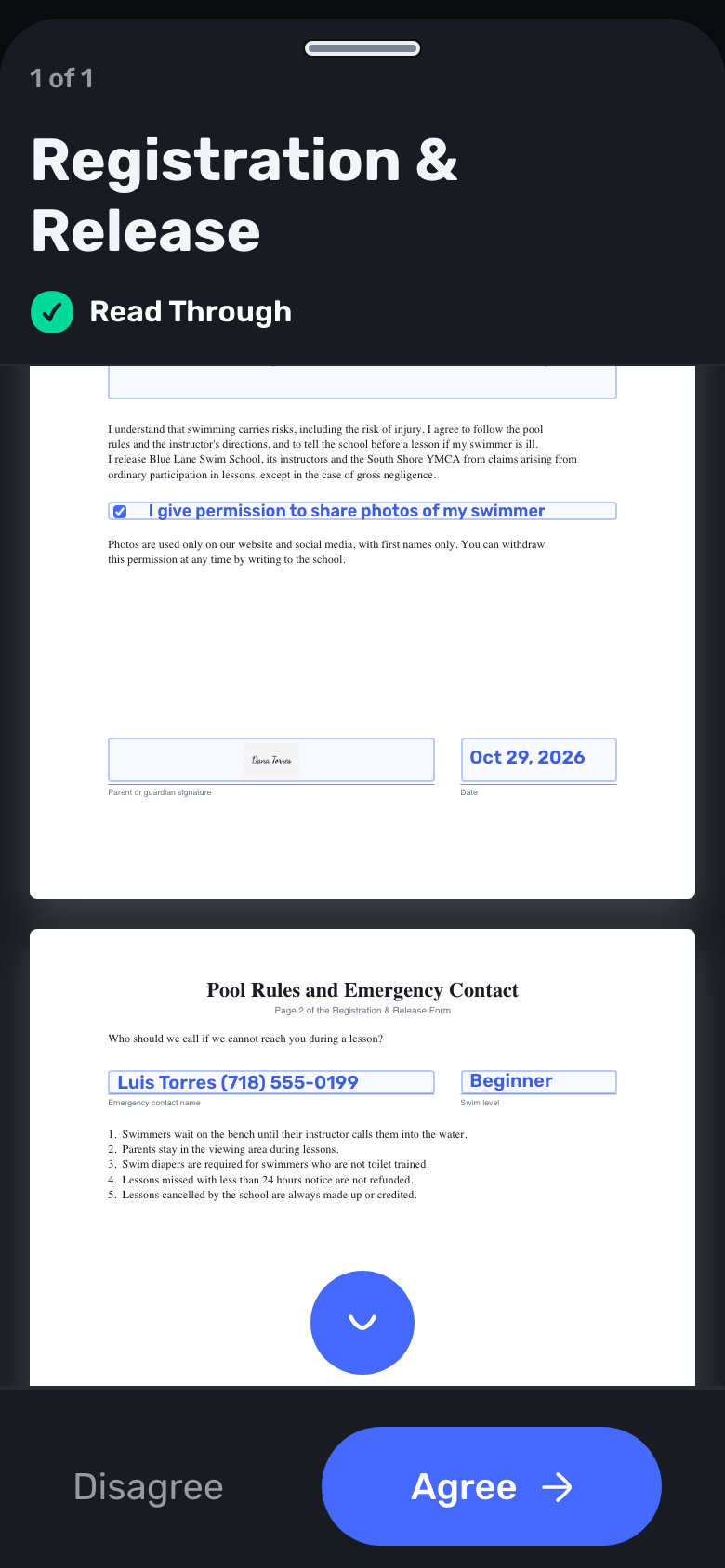
Access: Settings -> Waivers & Contracts -> New Waiver -> Upload Document
Already have a PDF? Upload it and drag fields onto its pages: check boxes, short answers, choices, dates and signatures. Families fill and sign right on your PDF, and Swum stamps their answers onto the signed copy.
13. Waivers Only for the Programs That Need Them
Access: Settings -> Waivers & Contracts -> a waiver -> Plans and Classes
Pick which plans and classes need a waiver. Families sign it only when they book one of those. Leave both open for a waiver everyone signs.
14. Media Release Tracking
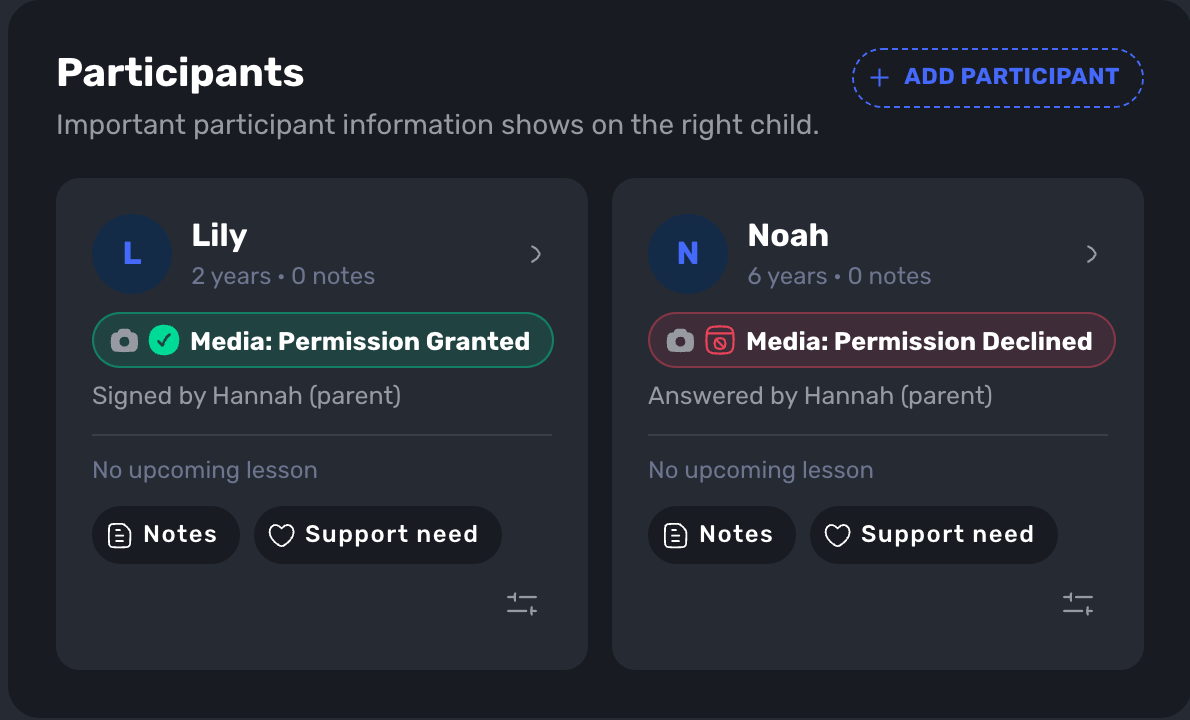
Access: Settings -> Waivers & Contracts -> a waiver -> This Is the Media Release
Mark one waiver as your media release and families answer yes or no for each child. Staff see a Media pill on every swimmer, with who answered and when. Families never see the pill.
Plans, Billing and Payments
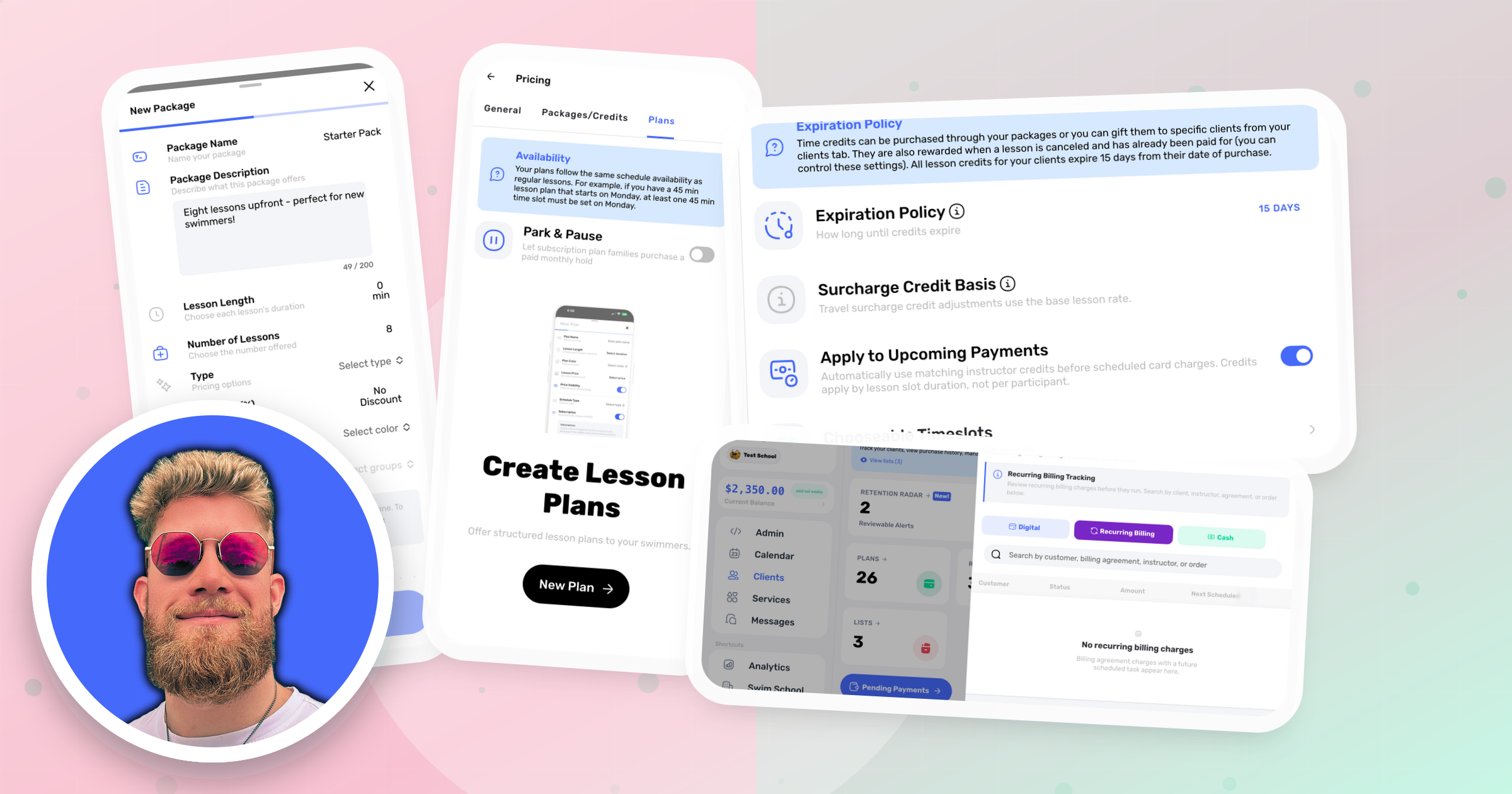
Lesson Plans and packages are part of Swum Pro.
15. Plan Payment Schedules
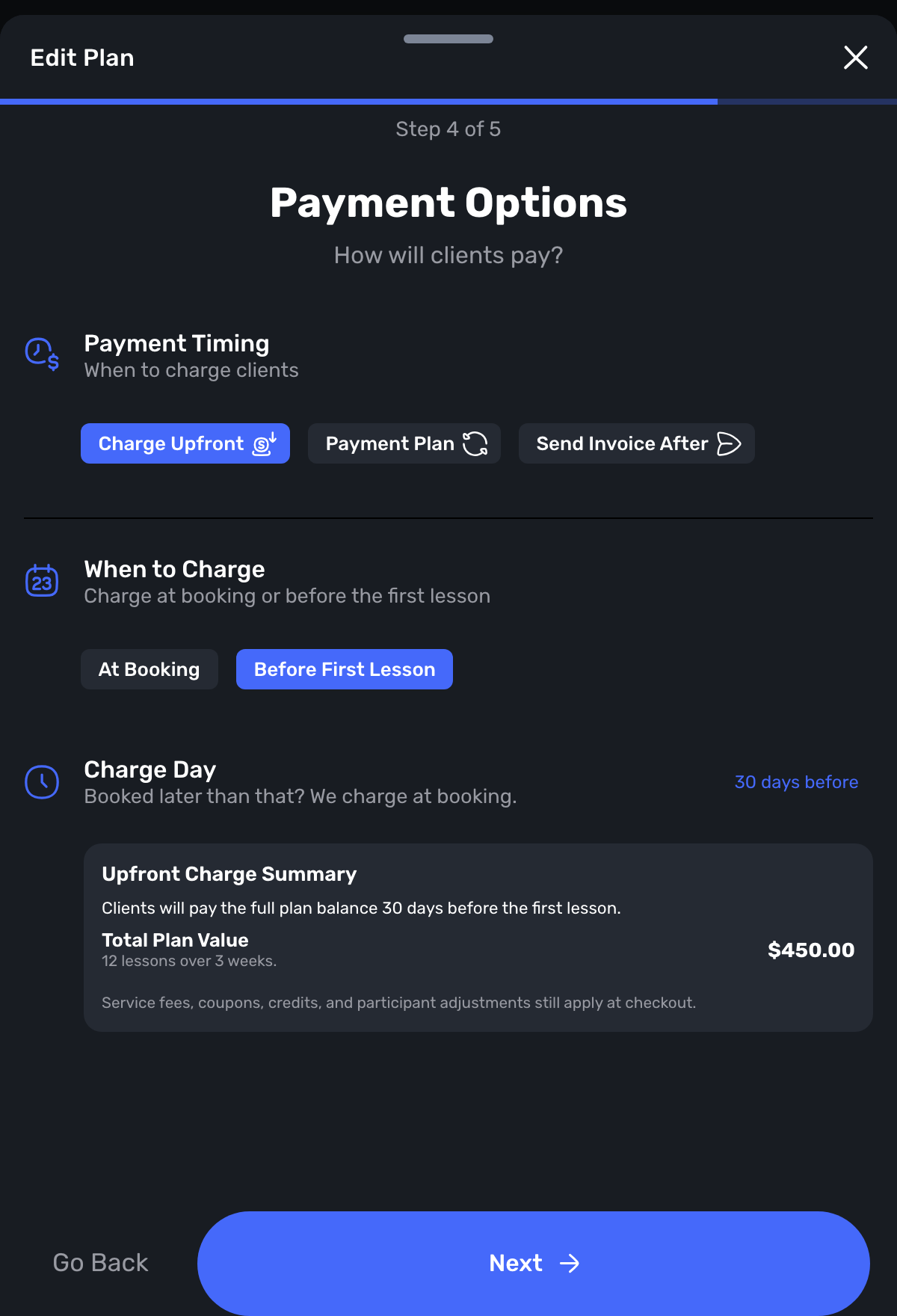
Access: Settings -> Pricing -> Plans -> a plan -> Payment Options
Take a deposit, refundable or not, and let families pay the rest weekly or all at once. Charge upfront plans a set number of days before the first lesson instead of at booking. Or charge on dates you choose. Families see exactly what's due today and what's scheduled before they pay.
16. Monthly Payment Plans for Classes
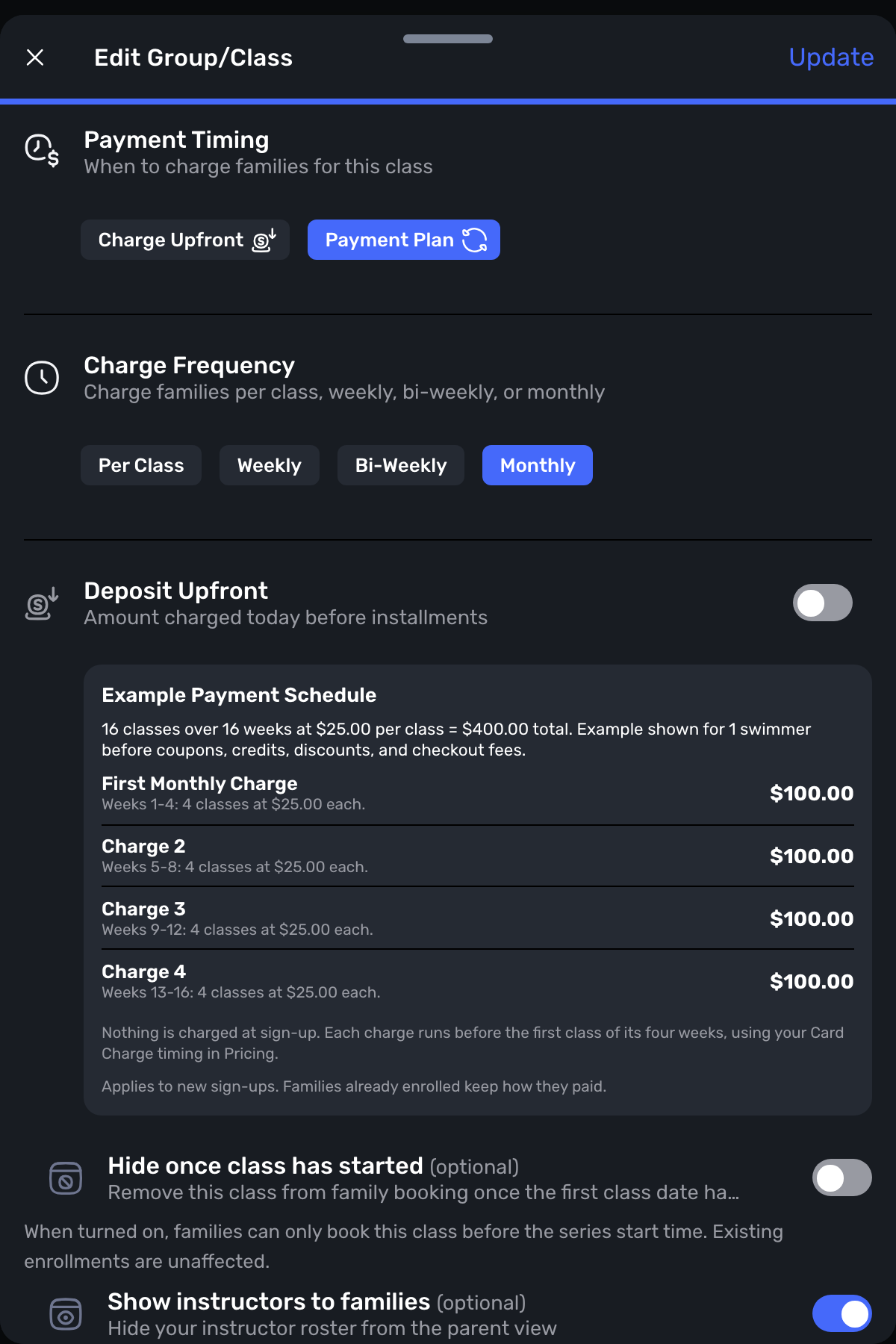
Access: Edit Group/Class -> Payment Timing -> Payment Plan
Split a class series into payments per class, weekly, every two weeks or monthly. Nothing is charged at sign-up unless you add a deposit.
17. Sessions
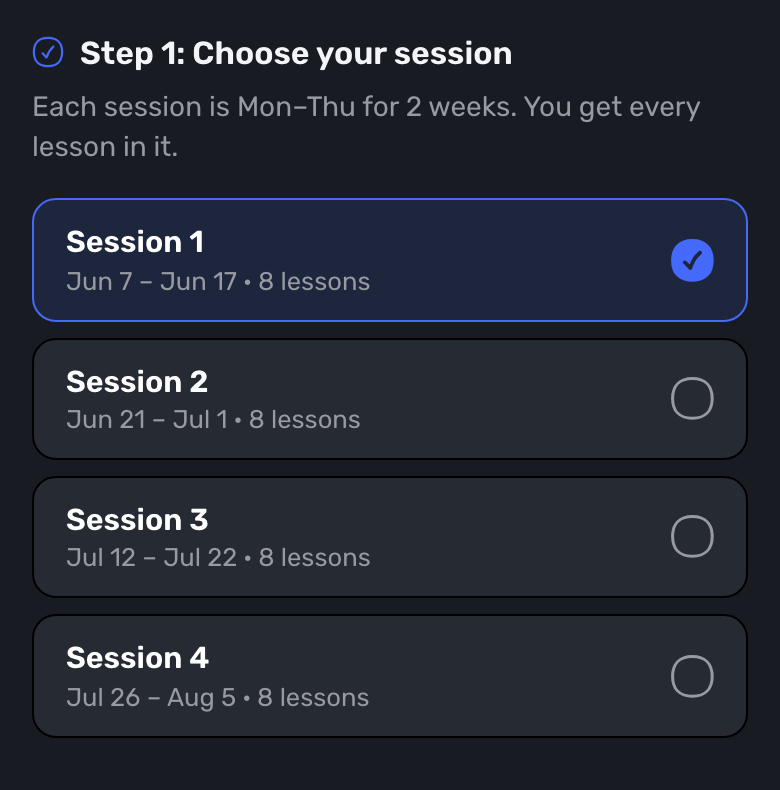
Access: Settings -> Booking Controls -> General -> Semesters
Families book one whole session, like "Session 1, Jun 7 to Jun 17, 8 lessons", instead of picking dates one by one. You can still allow single lessons or time credits on session dates if you want.
18. Choose Where and When a Plan Can Be Booked
Access: Settings -> Pricing -> Plans -> a plan
Limit a plan to certain pools and a set list of start times. Run it on set weeks instead of weeks in a row. Let families choose how many weeks they buy. Or make it Current Students Only, so new families don't see it.
19. Makeups Included in Plans
Access: Settings -> Pricing -> Plans -> a plan -> Makeups
A missed plan lesson can earn a makeup instead of a refund, up to the number you choose, to be used by the plan's last week. You book the makeup into an open time for the family.
20. Billing on the 15th
Access: Settings -> Pricing -> Plans -> a plan -> Payment Options -> Subscription Billing -> 15th
Lessons are still made on the 1st, but the whole month is charged on the 15th.
21. Sibling Discounts and Smarter Codes
Access: Settings -> Pricing -> General -> Discounts & Gifts
A sibling discount now applies to the second and third child in the same plan session, even when they're booked separately. Codes can come off the deposit, each payment, or the whole price, and automatic discounts can be limited to certain plans. You can also save a family's own price for a plan on their Billing tab.
22. More Control Over Registration Fees
Access: Settings -> Pricing -> General -> Registration Fee
Charge the fee once instead of every year. Choose which plans and classes charge it, each with its own amount. Make a code that waives the fee without changing lesson prices.
23. Free Plans
Access: Settings -> Pricing -> Plans -> a plan -> Free Plan
For programs someone else pays for, like a funder or a school. Families pick their swimmer and times and book with no card, fee or order.
24. A Fair First Month on Flat Monthly Dues
Access: Settings -> Pricing -> Plans -> a plan -> Flat Monthly Dues -> First Month Per Practice
A family starting mid-month pays only for the practices left that month, and checkout labels it "/first month". After that, they pay the full monthly amount.
25. Tuition Limit
Access: Settings -> Pricing -> Plans -> a plan -> Payment Options -> Payment Plan -> Tuition Limit
Stop charging after a set number of paid lessons in a session. Extra lessons are free, either automatically or after staff approve them.
26. What a Cancel Costs, by Notice
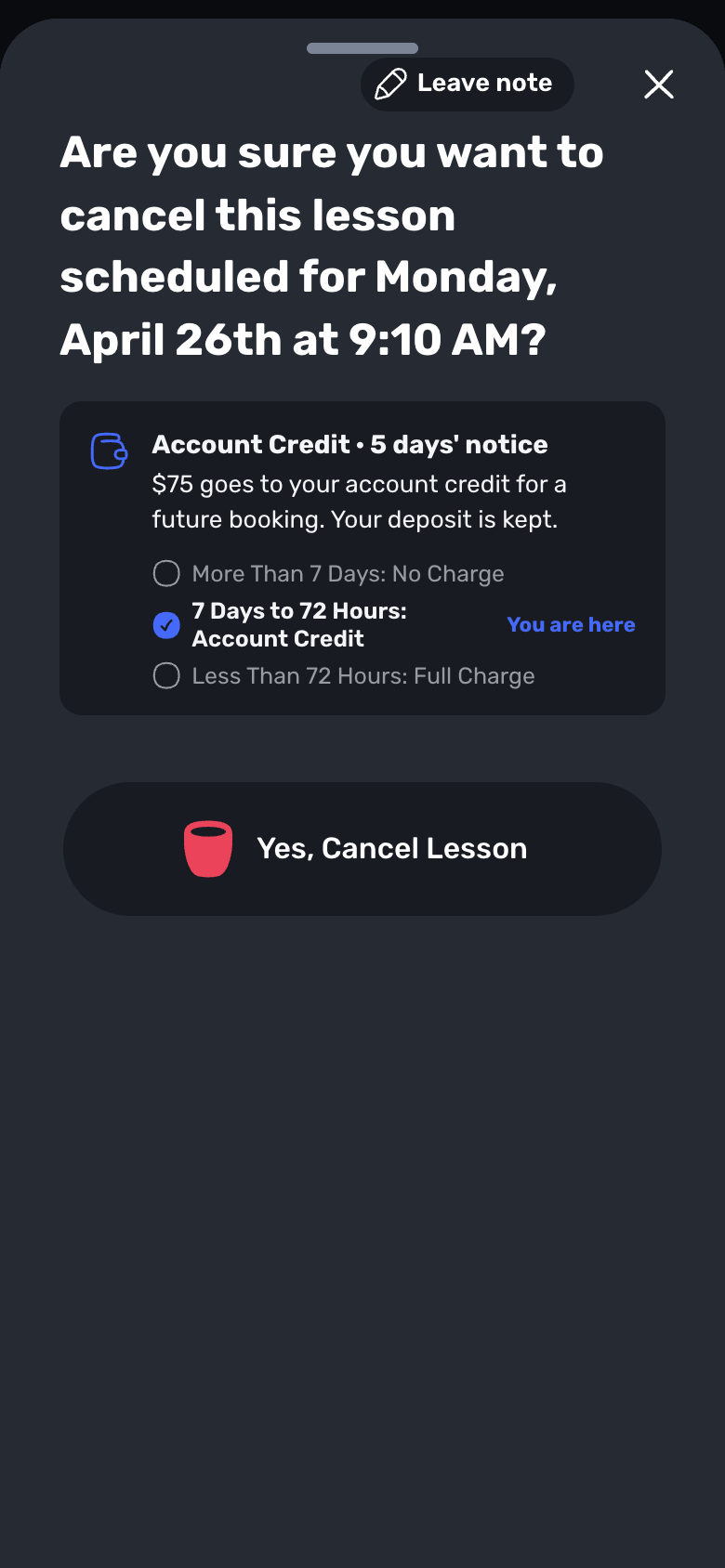
Access: Settings -> Booking Controls -> General -> Cancellation Outcomes
Set what happens when a family cancels with plenty of notice, some notice or little notice: no charge, account credit or the full charge. Families see where they fall before they confirm, and account credit comes off their next checkout.
27. Late Cancels With Paid Makeups
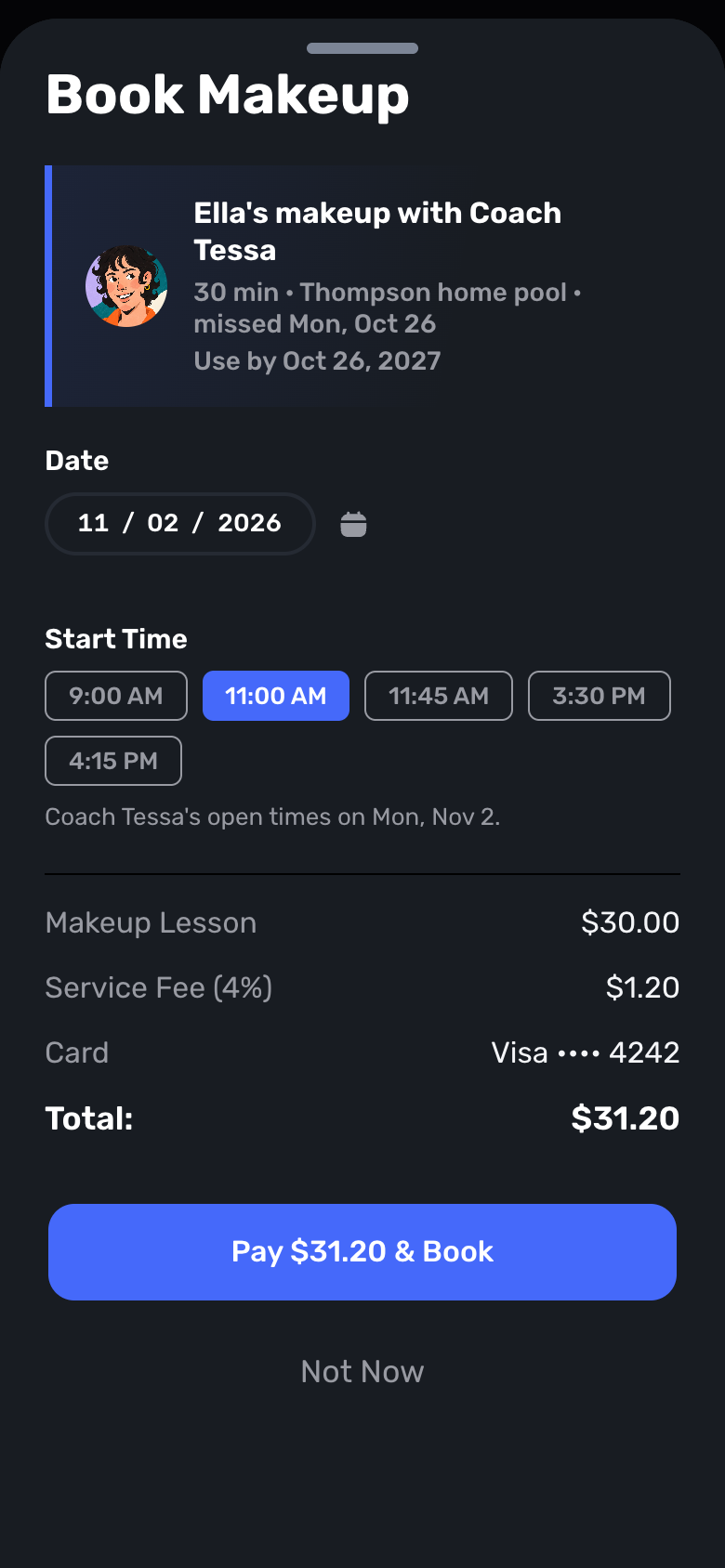
Access: Settings -> Booking Controls -> General -> Late Cancels
Choose what a late cancel means: can't cancel online, cancel with nothing back, or cancel and buy a makeup. You can keep paying the instructor, and offer one paid makeup with the same instructor, length and pool, to be used within the time you set.
28. Your Own Card Fee Percentage
Access: Settings -> Pricing -> General -> Advanced Options -> Pass Fees -> Credit Card -> Custom %
On Pro Max and Enterprise, add a set service fee of up to 10% to each card payment.
29. Family Statements and Future Invoices
Access: Clients -> a family -> Billing -> Family statement
See every card, cash and invoice payment for a family in one list, with separate totals for the family and for any organization that pays part of the bill. Record logs a payment, credit or amount owed without charging anyone. You can also schedule an invoice to send on a future date. It never charges the card by itself.
30. Packages Paid Outside Swum
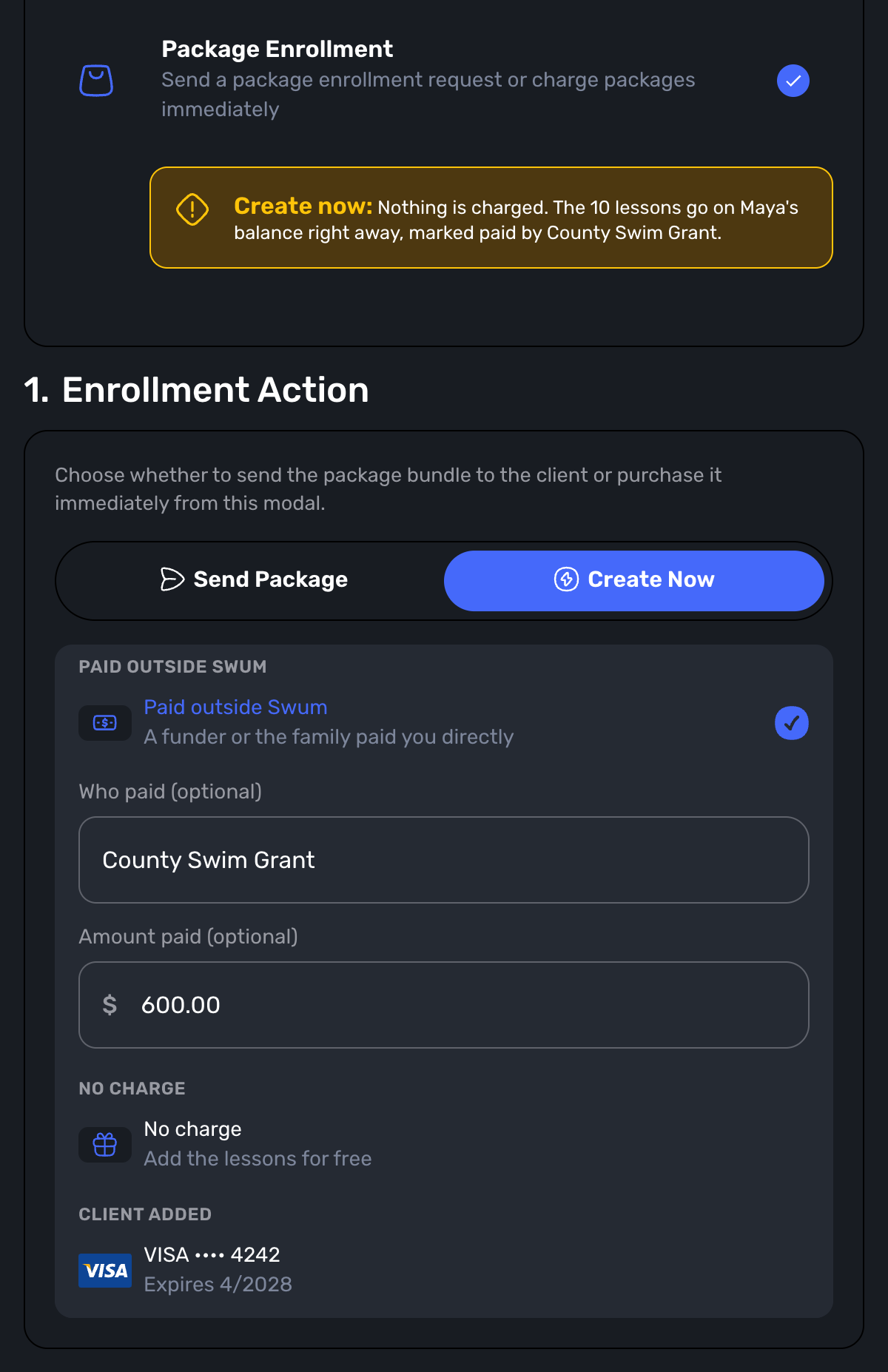
Access: Create Booking -> Package Enrollment -> Create Now
Add a package's lessons without charging a card. Choose Paid outside Swum to record who paid and how much, or No charge.
31. Lessons Left on Every Package
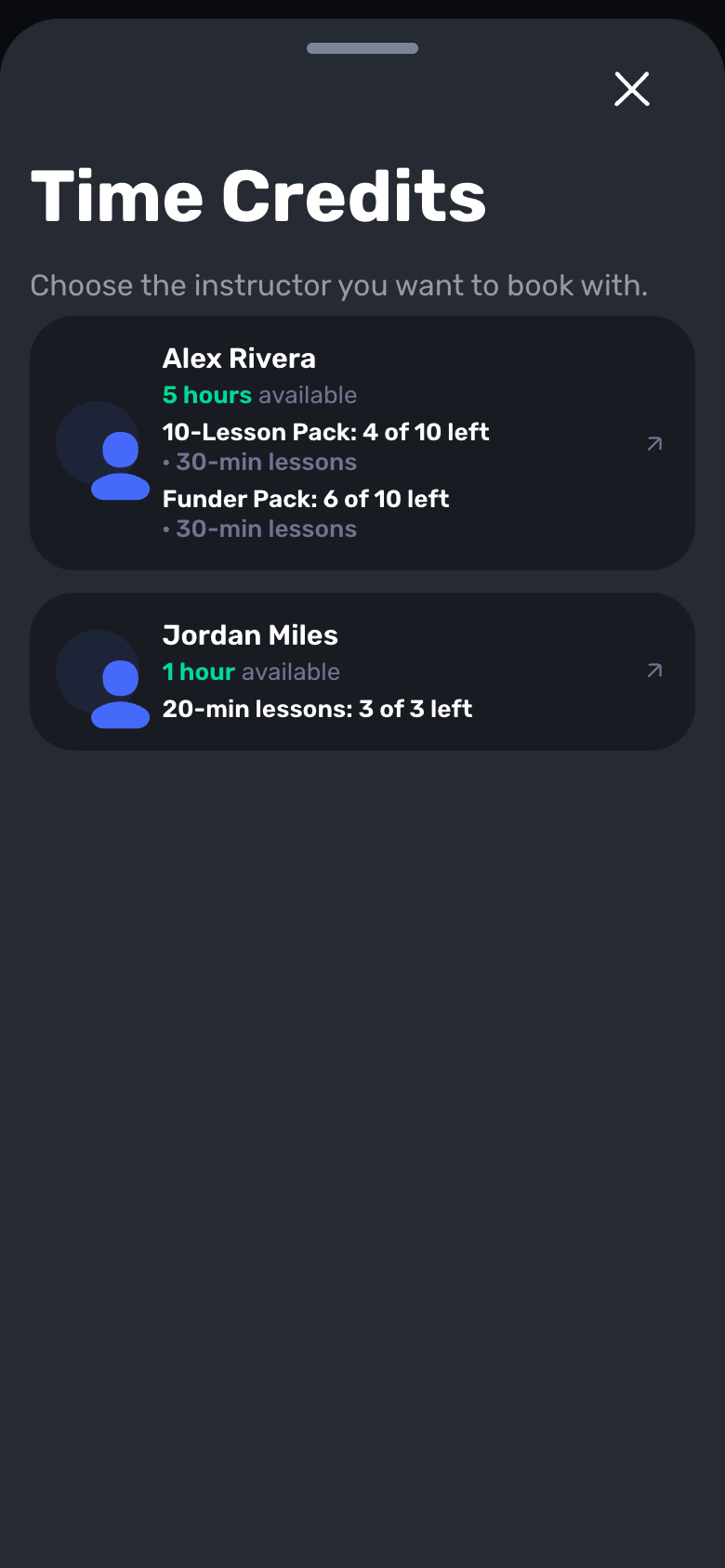
Access: Clients -> a family -> Billing -> Credits, and My Stuff for families
Coaches and families now see "6 of 10 left" on each package, and credits count lessons instead of minutes. When you add a package for a family, the picker shows only the packages that fit them, with private ones marked.
Booking
32. Ask "New or Returning?" First
Access: Settings -> Booking Controls -> Requirements -> Booking gates -> Ask New or Returning
The first booking screen asks if the family is new. Each answer shows only its own groups. Your booking password can now lock everything, only the returning path, or just the groups you choose.
33. Families Book Only the Group You Placed Them In
Access: Settings -> Booking Controls -> General -> Participant Groups -> Only Their Placed Group
Once you place a swimmer in a group, their family only sees that group's classes and plans. Swimmers you haven't placed book as before.
34. Groups and Levels Stay in Sync
Access: Settings -> Booking Controls -> General -> Participant Groups -> Match Groups to Progress Levels
Tie each group to a progress level. Move a swimmer up a level and their group moves too, and the other way round. Progress levels are part of Pro Max and Enterprise.
35. Siblings Together or Separate
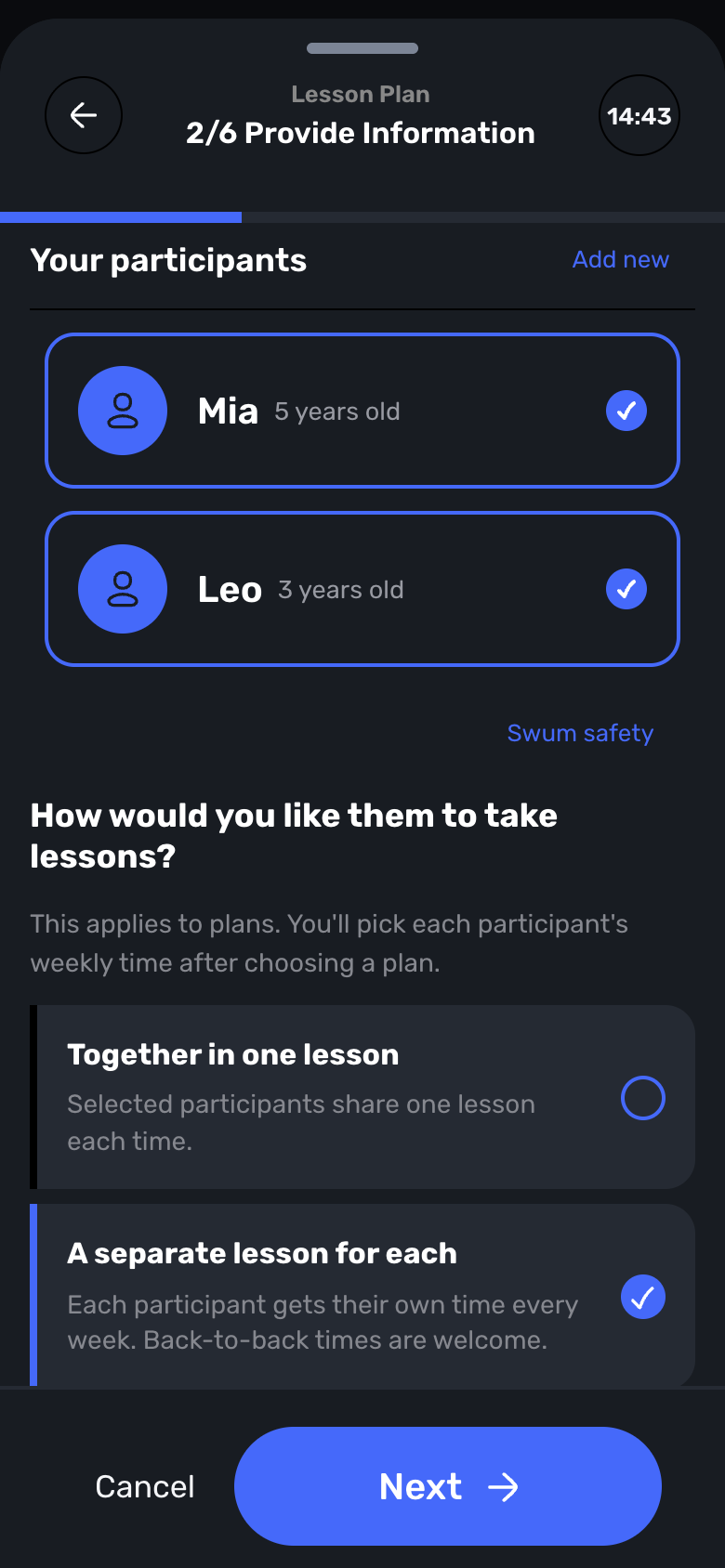
Access: Family booking -> Provide Information
When a family books two or more swimmers, they choose one shared lesson or a separate lesson for each child. Back-to-back times are welcome.
36. A Weekly Plan Time for Each Child, in One Checkout
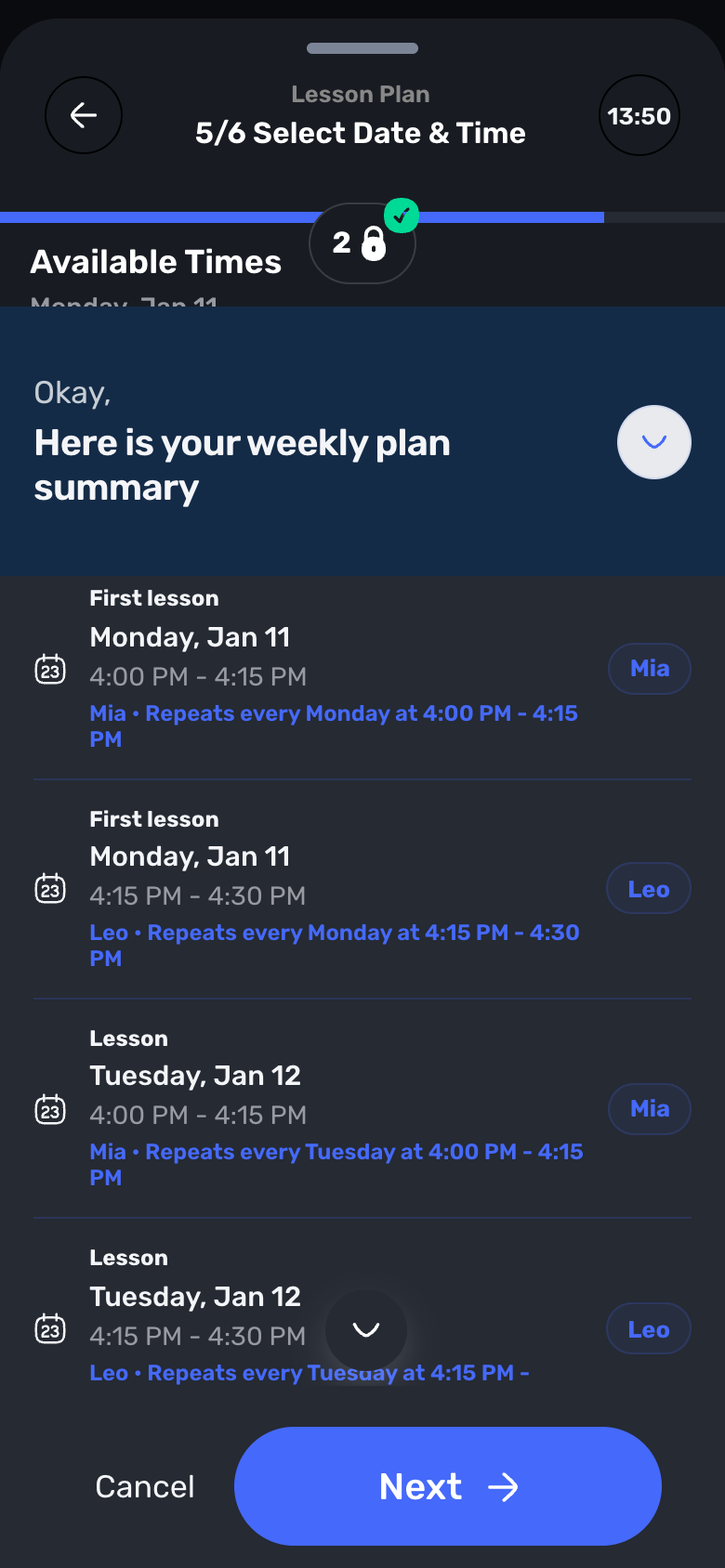
Access: Family booking -> Lesson Plan -> A separate lesson for each
Each child gets their own weekly time, booked and paid together, and the sibling discount still applies.
37. Match Swimmers to the Right Instructor
Access: Settings -> Booking Controls -> General -> Instructor Specialties
Set what each instructor covers, by age or by need. Find a slot and the family booking page then offer only instructors who fit every need of that swimmer. Families never see the needs themselves. Owners and office admins can still book or reschedule with someone else using Book Anyway.
38. Booking Links for Each Program and Each Pool
Access: School Settings -> Page View -> Advanced Controls -> Route Deep Links
Share a link that opens only one program's plans, packages and classes, or one pool. Families can still tap "Browse other lesson options".
39. More Open Times With Organic Time Slots
Access: Availability -> Advanced Options -> Organic Time Slots
A new start time can open right where a booked lesson ends. This now works for weekly bookings, at pools saved without map coordinates, and for one-family bookings in shared time slots.
40. Booking Messages by Program
Access: Settings -> Booking Controls -> Booking Messages
Send a different confirmation message for each program, instructor or location, with files attached. Preview as a Family shows the email before it goes out.
41. Pick Days and Times on the First Screen
Access: Family booking -> Select Option
On Enterprise schools using SwumAI class matching, families tap the days and times that work for them and the class list filters right away.
Calendar
42. See Every Day for Weeks at a Time
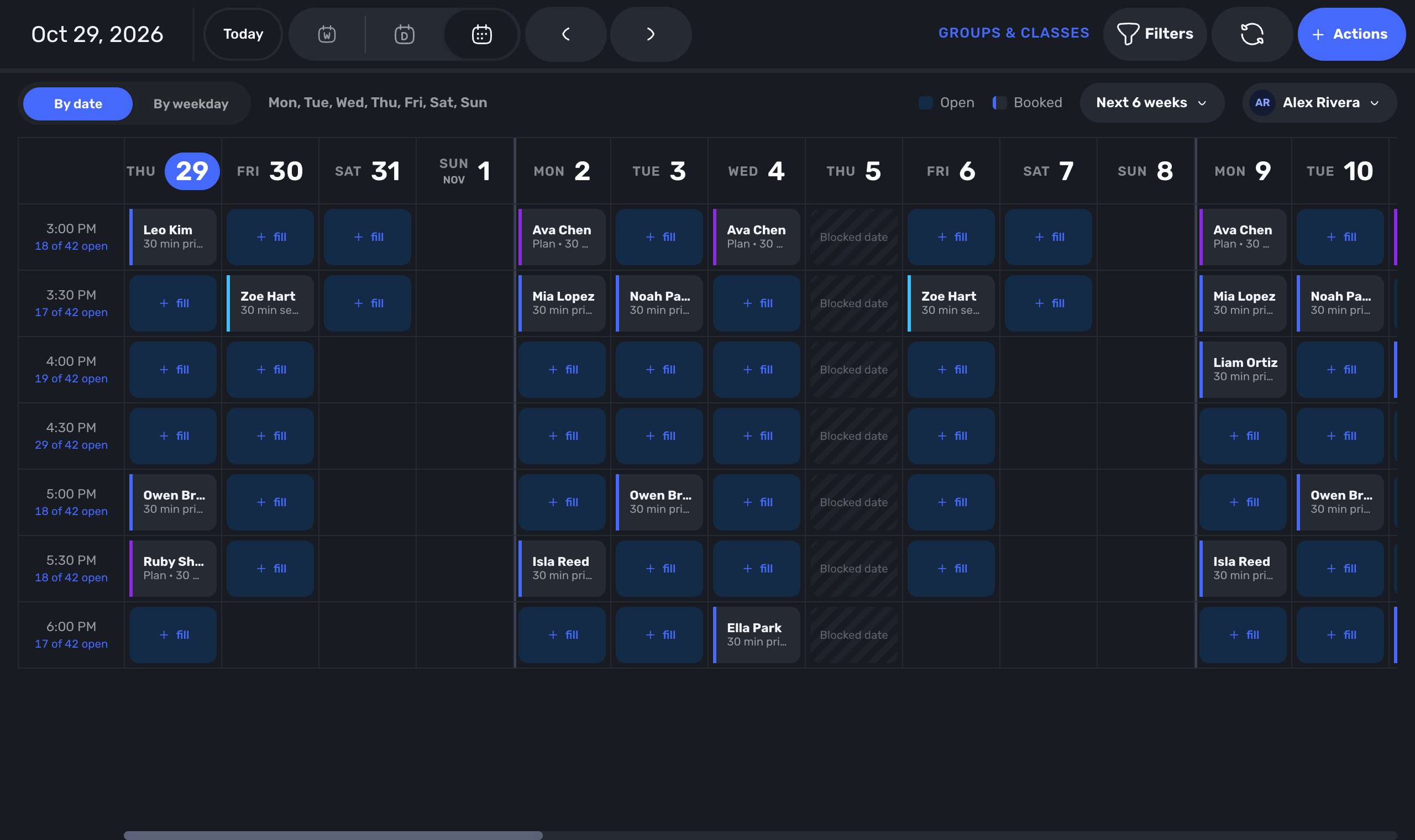
Access: Calendar -> Multi-week view -> By date or By weekday
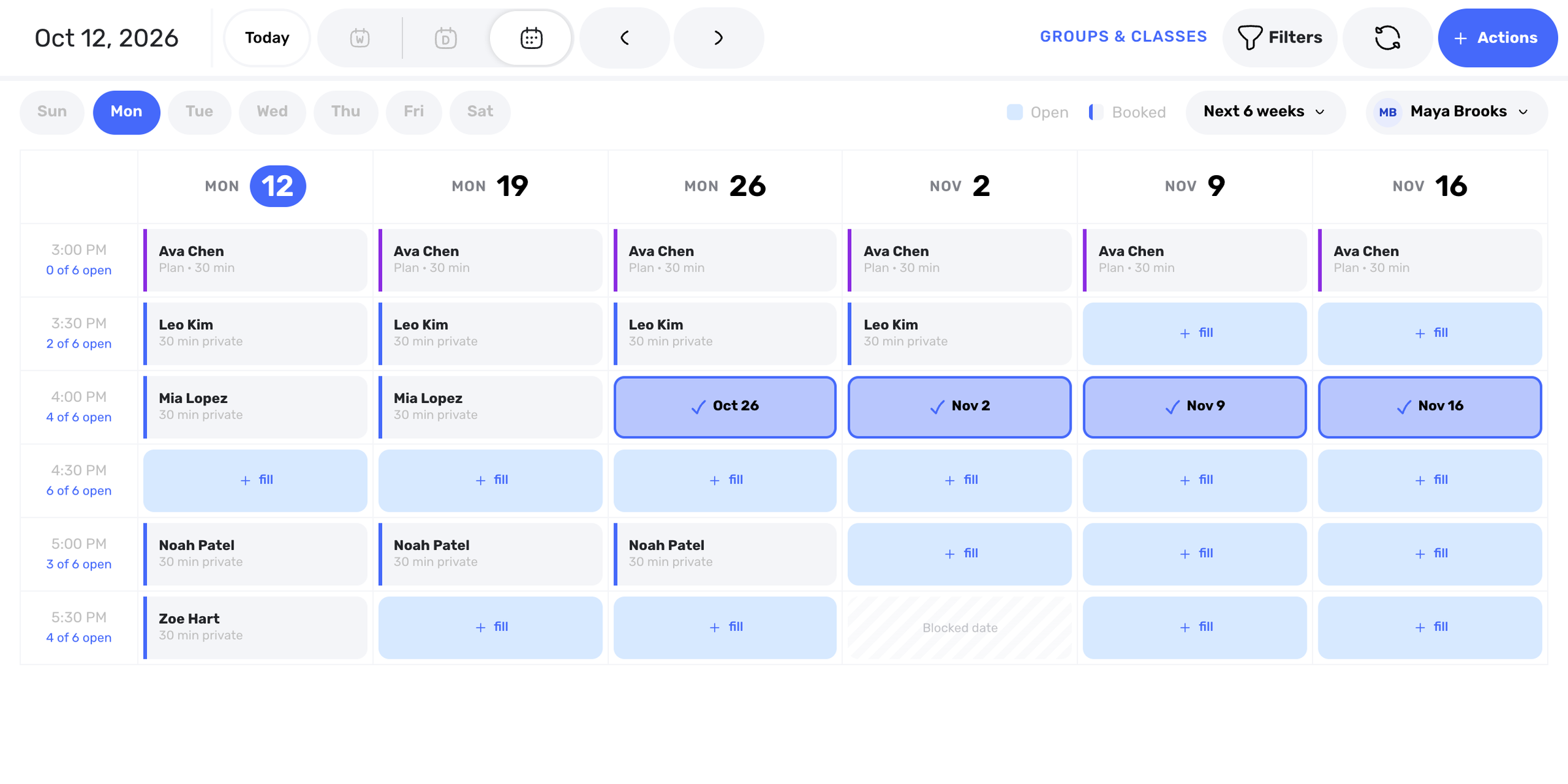
The multi-week calendar now has two views: By date shows every day for the weeks you pick, with a line between weeks, and By weekday shows one weekday across them. You choose which days show.
43. Book, Block and Move From the Multi-Week View
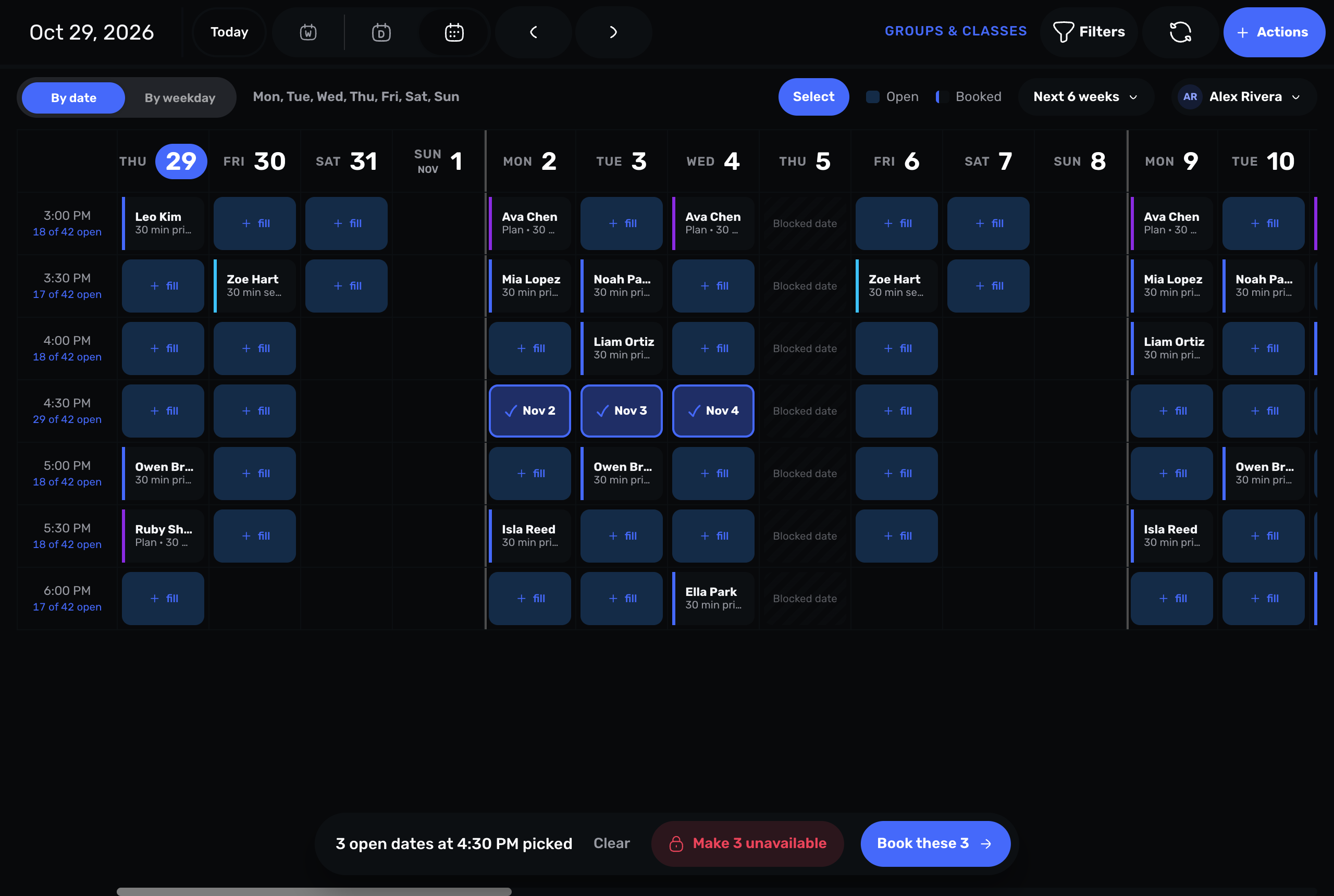
Access: Calendar -> Multi-week view -> Select
Click an open time to book it. Use Select to book or block many open times at once. Move a lesson by picking a new open time, and make blocked times available again.
44. Quarter-Hour Lines
Access: Calendar -> Calendar Options -> Quarter-Hour Lines
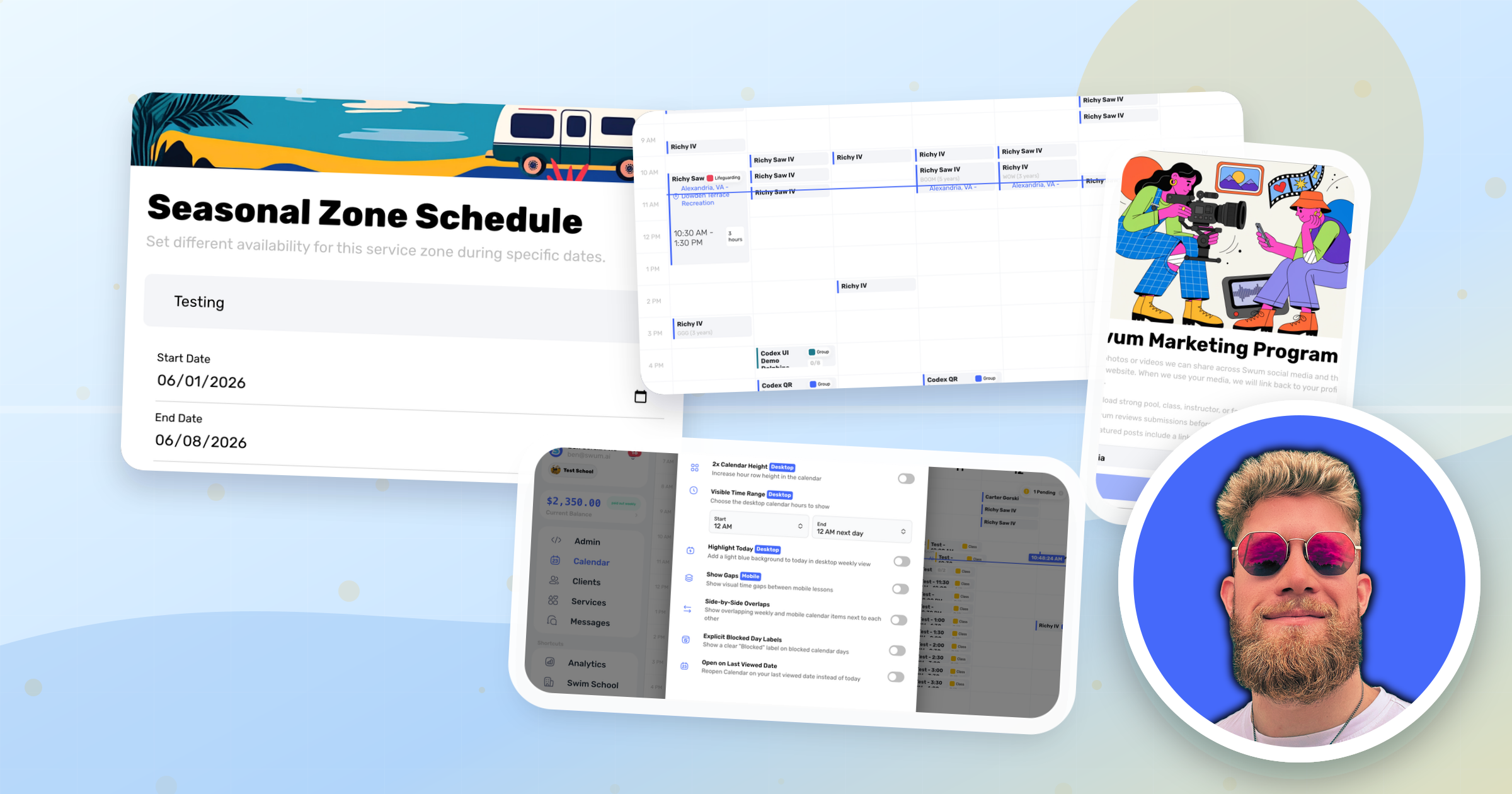
Faint lines at :15, :30 and :45 on desktop, and a click starts your new lesson on the nearest quarter hour. Turn the lines off any time.
Makeups
45. A Makeup Picker That Knows the Pool and the Class
Access: Clients -> a family -> Credits -> Makeup credits -> Use
The makeup picker opens on the pool the missed class was at, and you can switch pools. Before it calls a class a match, it now checks the age and level of the swimmers actually in it that day.
46. Two Makeups Can Share a Private Time
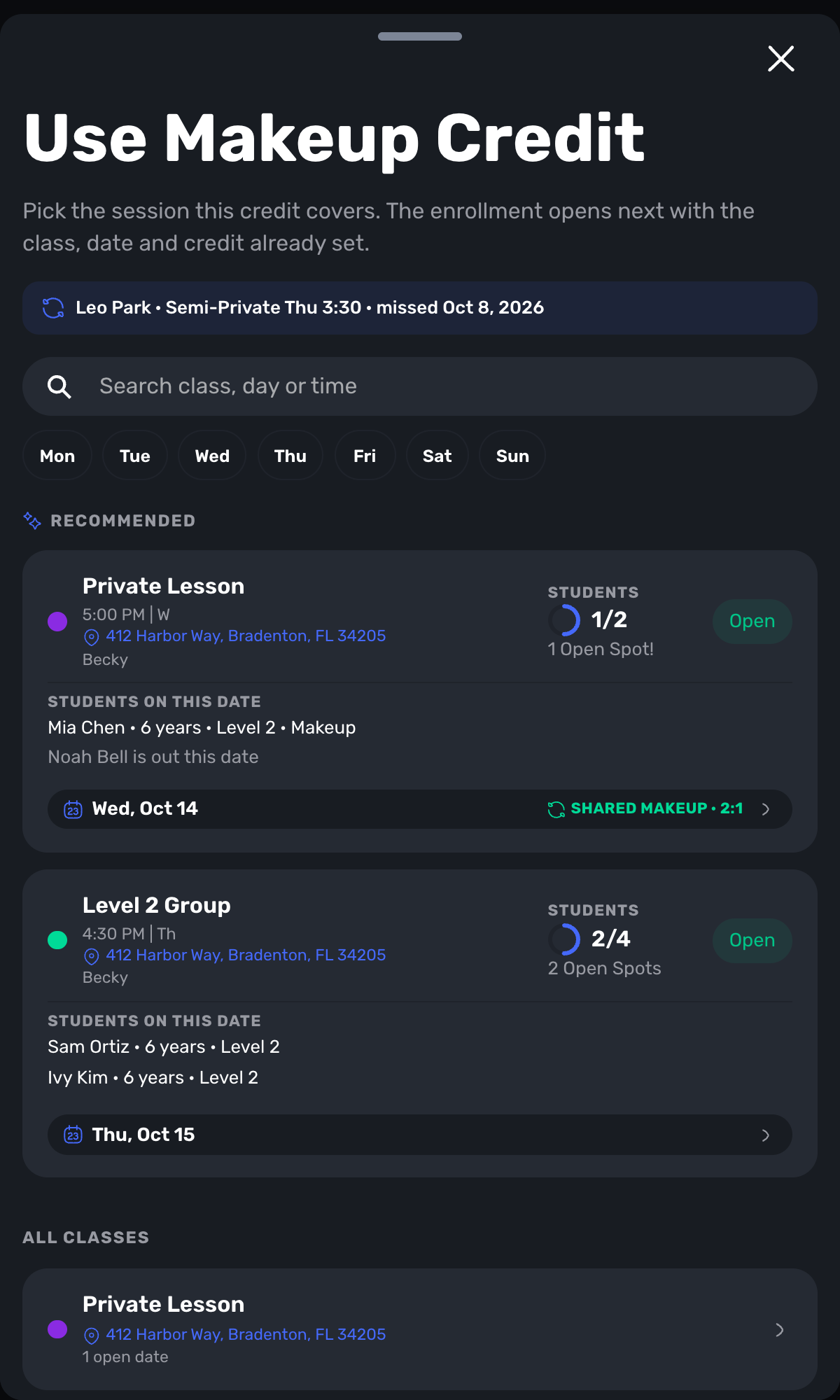
Access: Clients -> a family -> Credits -> Makeup credits -> Use
When a private lesson's own swimmer is out, staff can place a second makeup swimmer in that time. It shows as a shared makeup, 2 to 1.
47. Makeup Credit History, Extensions and Back-Dated Credits
Access: Clients -> a family -> Credits -> Makeup credits
Every credit has a history: missed, issued, extended, used or expired. Extend an expired credit, change when one expires, or issue a credit for a past class. Classes can also set credits to expire at the end of the session.
Clients and Team
48. Rename, Recolor and Delete Client Tags
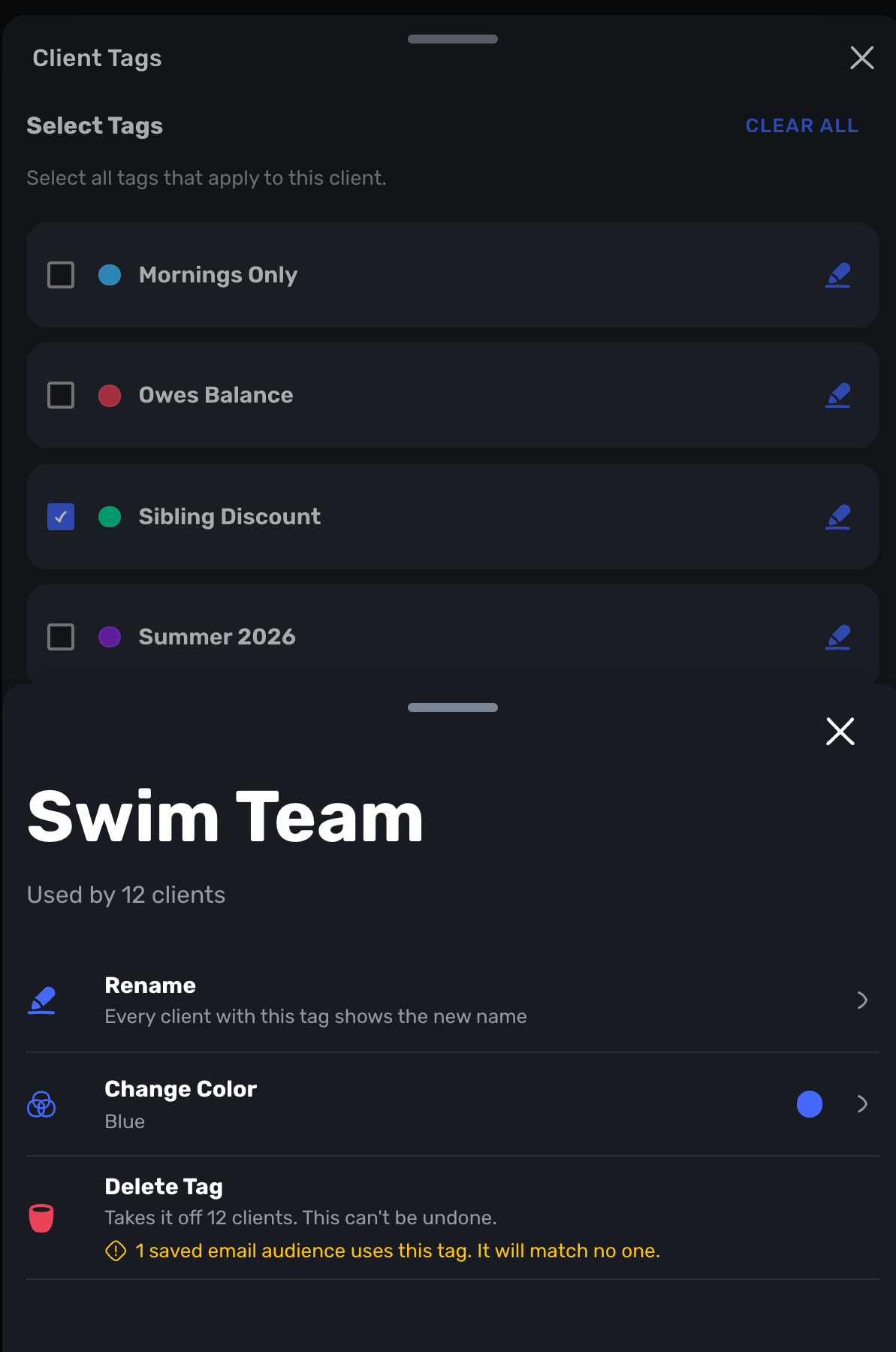
Access: Clients -> a client -> Manage tags -> pencil
Change a tag's name or color for every client at once, or delete it. Swum warns you first if a saved email audience uses that tag.
49. Notes Only Admins See
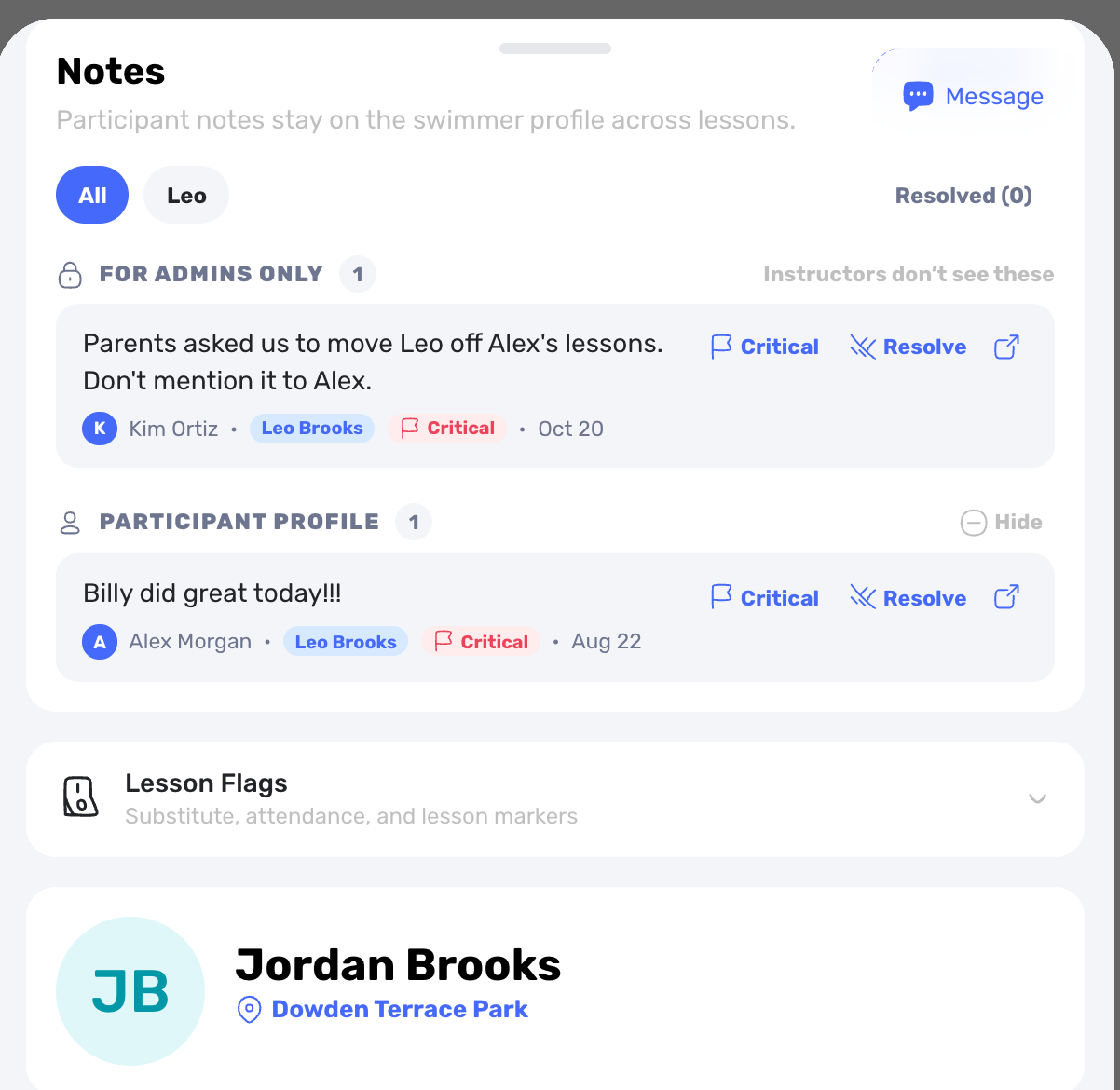
Access: Clients -> a client -> Notes -> Add note -> Admin only
Owners can write a note about a child that instructors never see. It's pinned at the top of the lesson card for owners and admins.
50. Absence Alerts and Undo Absent
Access: Calendar check-in, or a class's Participants tab
When a staff member marks a swimmer absent, the owner and the class's instructors get a notice saying who marked it. Marked absent by mistake? Undo Absent puts the swimmer back and takes back the unused makeup credit.
51. Copy My Settings to Affiliates
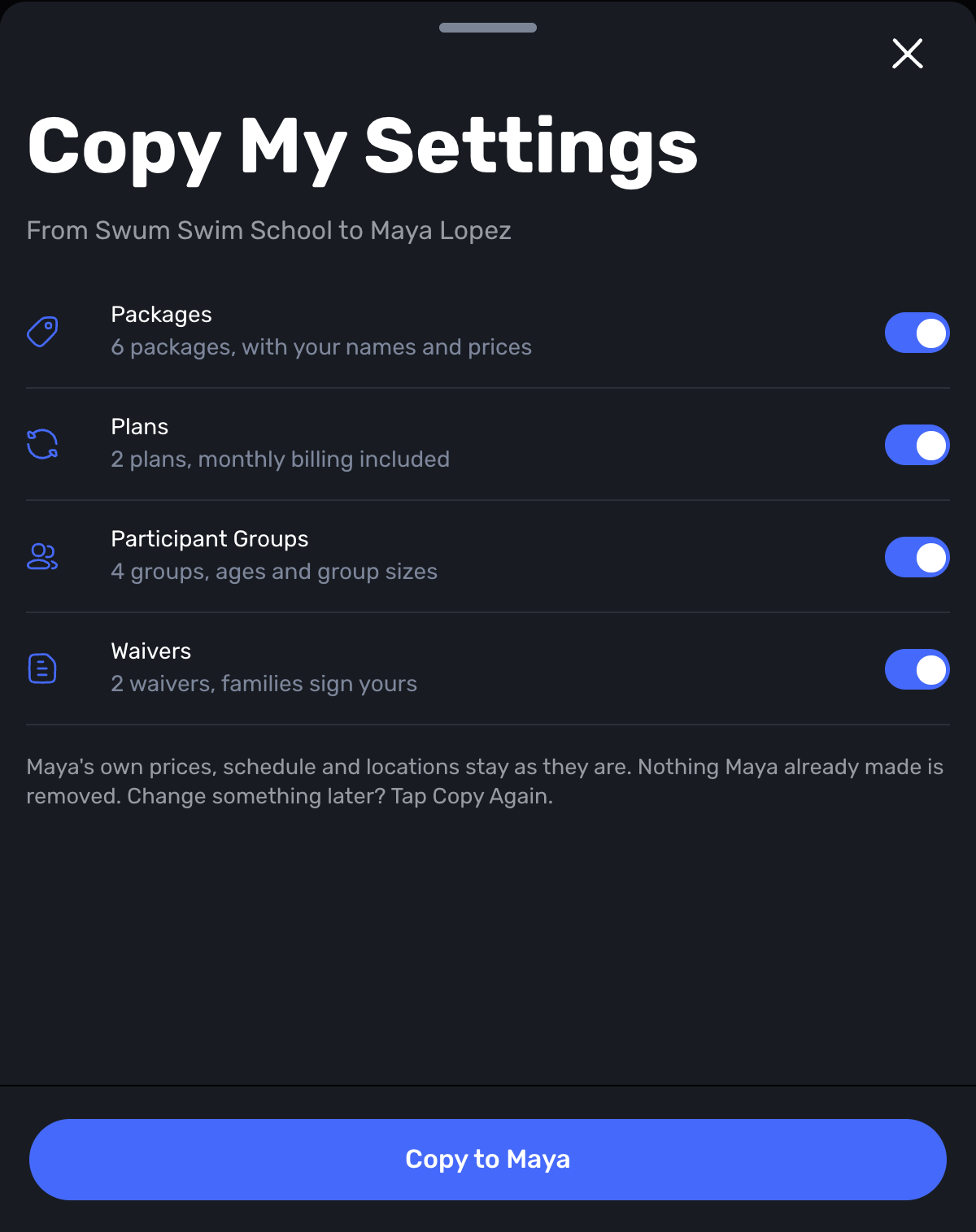
Access: School -> an affiliate -> Copy My Settings
Copy your packages, plans, groups, waivers and client questions into an affiliate's own account. It also runs once by itself when a new affiliate joins, and it never deletes anything they already made.
52. A Full Waitlist Page
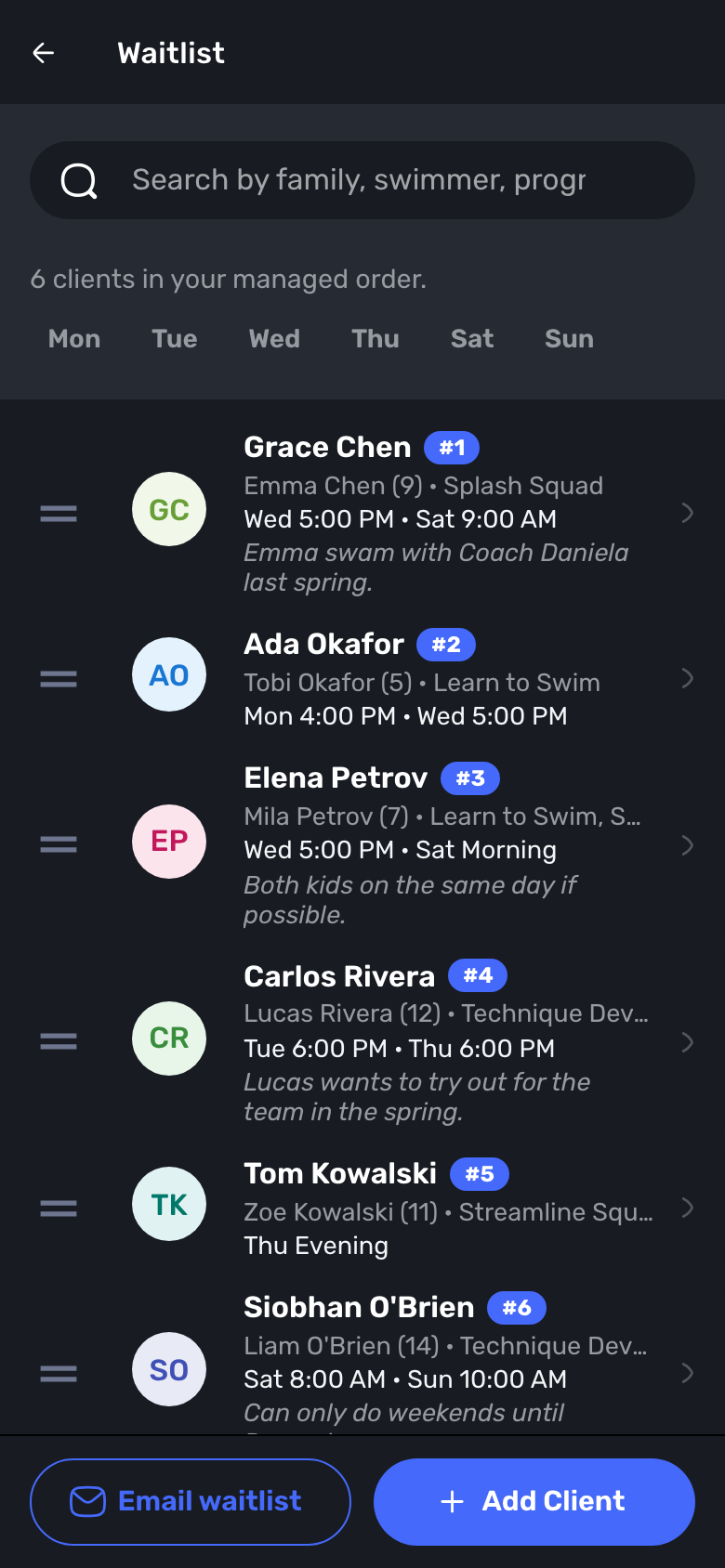
Access: Clients -> Lists -> Waitlist
The waitlist is now its own page, with search, day filters, drag to reorder, Email waitlist and Add Client.
53. Email Your Saved Lists, and Codes for Chosen Families
Access: Clients -> Lists, and Discounts & Gifts -> Who Can Use It
Use a saved client list as the audience for a campaign. Discount codes can be limited to the families you pick, who see "Just for your family."
Smaller Updates
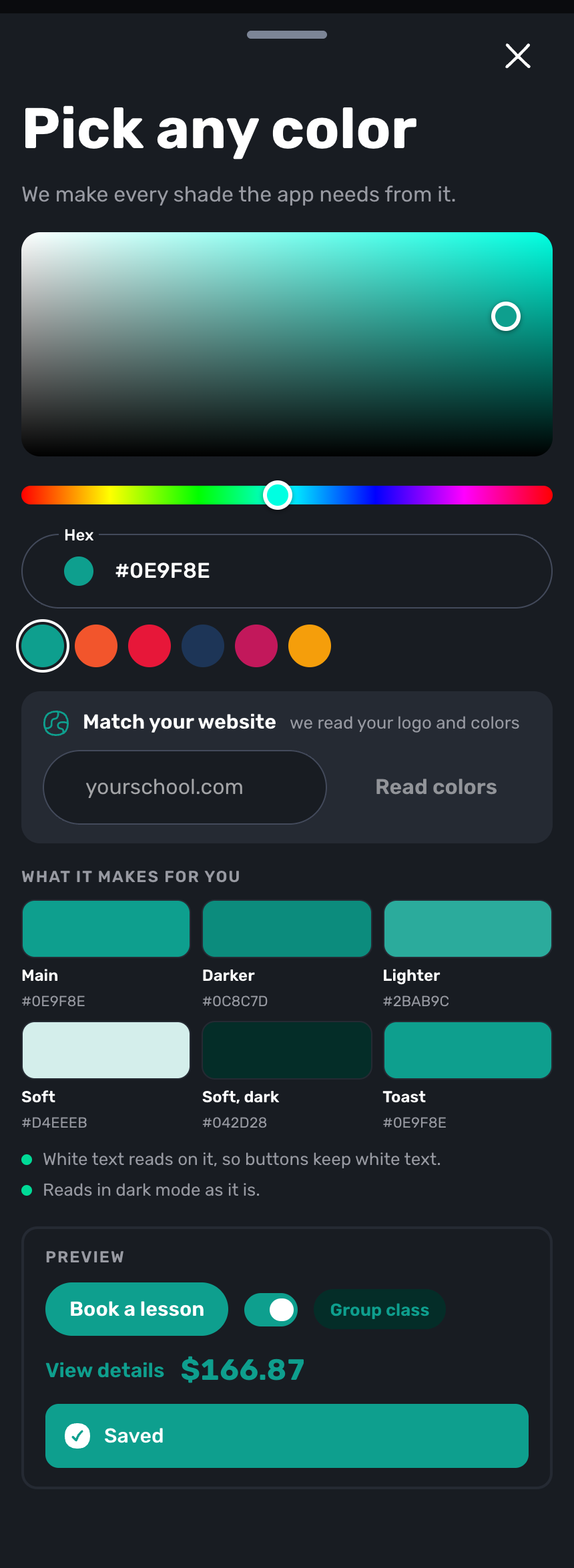
- Pick any color for your app. Choose any color, or let Swum read the colors from your website, and Swum makes every shade from it. (Settings -> Advanced Controls -> Color)
- Weather cancellation by pool. Cancel one pool's classes for a day instead of all of them, and text the families who agreed to texts. (Services -> Weather Cancellation)
- "Show lesson prices on my page." The old price switch, renamed so it says what it does. Families still see the total at checkout. (Pricing -> General)
- Plans start where you clicked. Starting a plan from the calendar now uses the day and time you clicked.
- A better corner map. It counts every school lesson you can see, and gives real drive times between separate pools.
- Lifeguard requests. Schools can revoke a request the family hasn't accepted, and the card shows when the charge runs.
- Clearer sign-in. Sign-in now says why it failed, and Forgot Password answers in about a second.
- A new Get Started screen that shows what Swum does at a glance.
- Children's names as pills on every family in Clients.
- Leads without a location now show under every location instead of disappearing.
- Booking events for your website. A booking page embedded on your site tells it when someone books, so Google Analytics can count it. No personal data is sent.
- Switch from Max to Pro yourself. Card-billed Max members can move to Pro at their next renewal from Wallet & Subscription.
November's Theme: Built With You
Almost every update here started as a message from a school owner: "can families answer a question in the waiver?", "can I charge before the first lesson?", "can I move my families over myself?"
Keep them coming. If there's something you wish Swum did, just reply to any email from us. It comes straight to me.