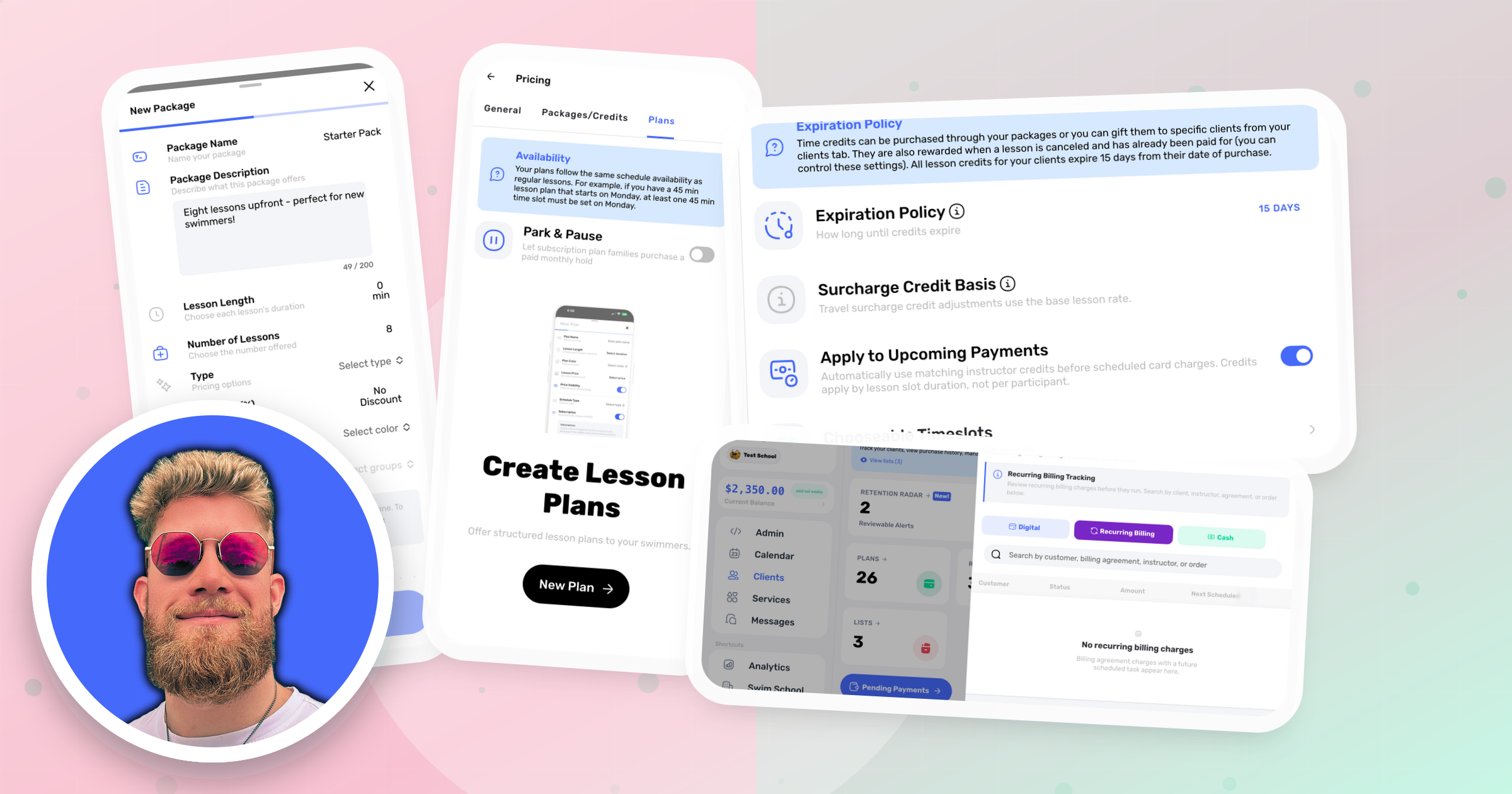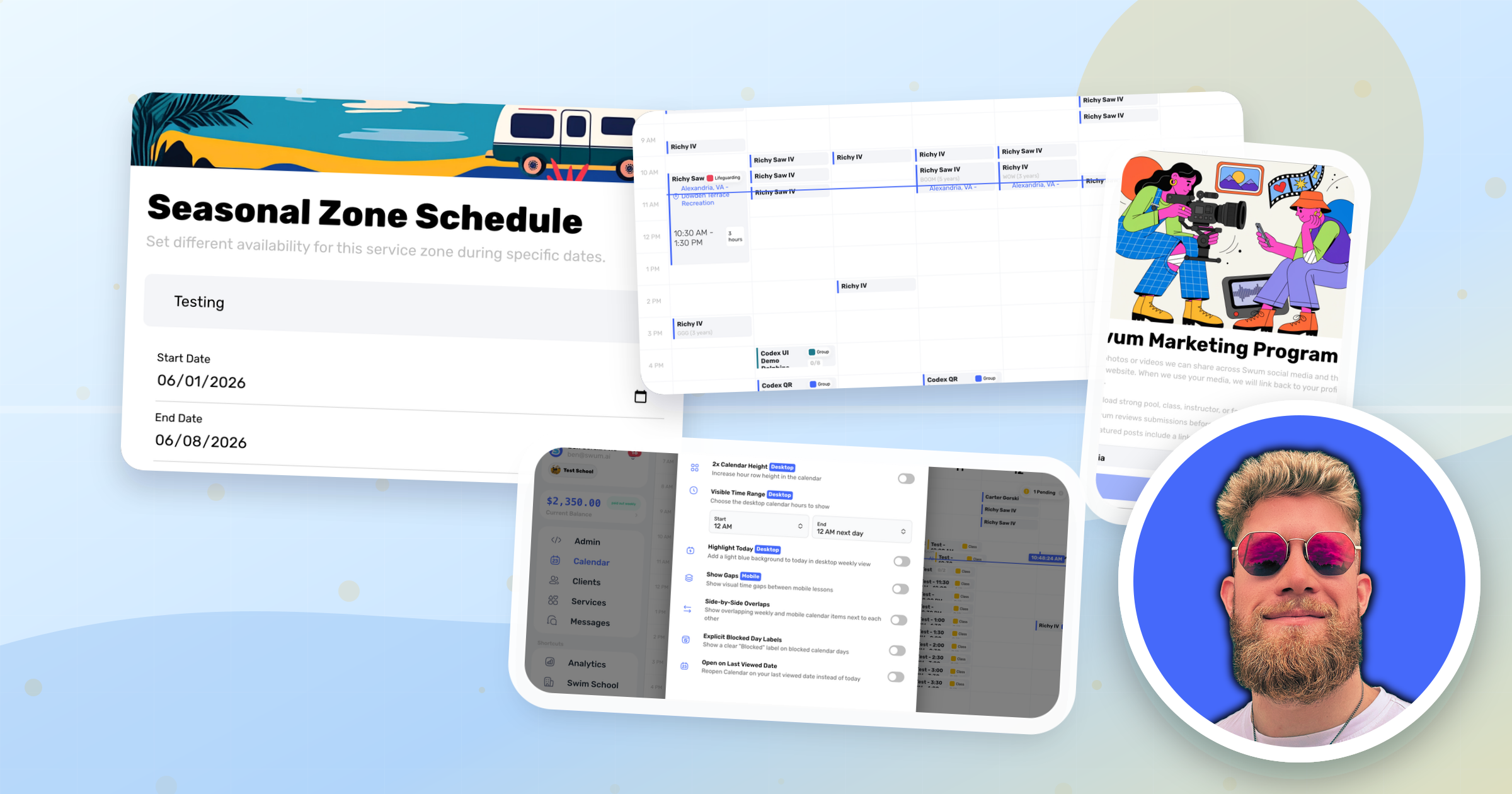
October is about seeing more of your schedule at once and handling payment questions right where they come up. This release adds a multi-week calendar view, payment markers on lesson cards, more flexible plan scheduling, and clearer billing messages for families.
We shipped 19 updates in this round. Some are new tools, and others make existing screens clearer for owners, instructors, and families.
Calendar and Booking
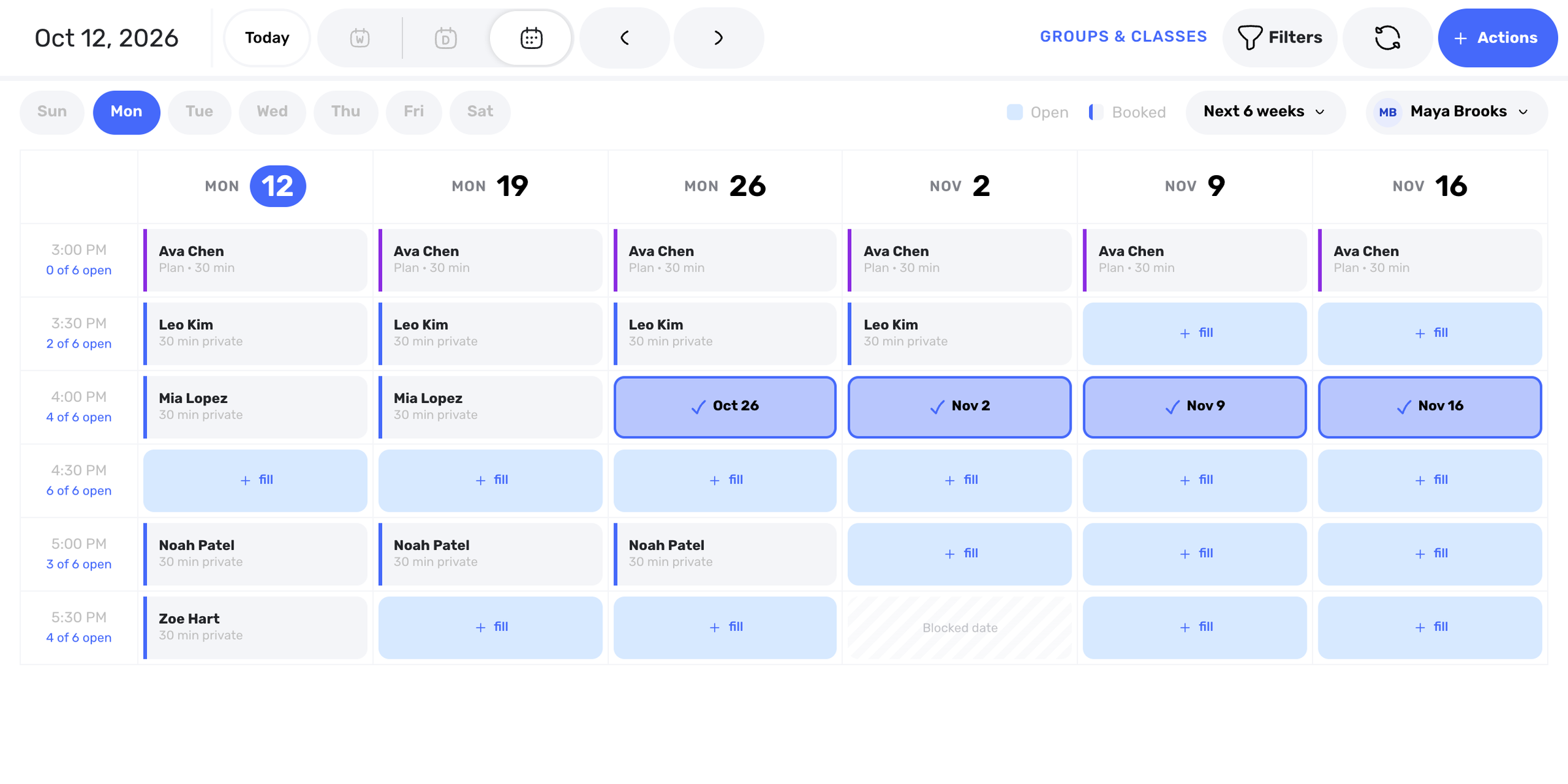
1. See One Weekday Across the Next 4 to 12 Weeks
Access: Calendar -> Multi-week view (desktop)
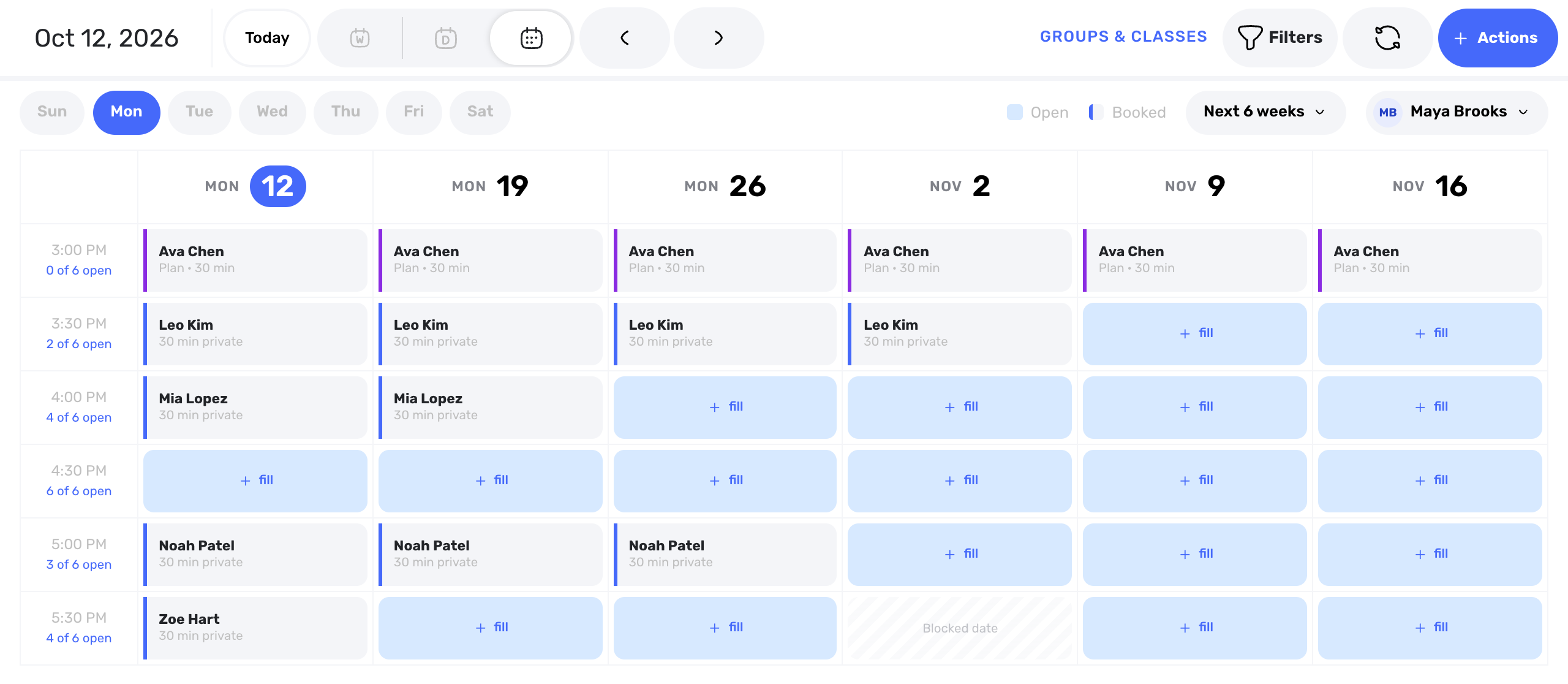
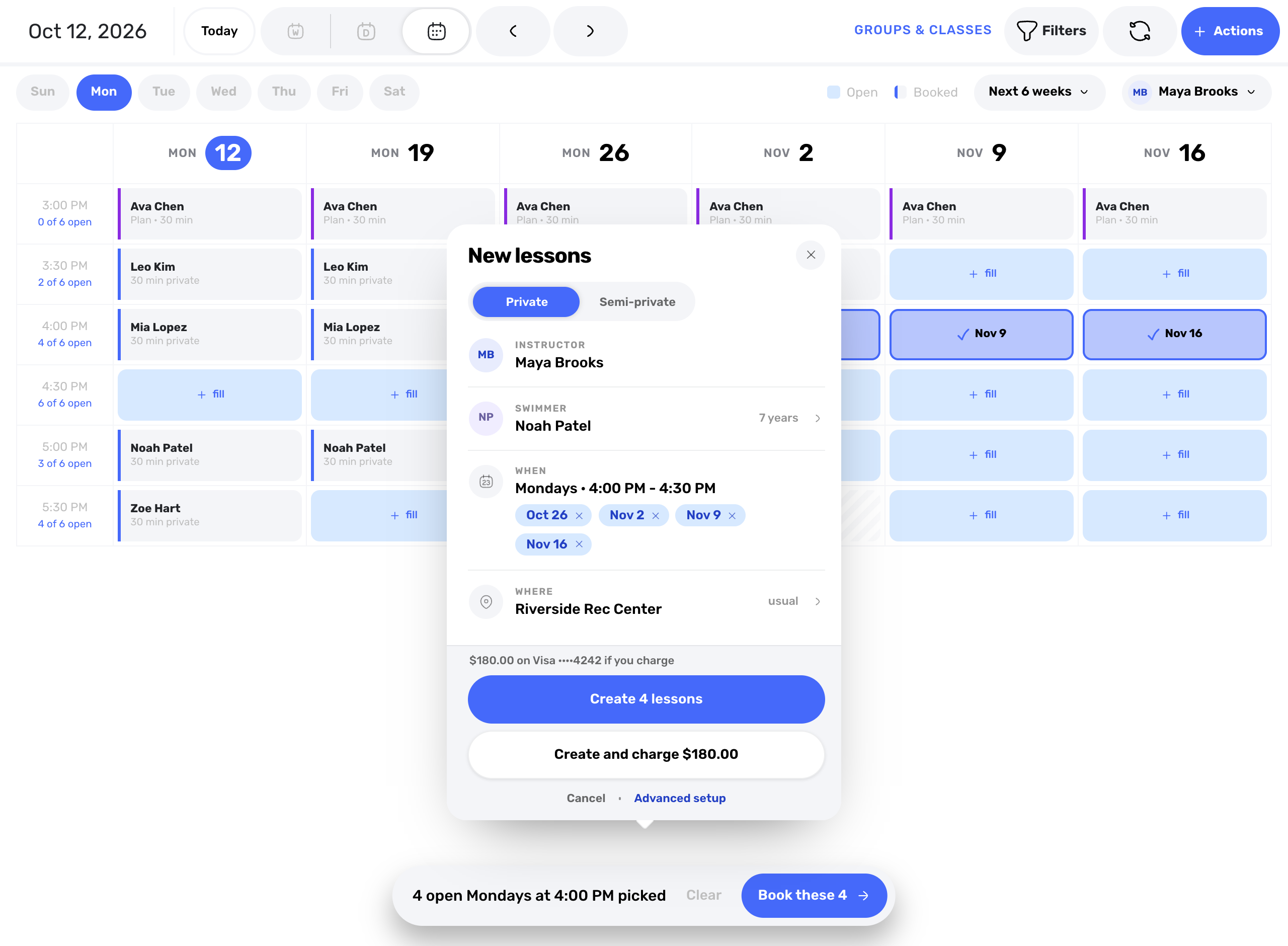
On desktop, the calendar can now show one weekday across the next 4, 6, 8, or 12 weeks, with lessons, open slots, and blocked dates side by side. Pick open slots in one time row and book a swimmer into all of them from one New lessons card - free, from time credits, or charged to the card on file. Schools choose which instructor to view. Contractors can view the weeks but not fill slots.
2. See Paid and Cash Due on Every Lesson Card
Access: Calendar
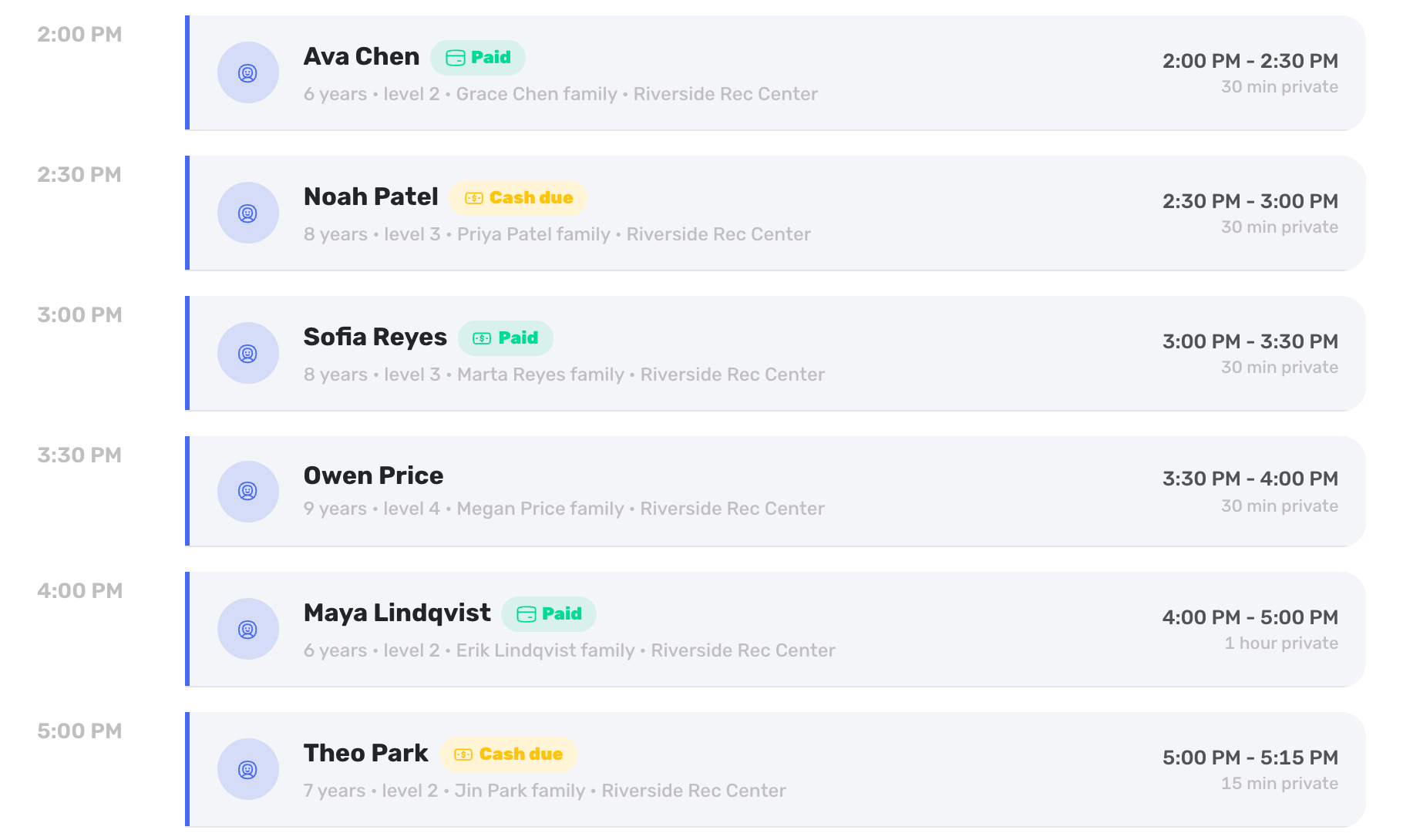
Private lesson cards can now show how each lesson is being paid: a green Paid pill with a card or cash icon, or a yellow Cash due pill. Day view shows the word, while week and phone views show the icon. Completed lessons also step back with a green rail and a muted name and time. The pill appears when Swum knows how the lesson was paid, and employee instructors and admins without billing access do not see it.
3. Book Lessons Every Other Week
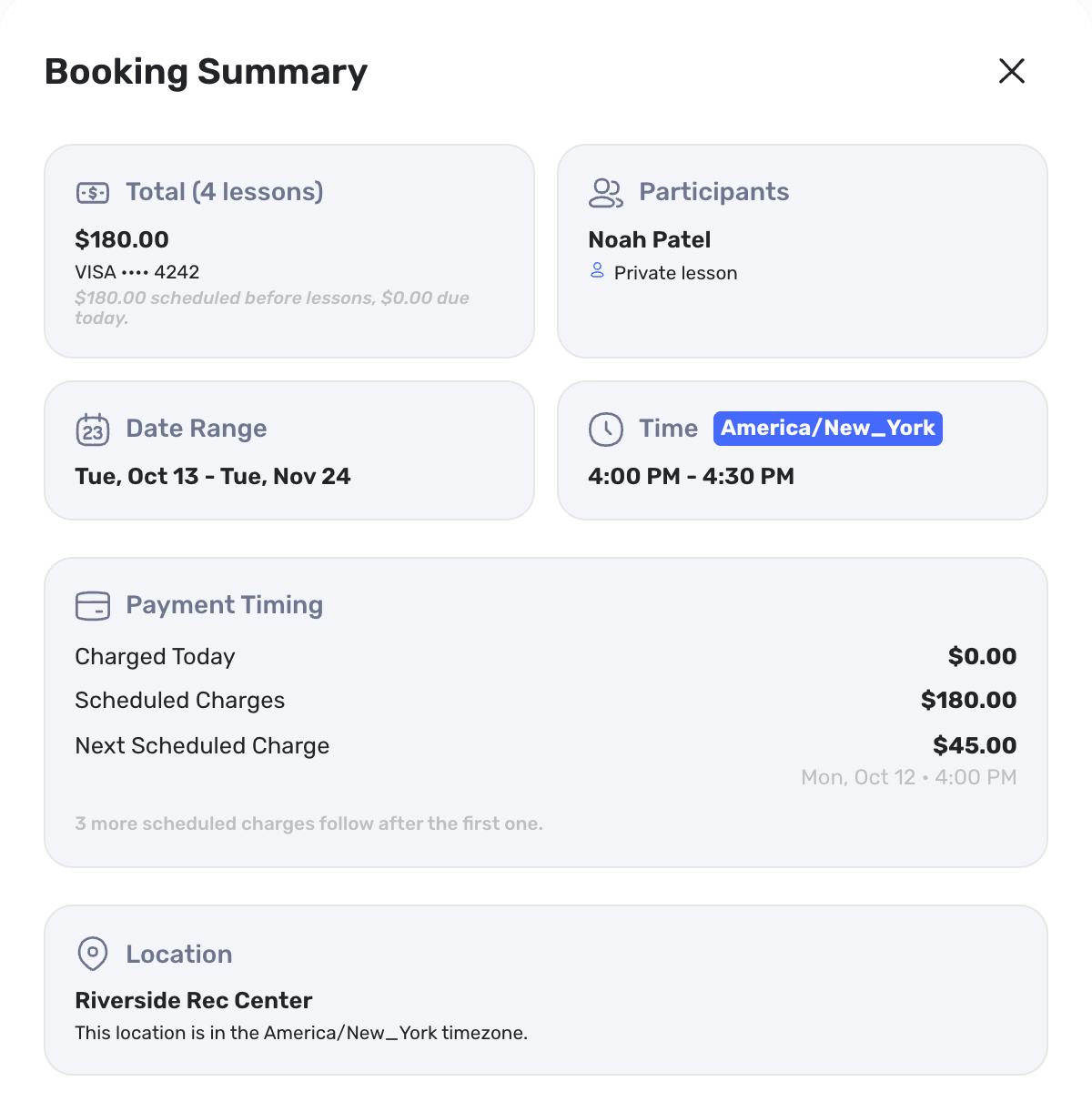
Access: Create Booking -> Choose Date & Time -> Repeats
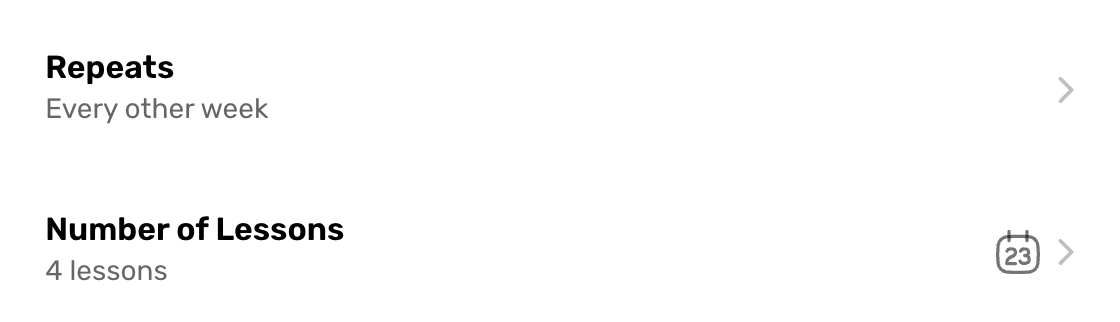
When you create a booking for a client, Repeats can now be set to Every week or Every other week. With every other week, you choose a number of lessons and Swum places them 14 days apart at the same time. The dates appear as chips before you confirm and in the Booking Summary, and the charges, confirmation email, notifications, and the family's request card all use the same dates.
4. Offer a Lesson to Several Instructors at Once
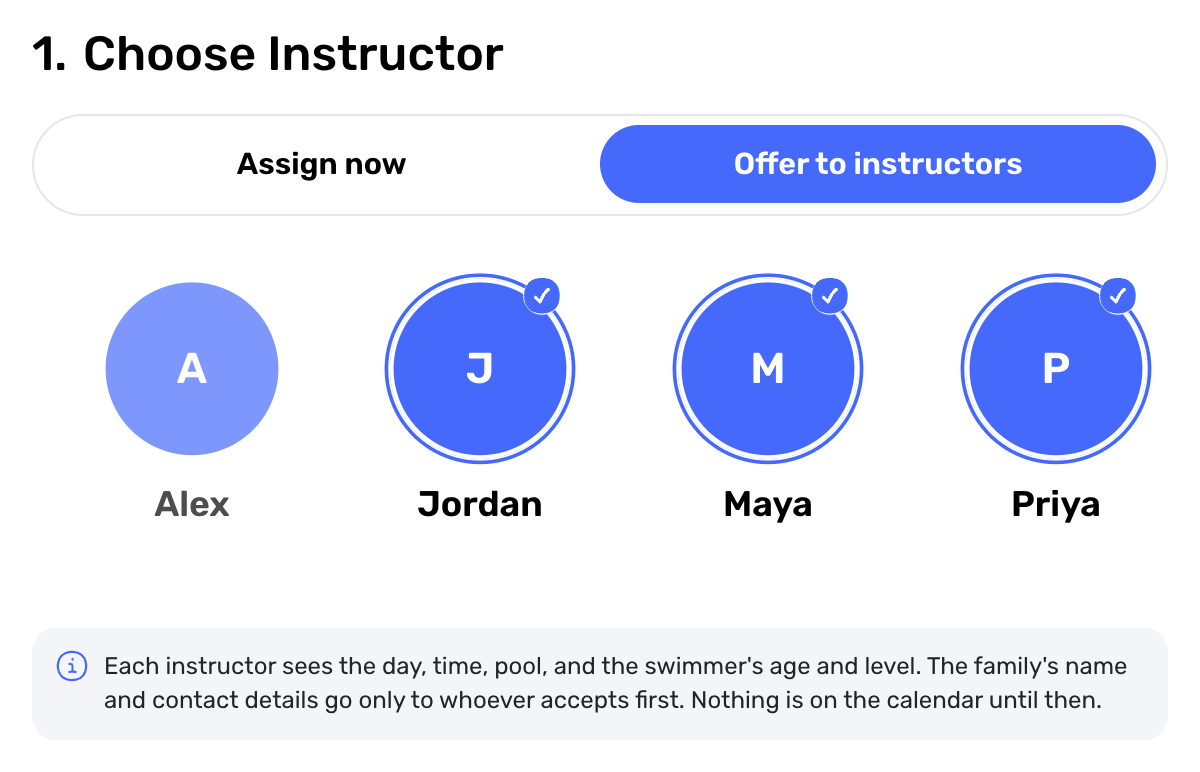
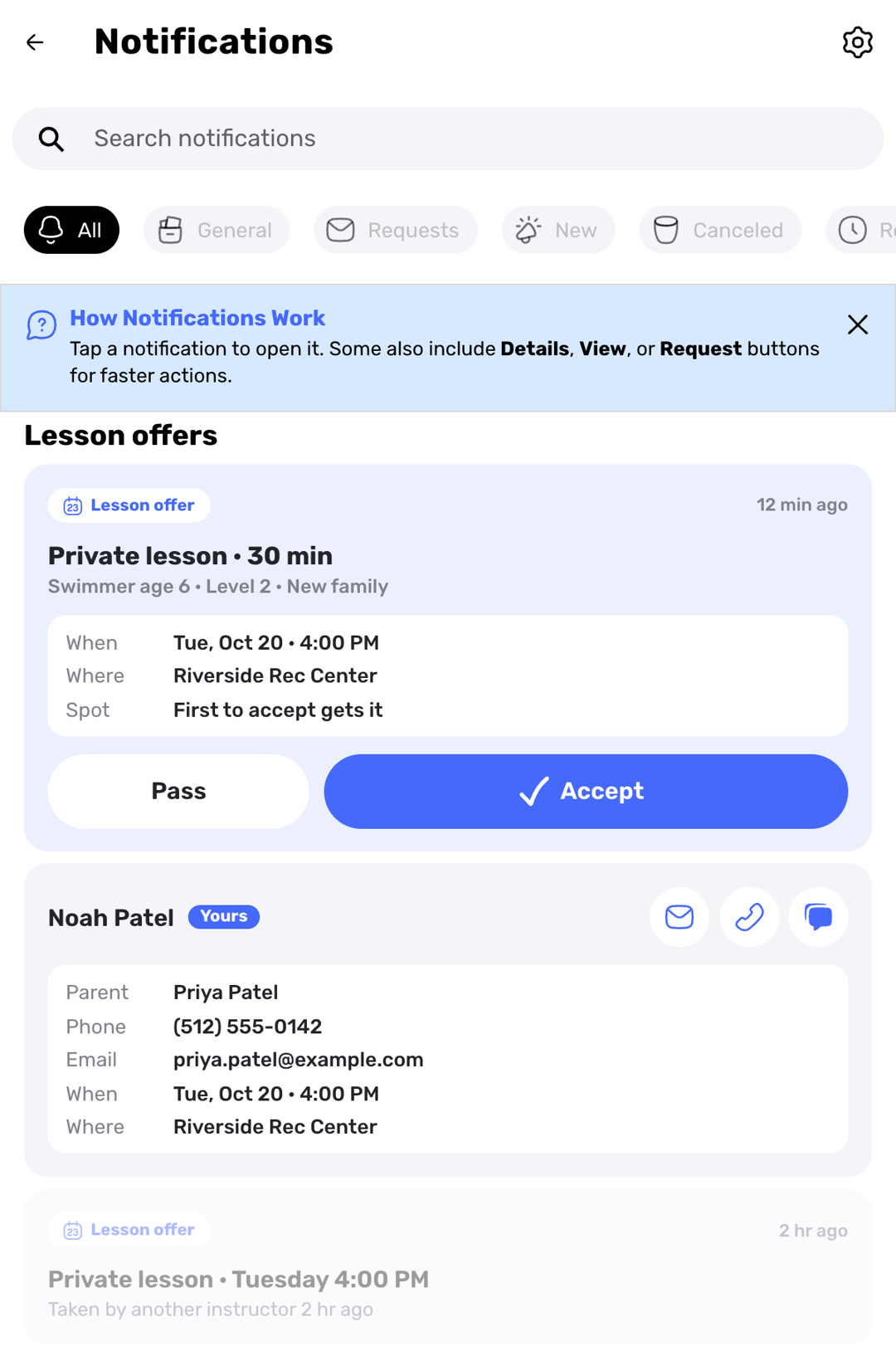
Access: Create Booking -> Choose Instructor -> Offer to instructors
School owners can now send a single private or semi-private lesson to several instructors as an offer, with nothing booked or charged. Each instructor sees the day, time, pool, and the swimmer's age and level under Lesson offers on their Notifications page. The first to accept gets the family's name and contact details. The owner is then notified and finishes the booking with that instructor filled in, and is also told if no one accepts within 48 hours.
Plans and Billing
5. Give Each Weekday Its Own Time in a Plan
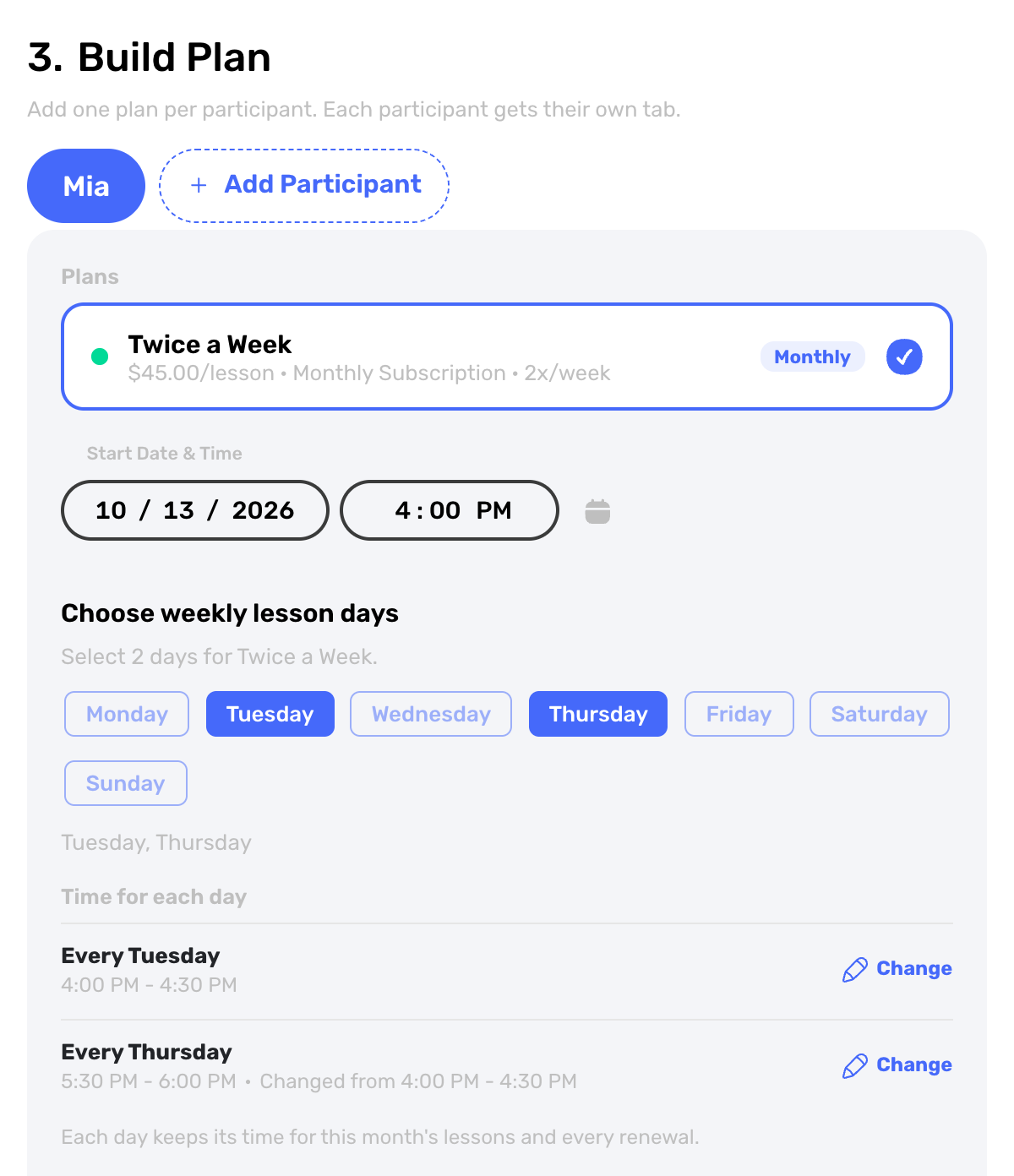
Access: Create Booking -> Build Plan -> Time for each day
When you enroll a client in a plan with two or more weekly lesson days, each day can now have its own start time. Time for each day appears under the day buttons, and Change sets a different time for one weekday, such as Tuesday at 4:00 PM and Thursday at 5:30 PM. This month's lessons and every renewal follow each day's time, and the Booking Summary and the family's request card show Multiple times when the days differ.
6. Move This Month's Lessons When You Change a Renewal
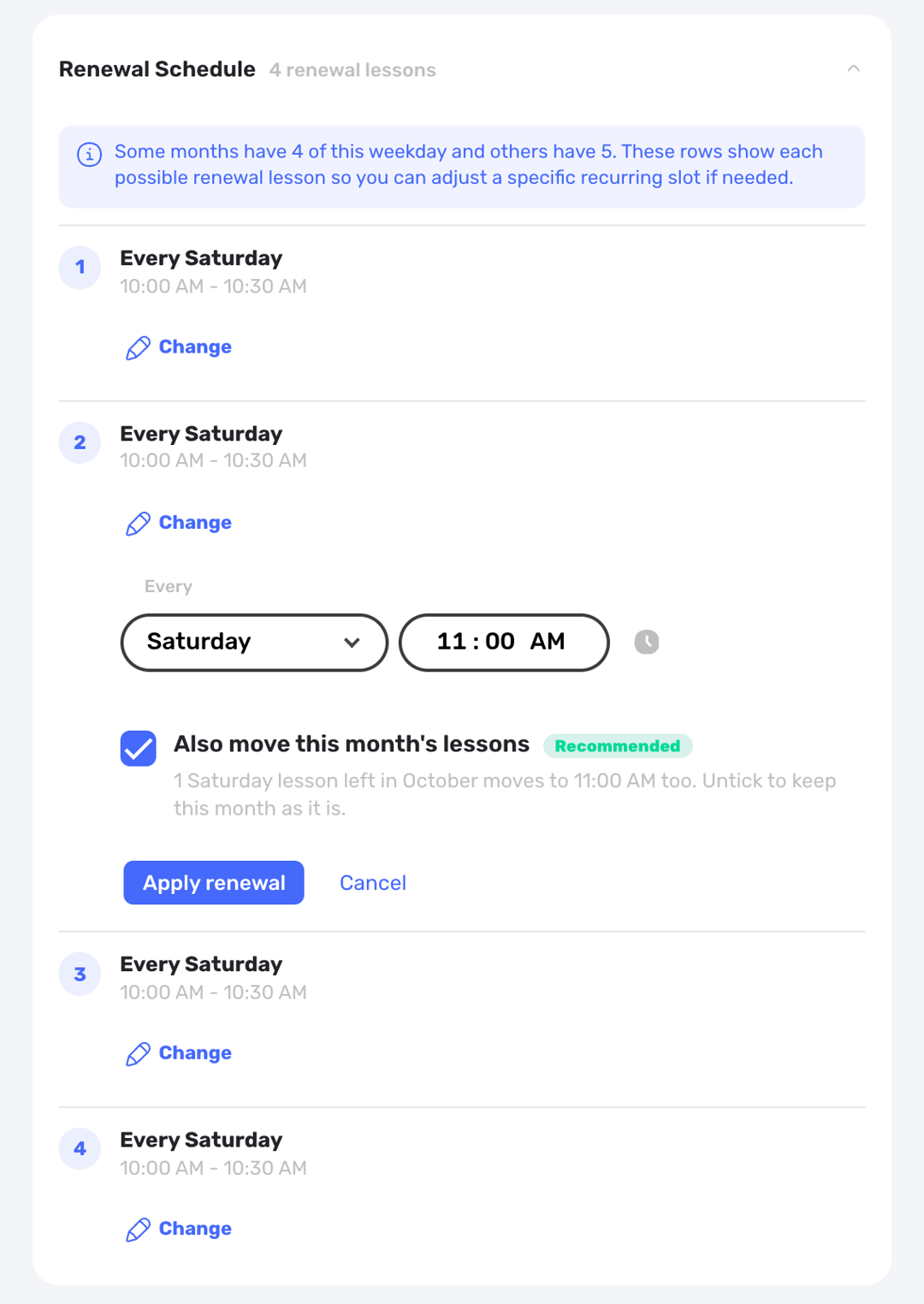
Access: Create Booking -> Build Plan -> Renewal Schedule -> Change
When you book a monthly plan and change a slot under Renewal Schedule, the same change can now apply to this month's matching lesson. A box labeled Also move this month's lessons is ticked when the editor opens. Leave it ticked and the lesson moves with the renewal. Untick it and only renewals change, with a note on the row saying this month's lesson stays where it is. The lessons header shows how many lessons moved.
7. Clearer Unpaid Plan Notices and Optional Auto-Cancel
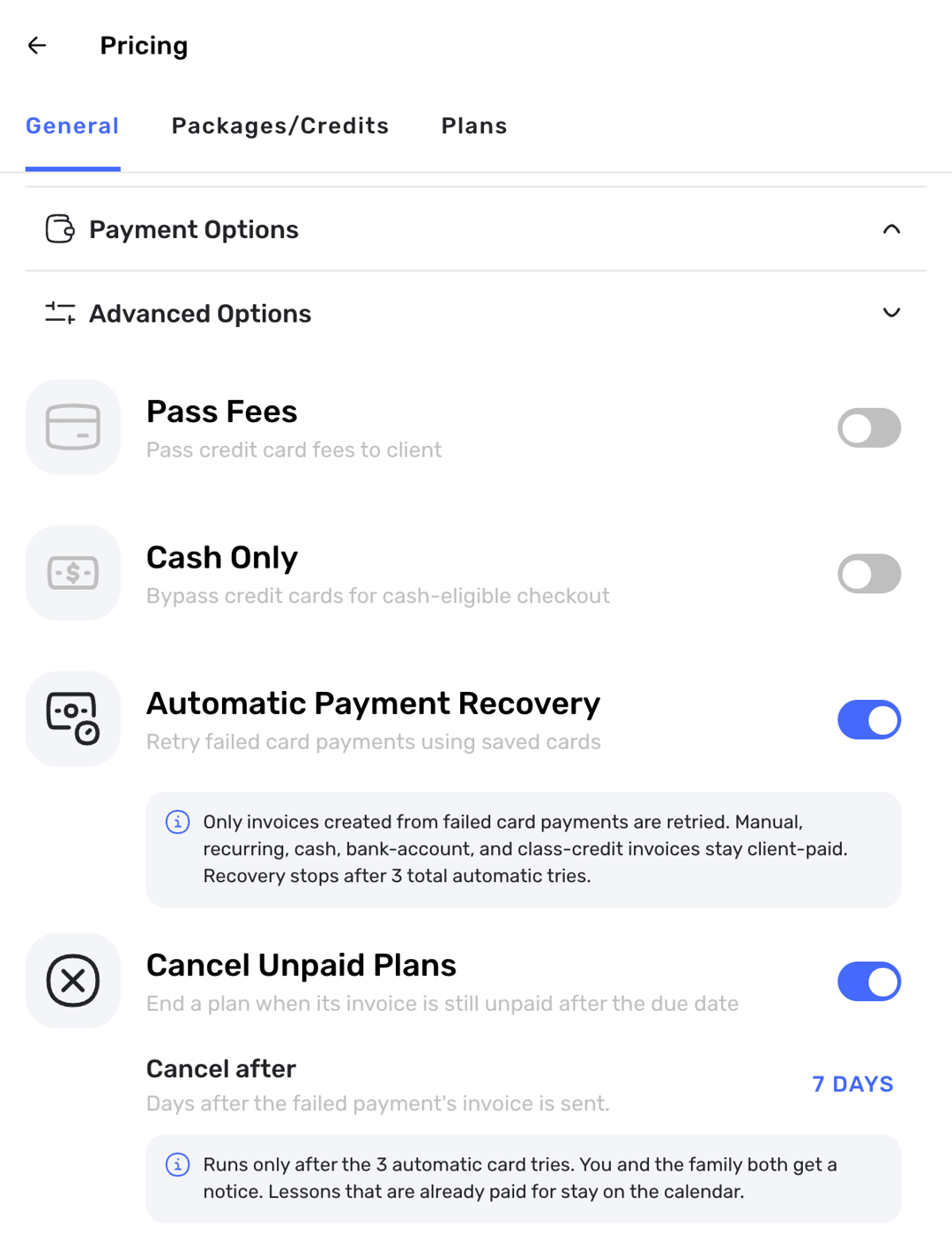
Access: Pricing -> General -> Advanced Options -> Cancel Unpaid Plans
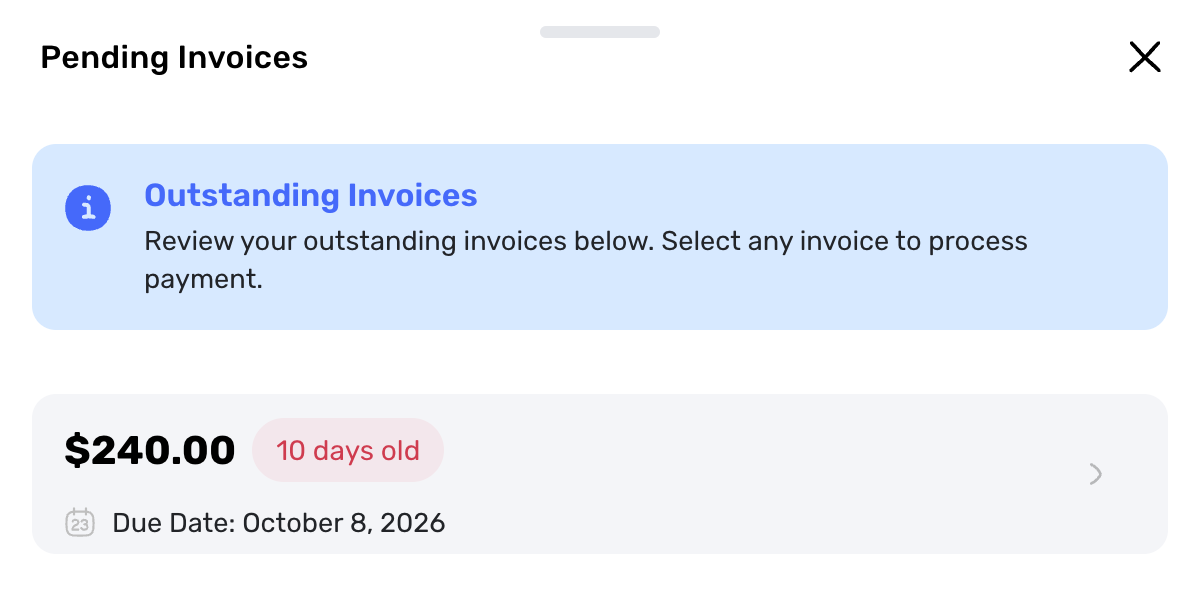
When a monthly plan payment fails, families are now told plainly that the plan is still active and the invoice needs to be paid. School owners and solo instructors can now also turn on Cancel Unpaid Plans and choose 3, 7, 14, or 30 days. It stays off until you turn it on. The plan then ends only after the pay-by date has passed with the invoice unpaid and card retries finished. Lessons already paid for stay on the calendar.
8. A Clear Fix When a Saved Card Can No Longer Be Charged
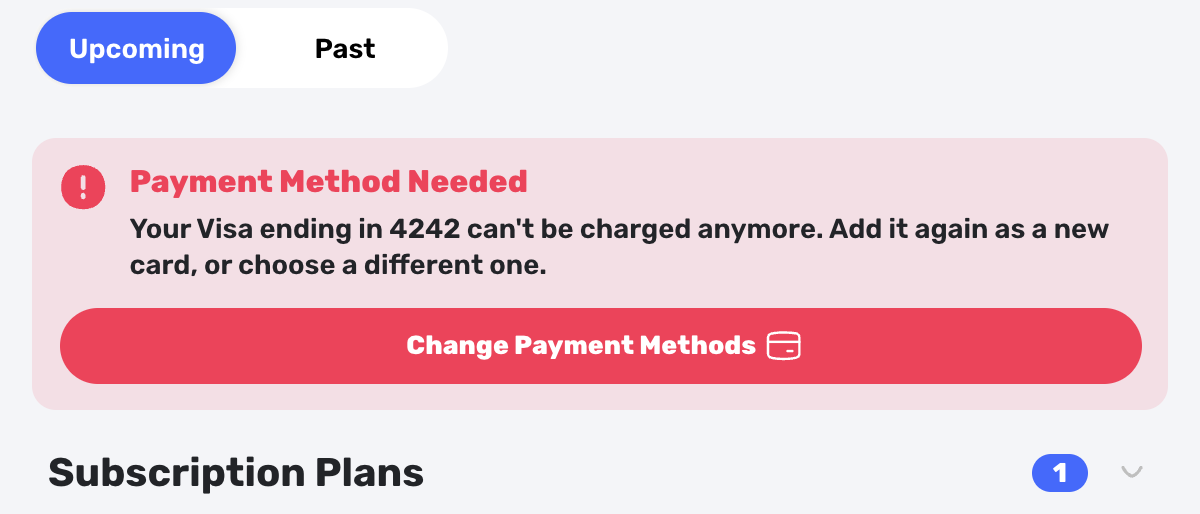
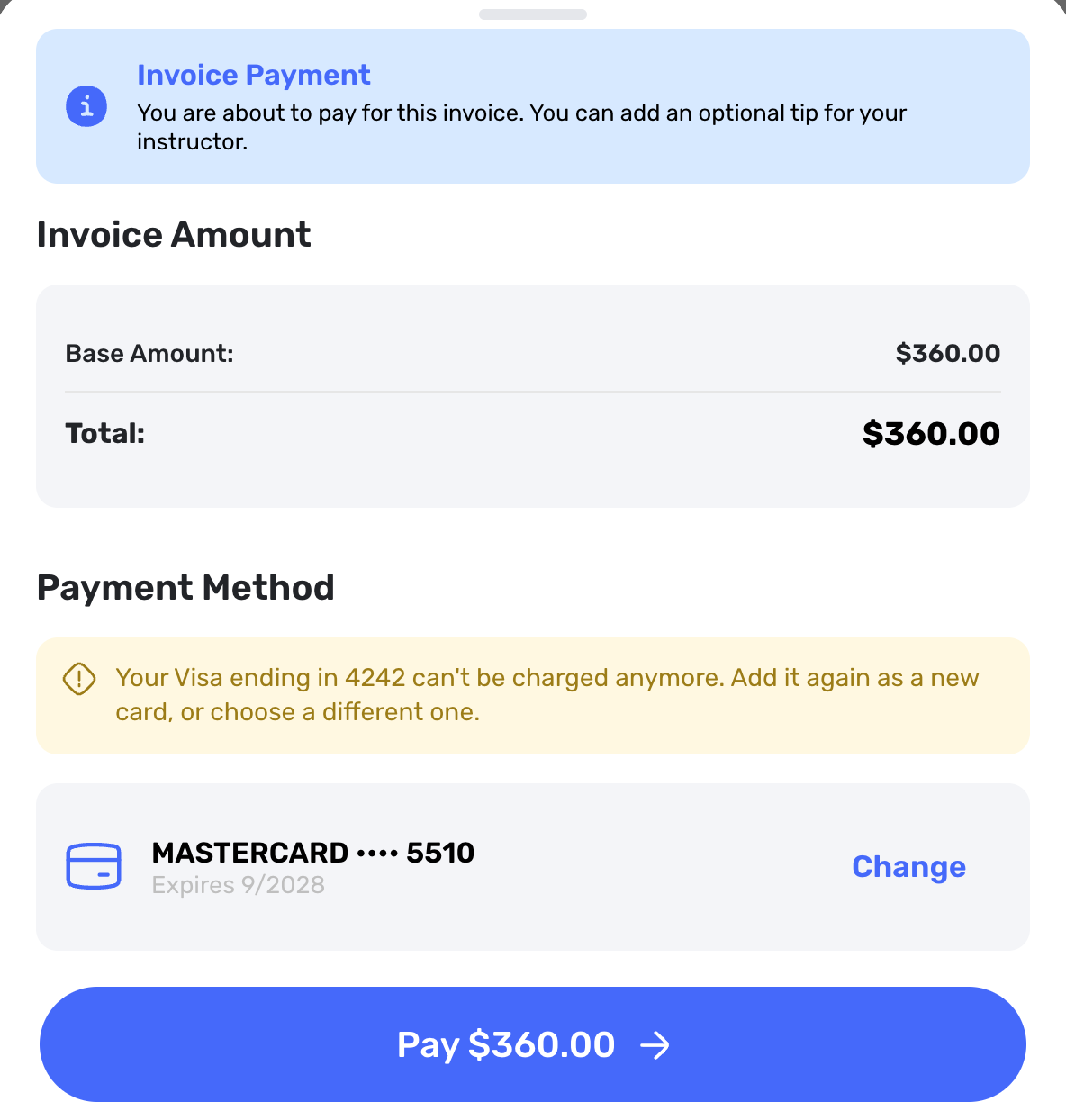
Access: Family Home -> Payment Method Needed -> Change Payment Methods
When a plan renewal fails because the saved card can no longer be charged, families can now see exactly that on Home, on the Change Payment Methods sheet, and on the invoice. The card is marked Can't be charged, and Add a new card adds a replacement and selects it. The new wording applies to renewals that fail from this release on.
Payments, Pricing, and Locations
9. Switch a Cash Lesson to the Family's Card
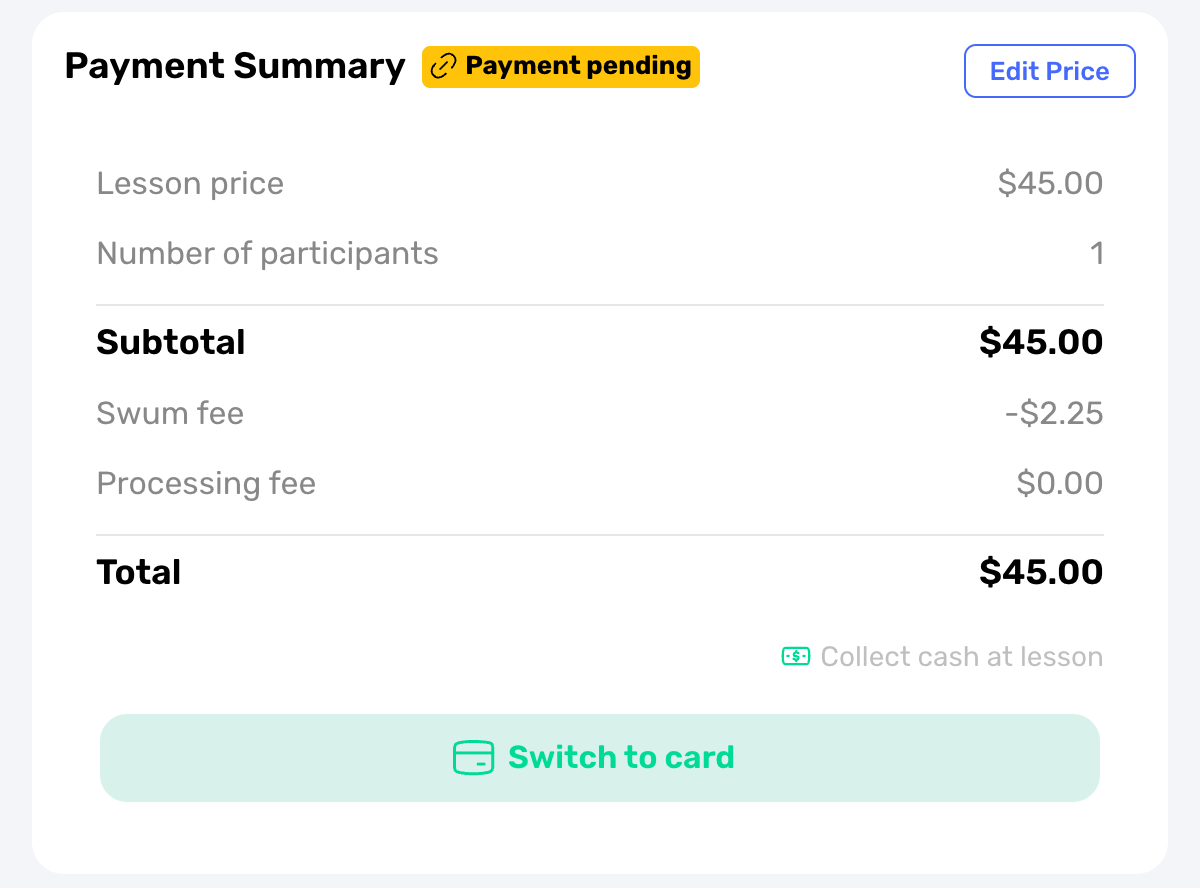
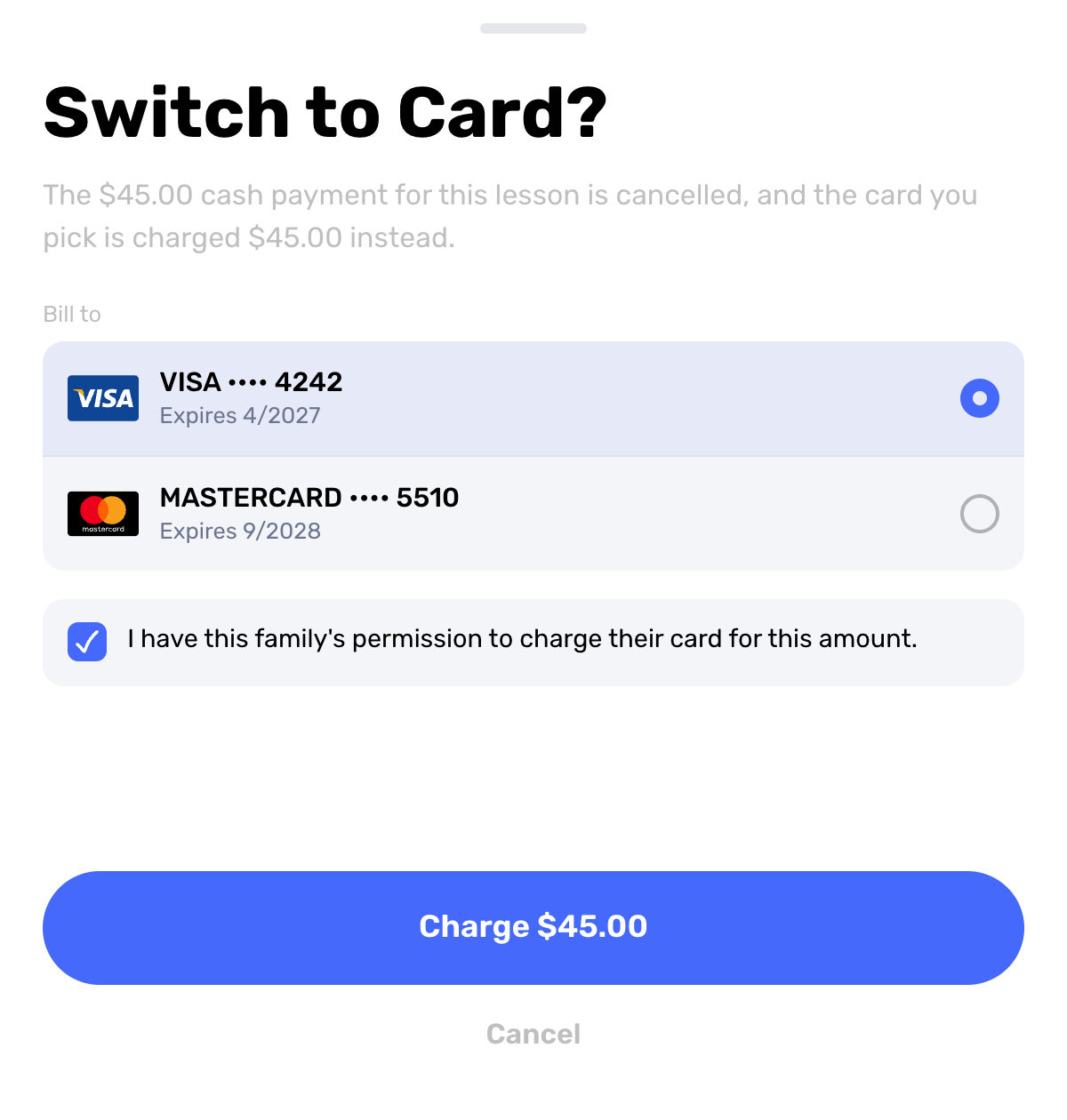
Access: Calendar -> Open a Pending Cash Lesson -> Payment Summary -> Switch to card
Instructors can now move a booked cash lesson onto a card. Open the pending cash lesson, choose Switch to card, pick one of the family's saved cards, confirm you have their permission, and charge it. The cash payment closes, the lesson shows as paid, and earnings are recorded once, like any card lesson. A declined card changes nothing. It is offered for single cash lessons, not for one cash payment that covers several lessons.
10. Choose How Families Pay at Each Location
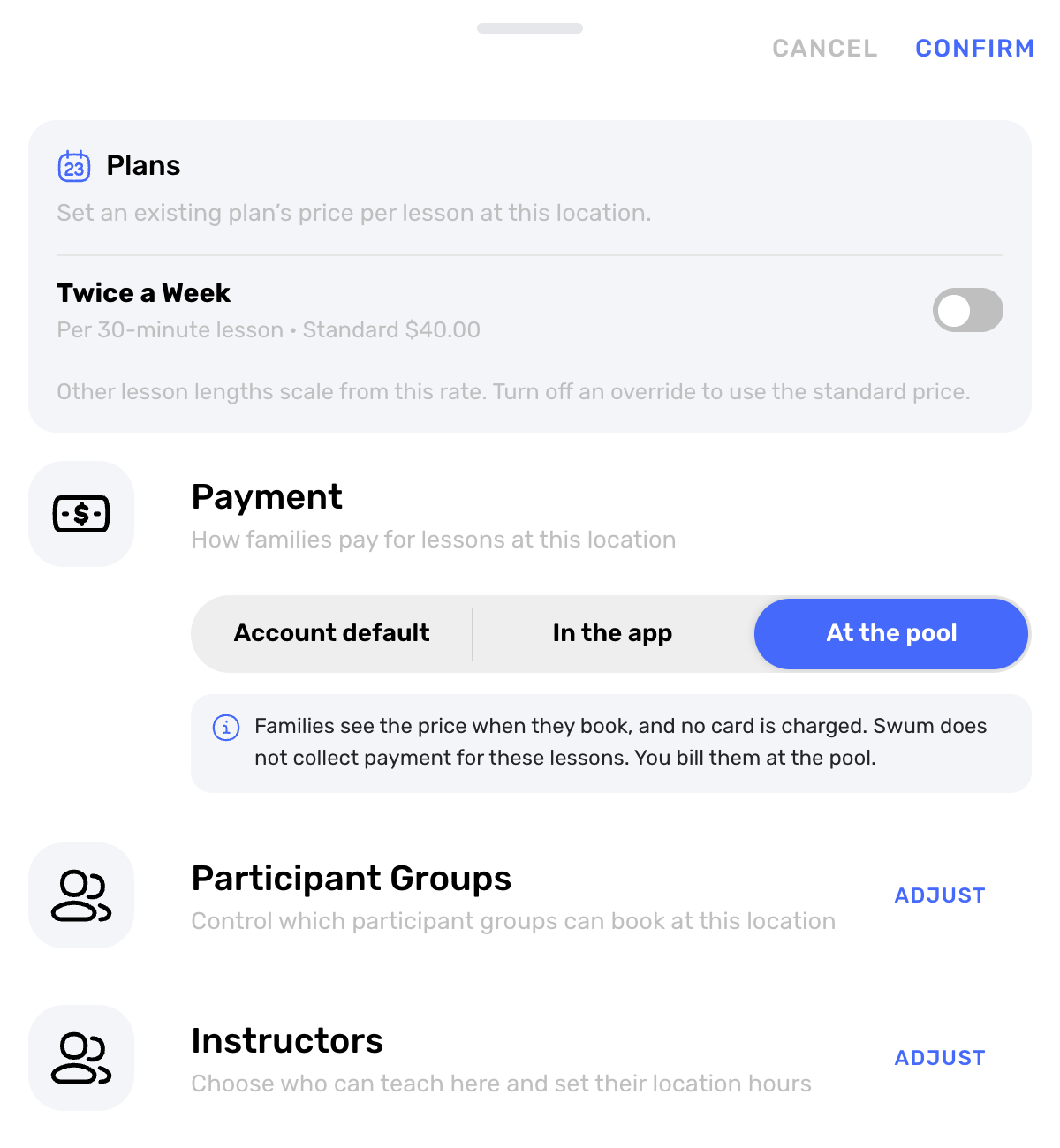
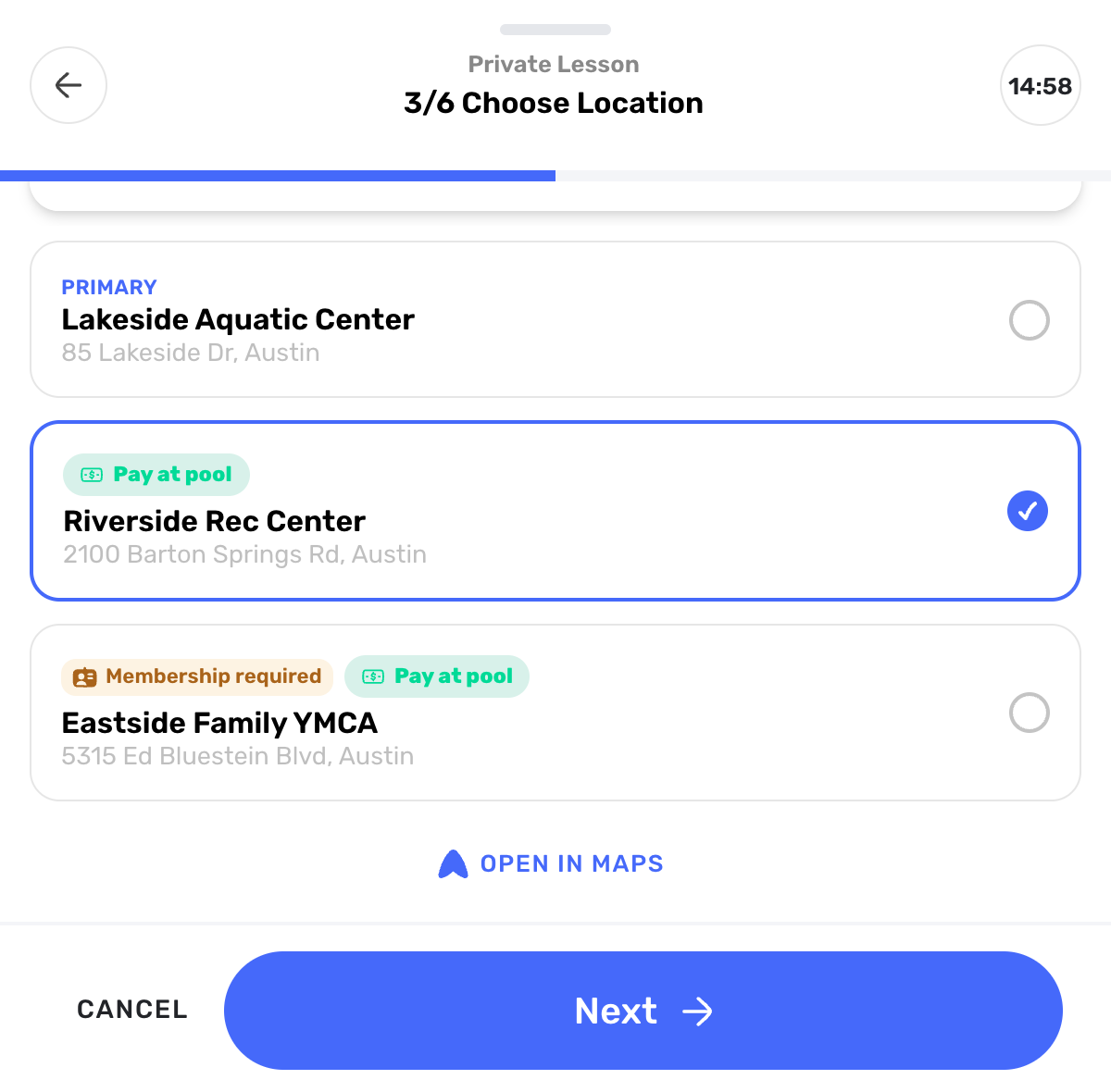
Access: Locations -> Open a Location -> Payment
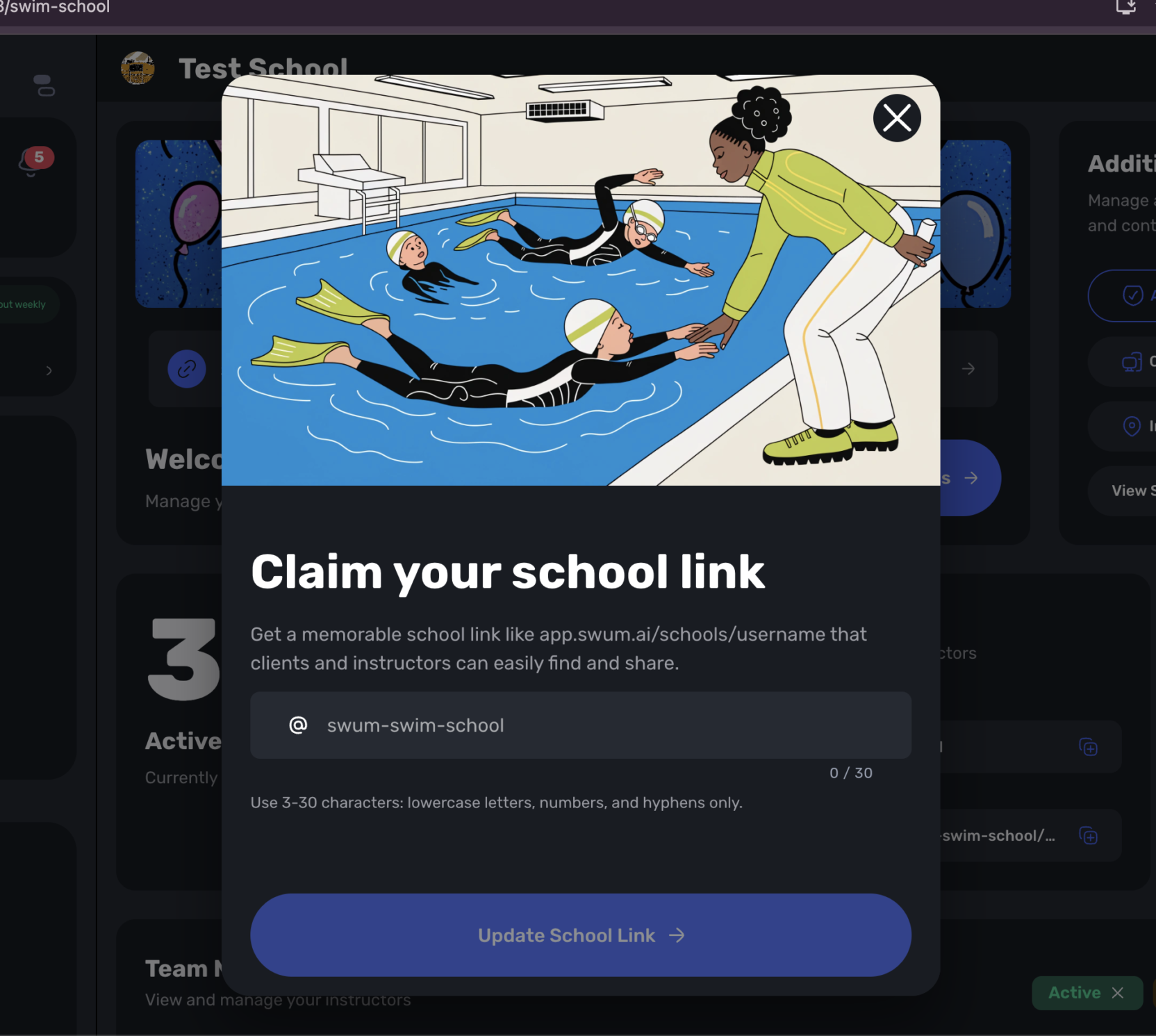
Each location can now have its own payment rule: Account default, In the app, or At the pool. At an At the pool location, families see the price when they book, no card is charged, and the booking shows Pay at the Pool. At an In the app location, families pay by card even when the account is Cash Only. At the pool is offered to the same accounts as Cash Only, and school employee instructors cannot select it.
11. Set a Fixed Semi-Private Price per Location
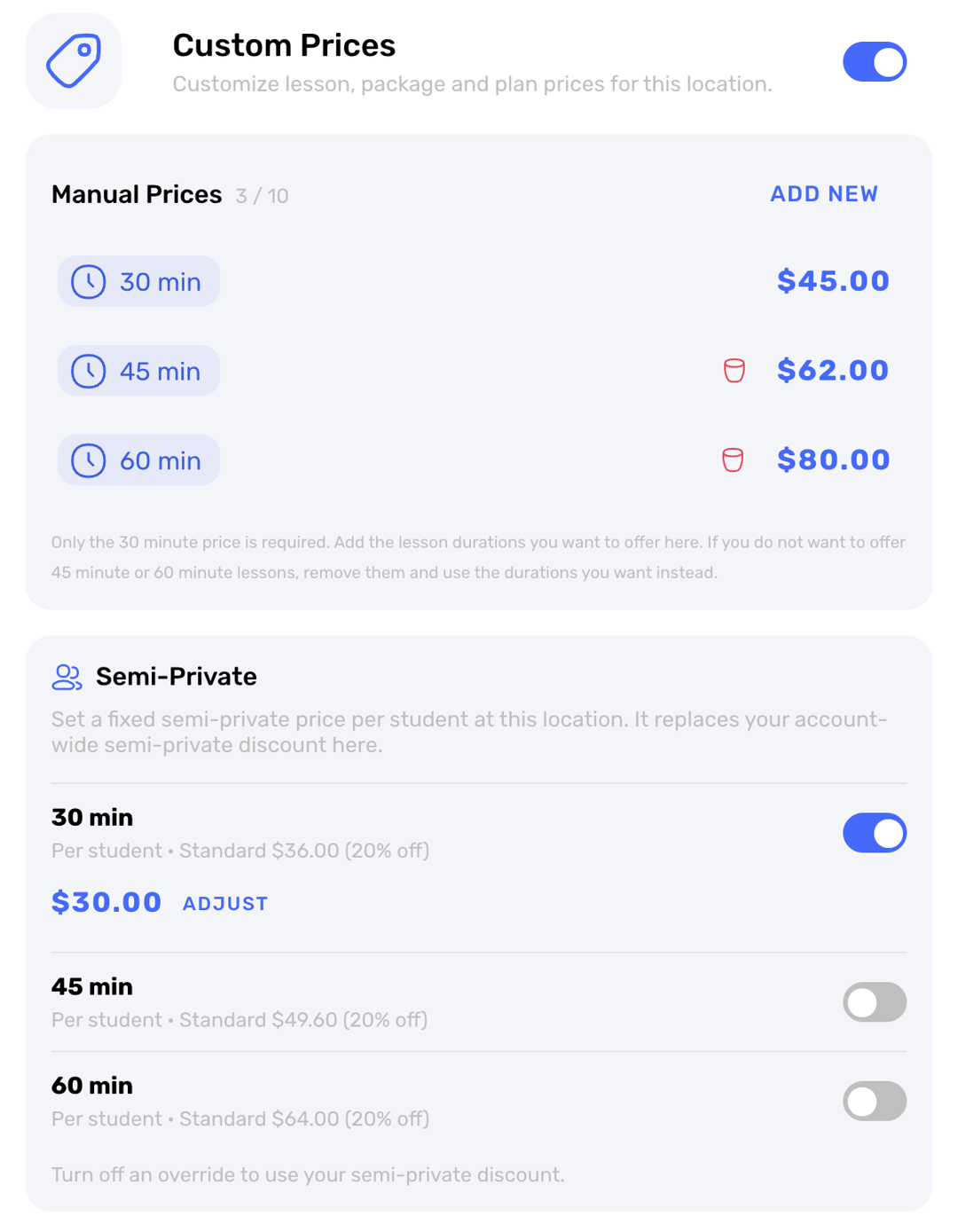
Access: Locations -> Open a Location -> Custom Prices -> Semi-Private
A location with Custom Prices turned on can now carry its own semi-private price. In the new Semi-Private card, set a fixed price per student for each lesson length that location offers. Families who book a semi-private lesson there pay that price in place of your account-wide semi-private discount, at checkout or once another family joins, following the setting your account already uses. Turn a length off to return it to the account discount.
Growth and Communication
12. Keep Sign-Ups Open While Bookings Are Paused
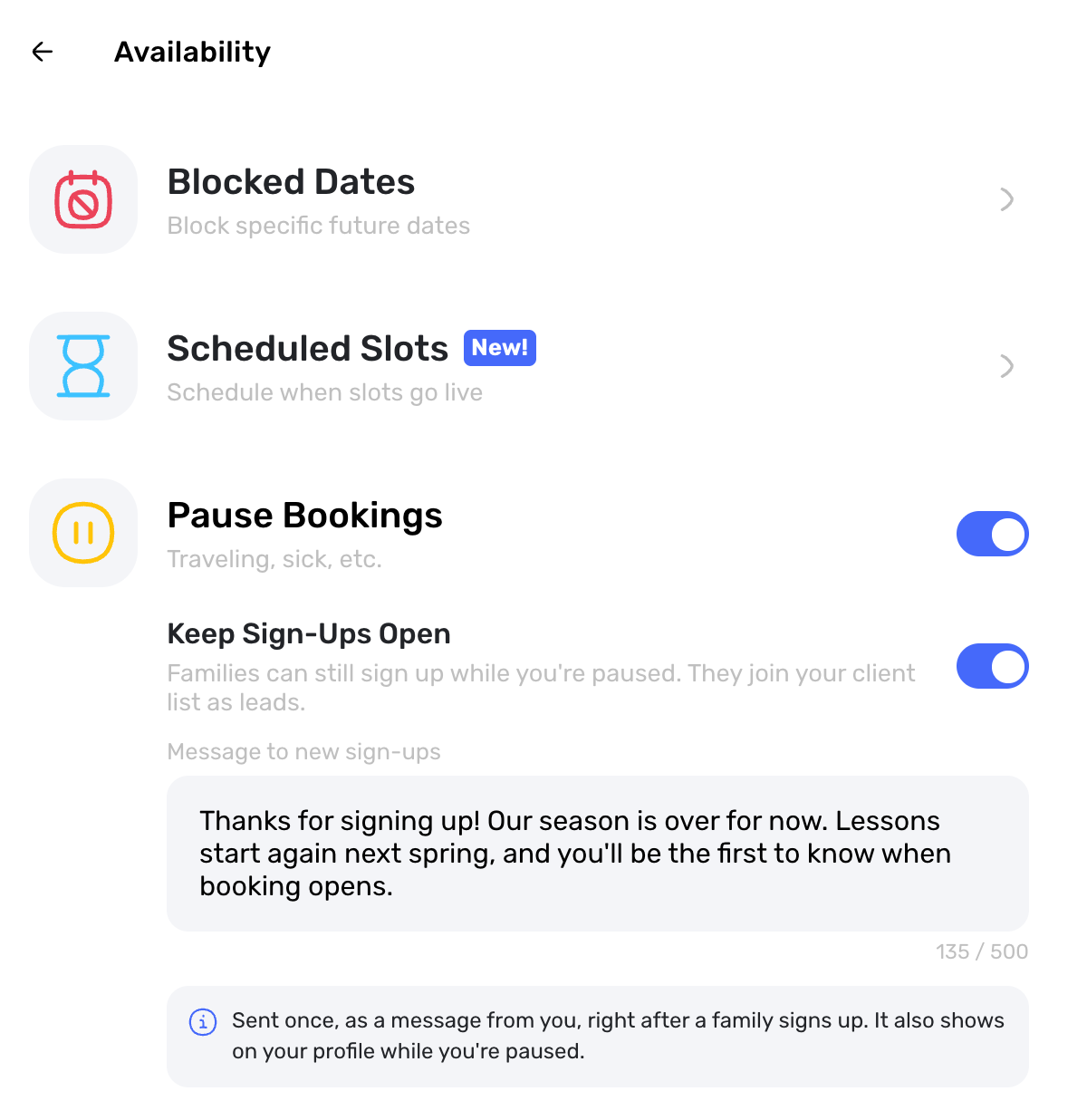
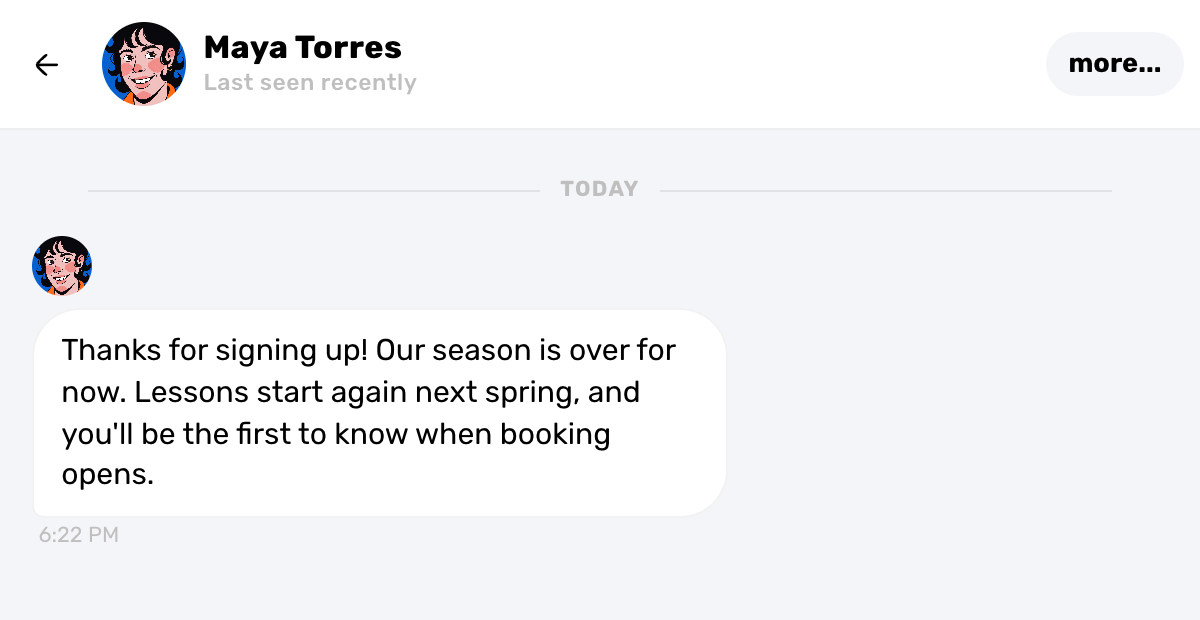
Access: Availability -> Pause Bookings -> Keep Sign-Ups Open
Instructors who pause bookings for the off-season can now keep collecting interest. Turn on Keep Sign-Ups Open and write a note of up to 500 characters. The note shows on your paused profile, and each new sign-up receives it once as a message from you. A signed-in family that is not on your client list yet can tap Sign Up and join as a lead in one tap, ready for when booking reopens.
13. Start a Funnel Before a Swimmer's First Class
Access: Communications -> Funnels -> Trigger -> First lesson in a class
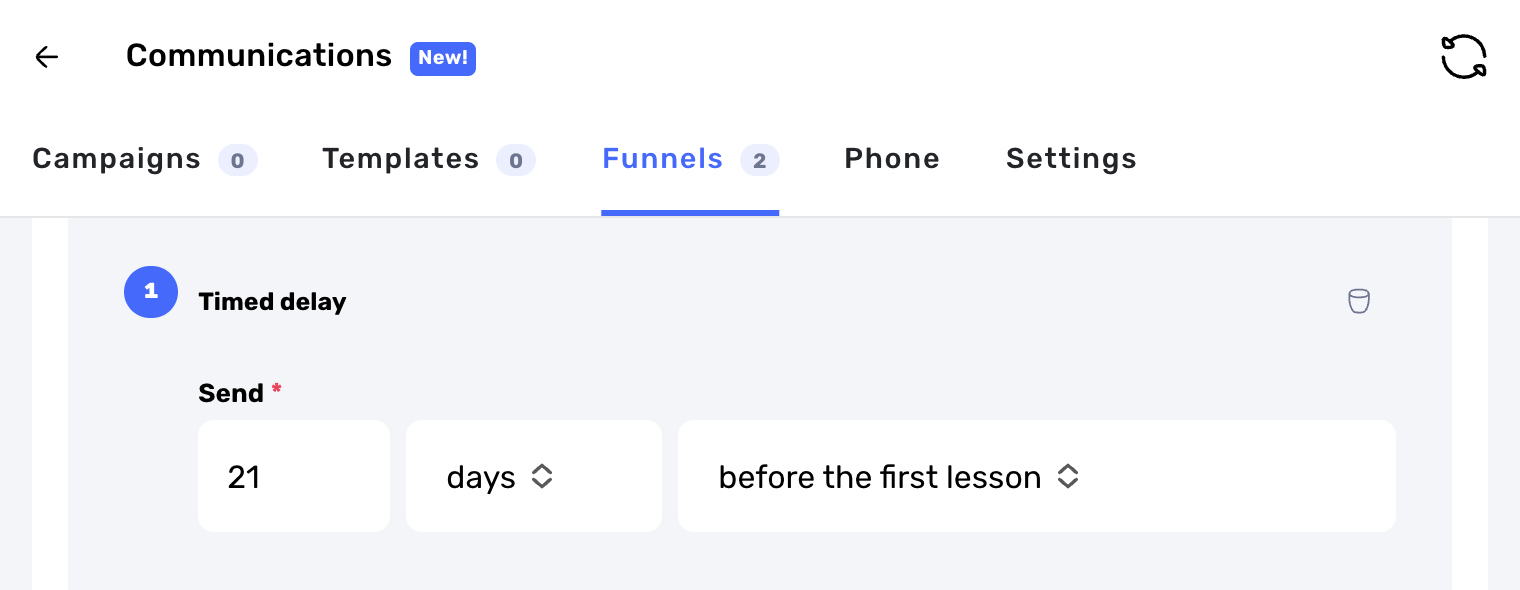
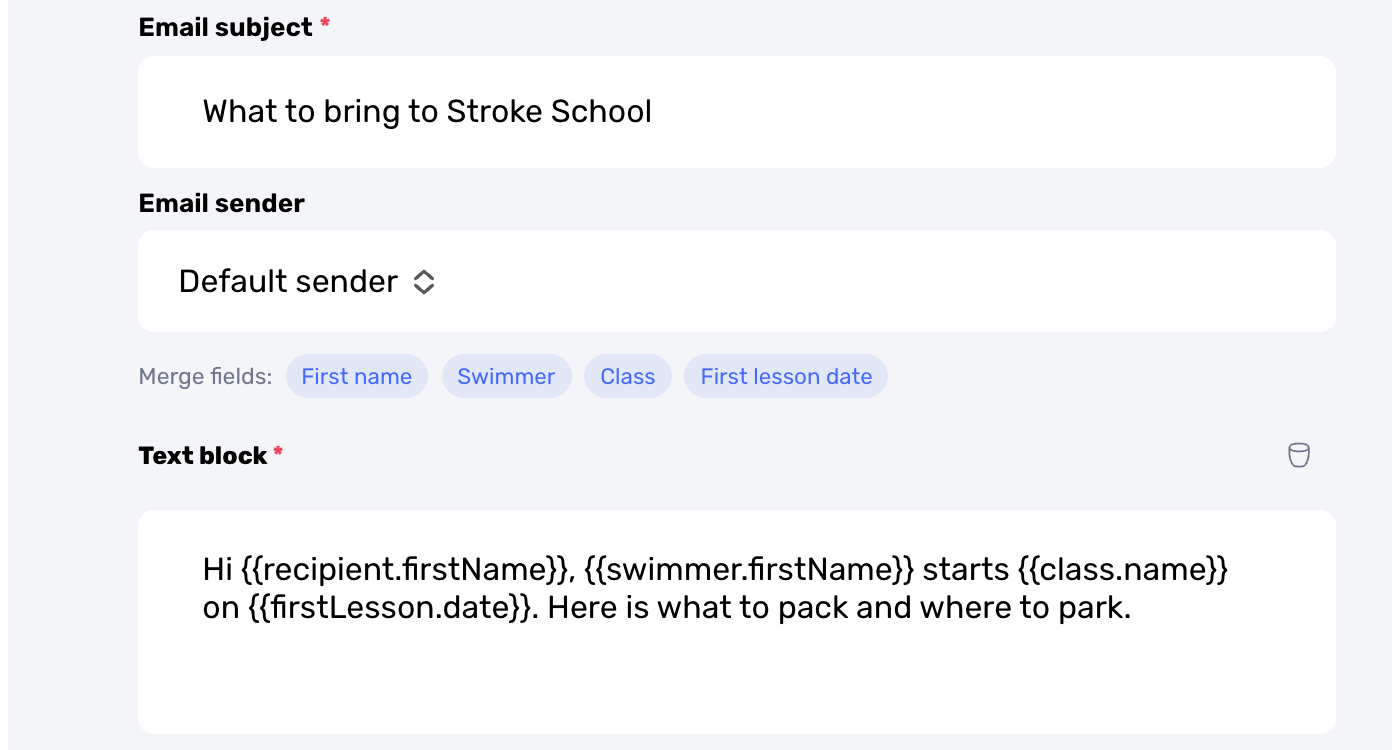
Funnels, available on Enterprise, can now start from a new trigger: First lesson in a class. Pick one or more classes and set each step to send a number of days or hours before a swimmer's first lesson, with the swimmer's name, the class name, and the first lesson date in the message. Each swimmer in each class gets their own sequence once that first lesson is booked, and nothing is sent after the lesson has started.
14. Reward Only the Referring Family, or Wait Until a Plan Is Bought
Access: Client Rewards -> The reward -> New family gets; Client Rewards -> Rules -> When they buy a plan
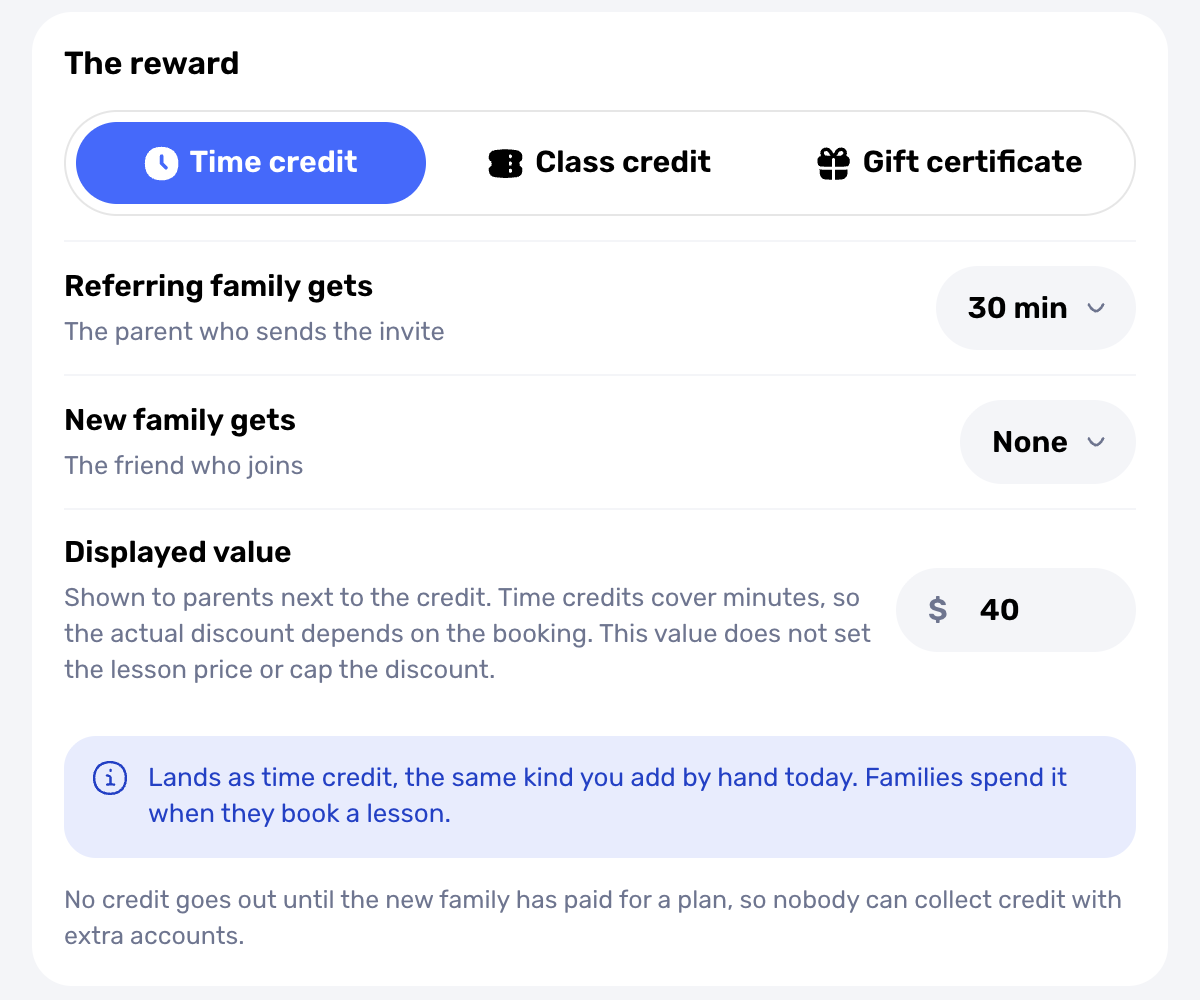
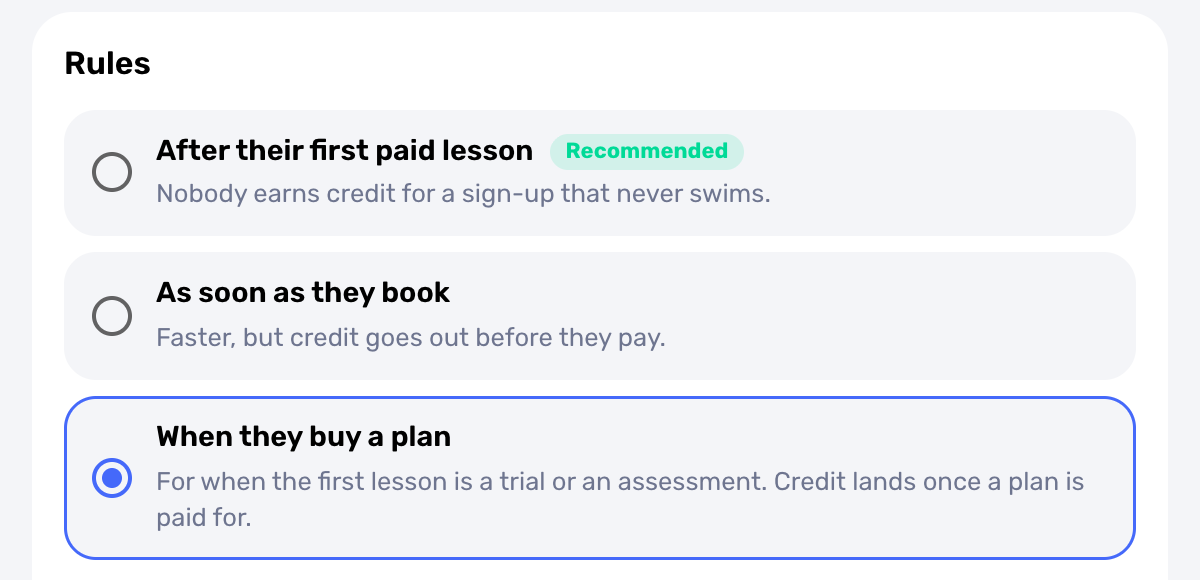
Client Rewards has two new choices. New family gets can now be set to None, so only the referring family is rewarded and the in-app invite no longer mentions a gift for the friend. A third rule, When they buy a plan, releases the credit once a plan is paid for. A trial lesson, a class, or a one-off charge does not count, which suits schools that start new families with a trial or an assessment.
15. Turn Off Reminder Emails and Keep Push Reminders
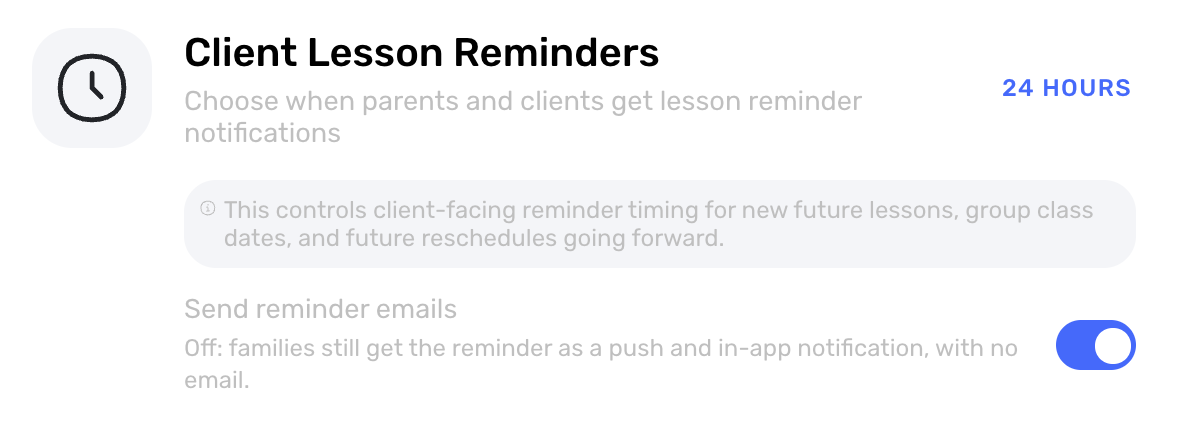
Access: Booking Controls -> General -> Advanced Options -> Client Lesson Reminders -> Send reminder emails
Schools can now turn off reminder emails without turning off reminders. A new Send reminder emails switch sits under Client Lesson Reminders and is on by default. When it is off, families still get lesson and class reminders as a push and in-app notification, with no reminder email, and every other client email stays the same. The switch is unavailable while Allow Client Emails is off, and it saves with the page's usual Save Changes button.
16. A Clear Path to Group Classes on the Free Plan
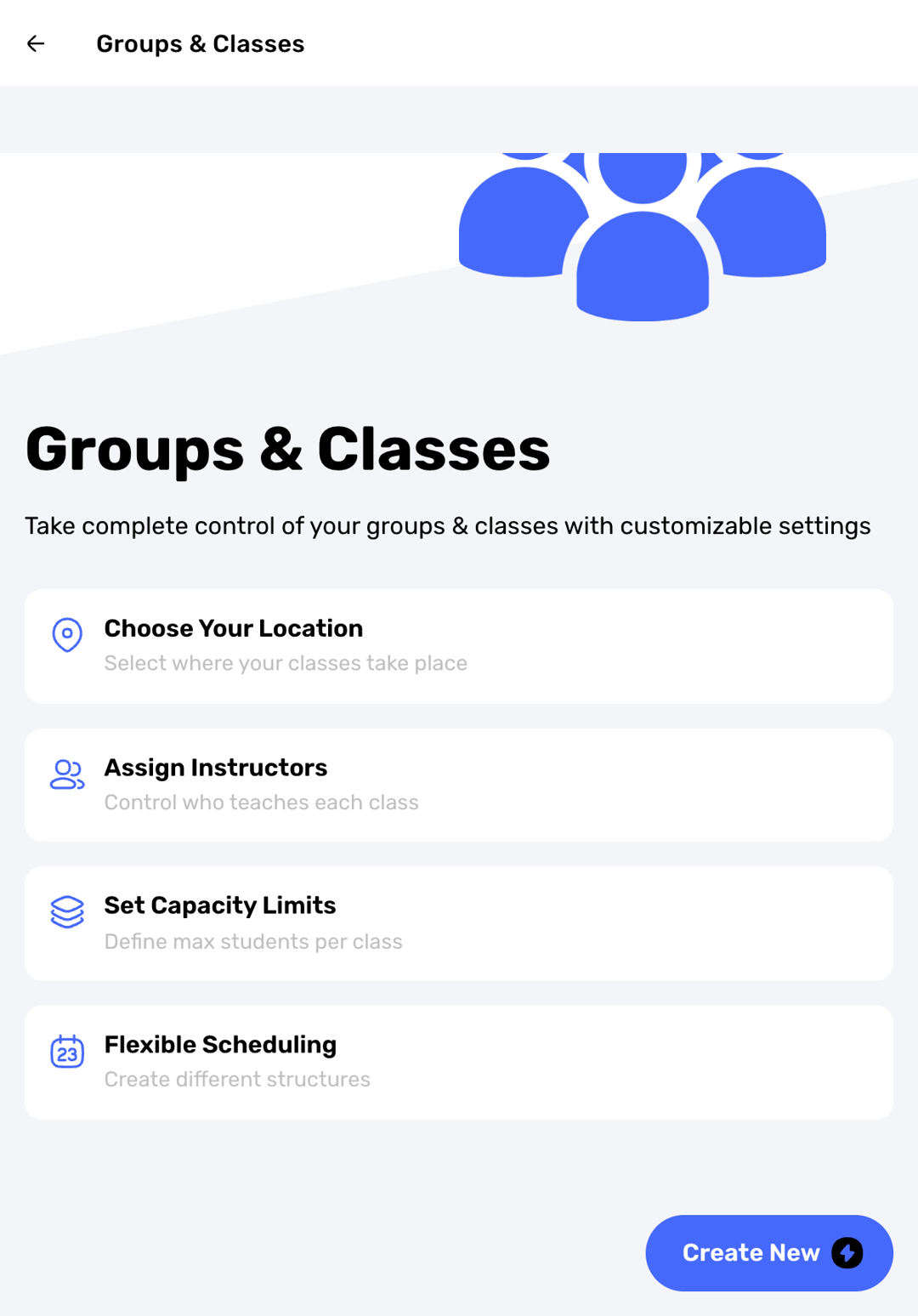
Access: Groups & Classes -> Create New
Instructors on the free plan can now tap Create New or Duplicate on Groups & Classes, or Add Group/Class on the calendar day view, and land on the plan screen opened on Pro, the plan that includes group classes. New School on the Swim School page works the same way, so the next step is always clear. Staff instructors and admins who do not have permission to manage groups are not shown the upgrade screen.
Progress and Team
17. Mark Skills in Any Order, Undo, and Skip What Doesn't Apply
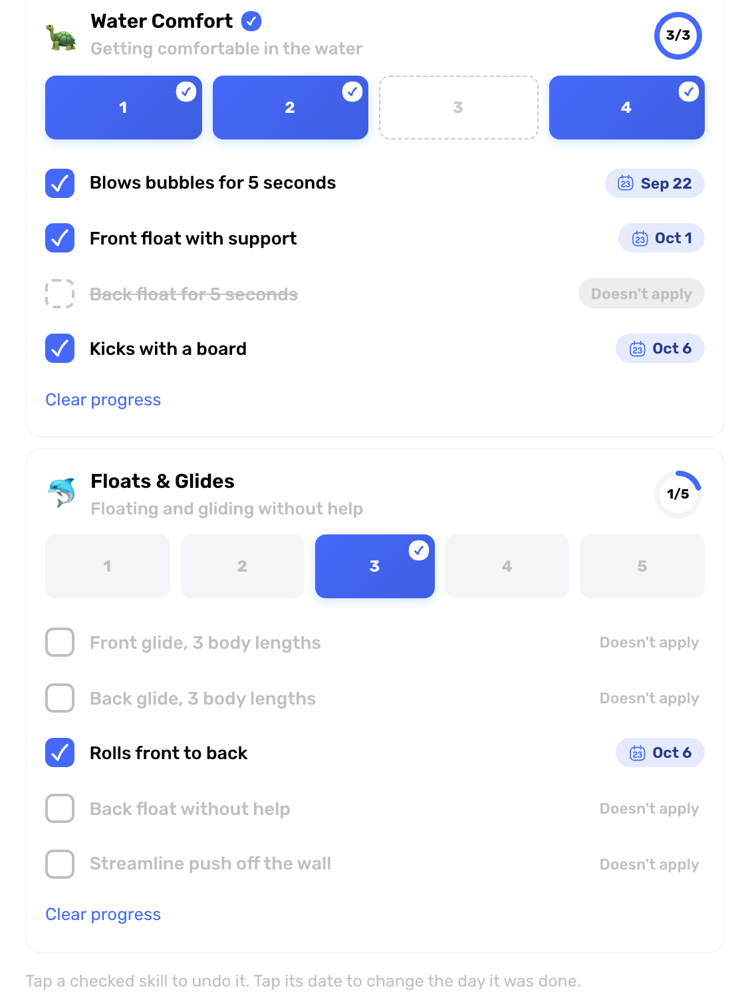
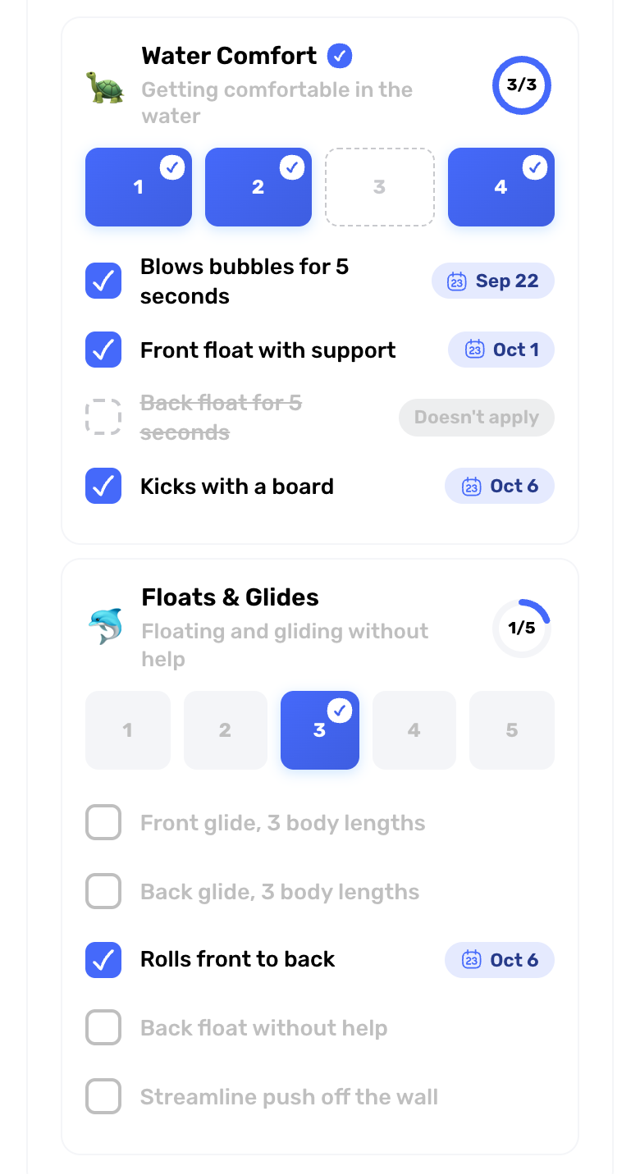
Access: Participant Tracking -> Open a Swimmer -> Progress Ledger
Instructors can now check any skill in a level in any order, undo one marked by mistake, change the day it was done, and mark a skill Doesn't apply. A level counts as finished when every skill is done or skipped, and History names the skill that changed. Parents see each skill's state and date in a read-only view, with no buttons. Progress records you already have keep working as they are.
18. Log Skills When You Mark a Lesson Complete
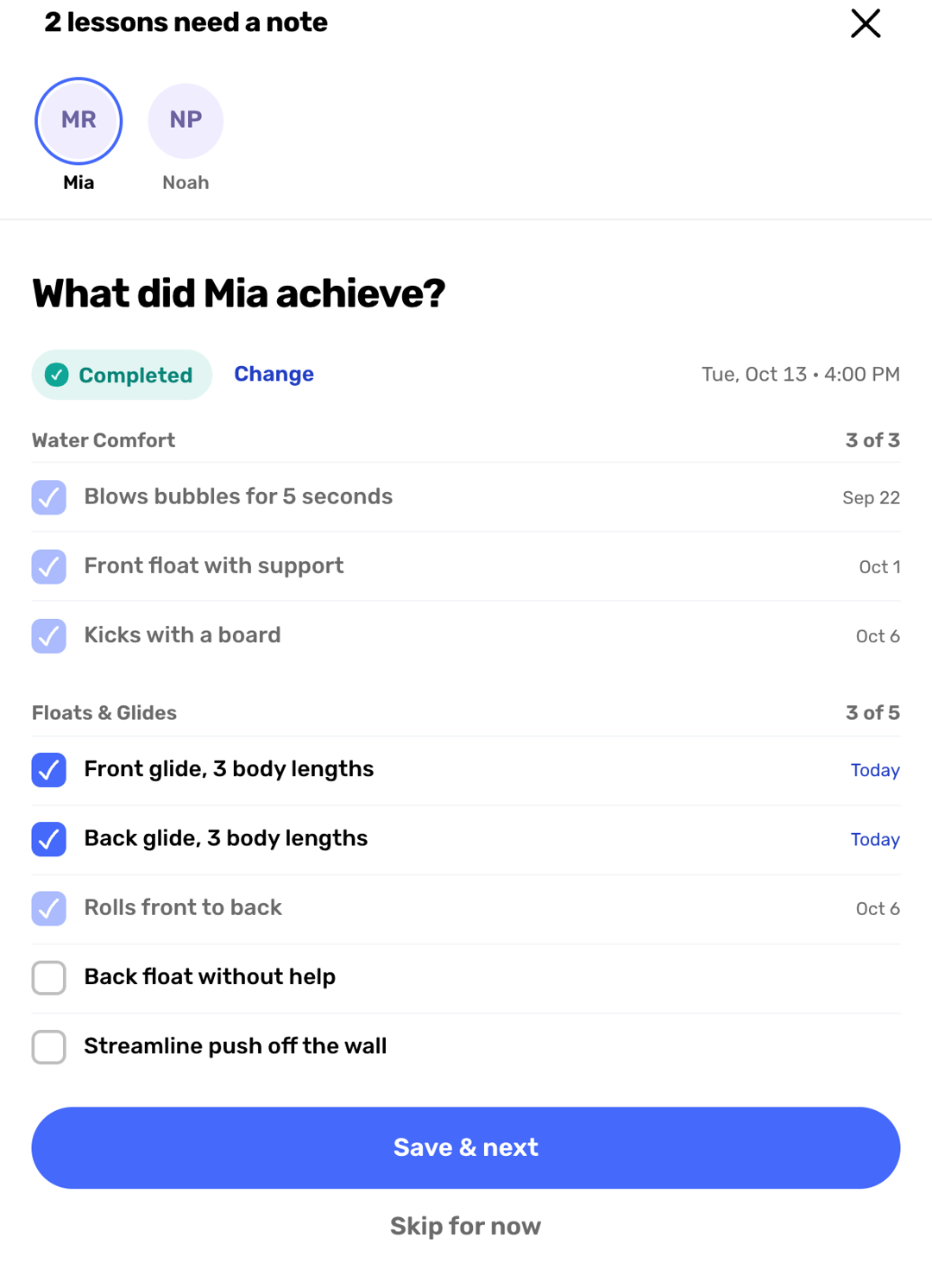
Access: Calendar -> Open a Lesson -> Lesson Flags -> Lesson Completed -> Log skills
Skills can now be logged at the moment a lesson is marked complete. In the required-notes flow, a new step after Yes, completed asks what the swimmer achieved: tick the skills, then write the note. In the lesson window, turning on Lesson Completed offers Log skills, which opens that swimmer's Progress Ledger. Skills logged this way are dated to the lesson's day. The step appears when your school has progress levels and your plan includes progress tracking.
19. A Clear Message When Staff Access Changes
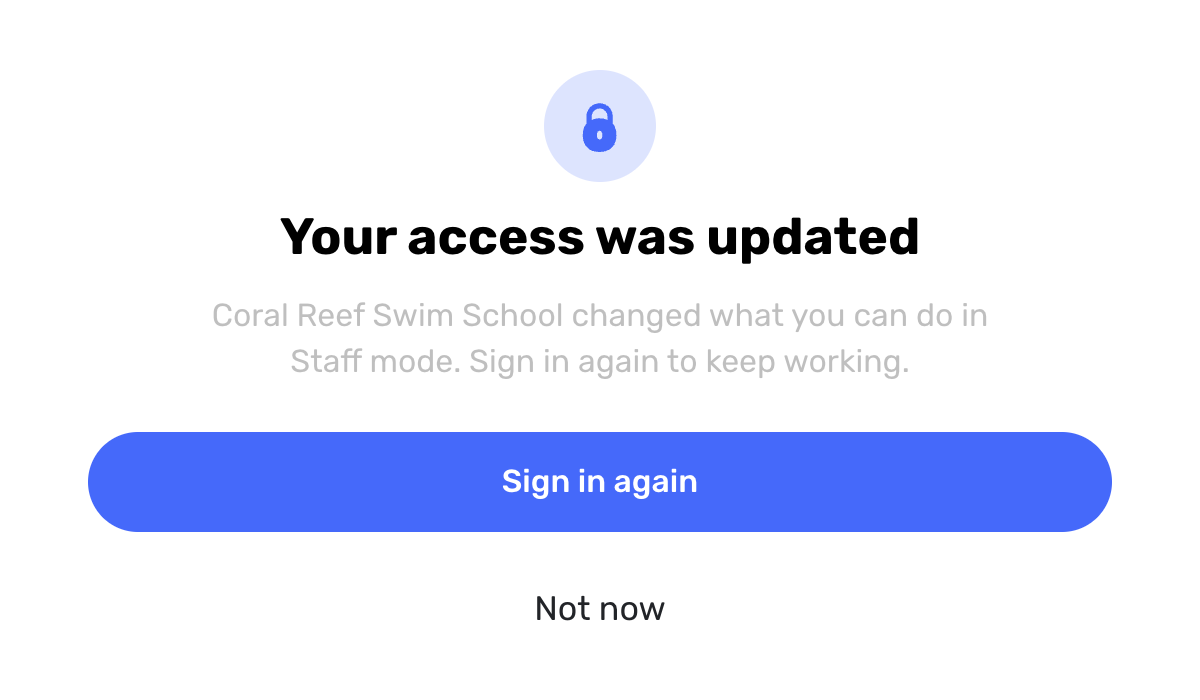
Access: Time & Attendance -> Time Off
When a school changes a staff member's access while they are signed in, Time Off can now recover on its own. Swum refreshes the session and tries once more. If access is still out of date, staff see Your access was updated with Sign in again and Not now instead of a generic error. In Staff mode, the app goes straight to that screen. The Time Off review list also has a Try again button when it cannot load.
October's Theme: The Answer on the Screen You Are Already On
These releases put more answers where you are already looking: who has paid on the calendar, which weeks still have room, what a plan will do next month, and why a card did not go through.
The result is fewer follow-up messages. Owners can see and fix more from one place, instructors spend less time checking, and families get plain words about what to do next.