July is about turning the exceptions swim schools handle every week into normal, trackable workflows. This release adds more control over recurring programs, manual booking, client records, school communication, invoices, waivers, lesson completion, and instructor pay.
We shipped 28 updates in this round. Several expand systems introduced in earlier releases, while others are entirely new tools built from the way schools are already using Swum.
Packages, Plans, Classes, and Booking
1. Recurring Packages for Time Credits and Class Credits
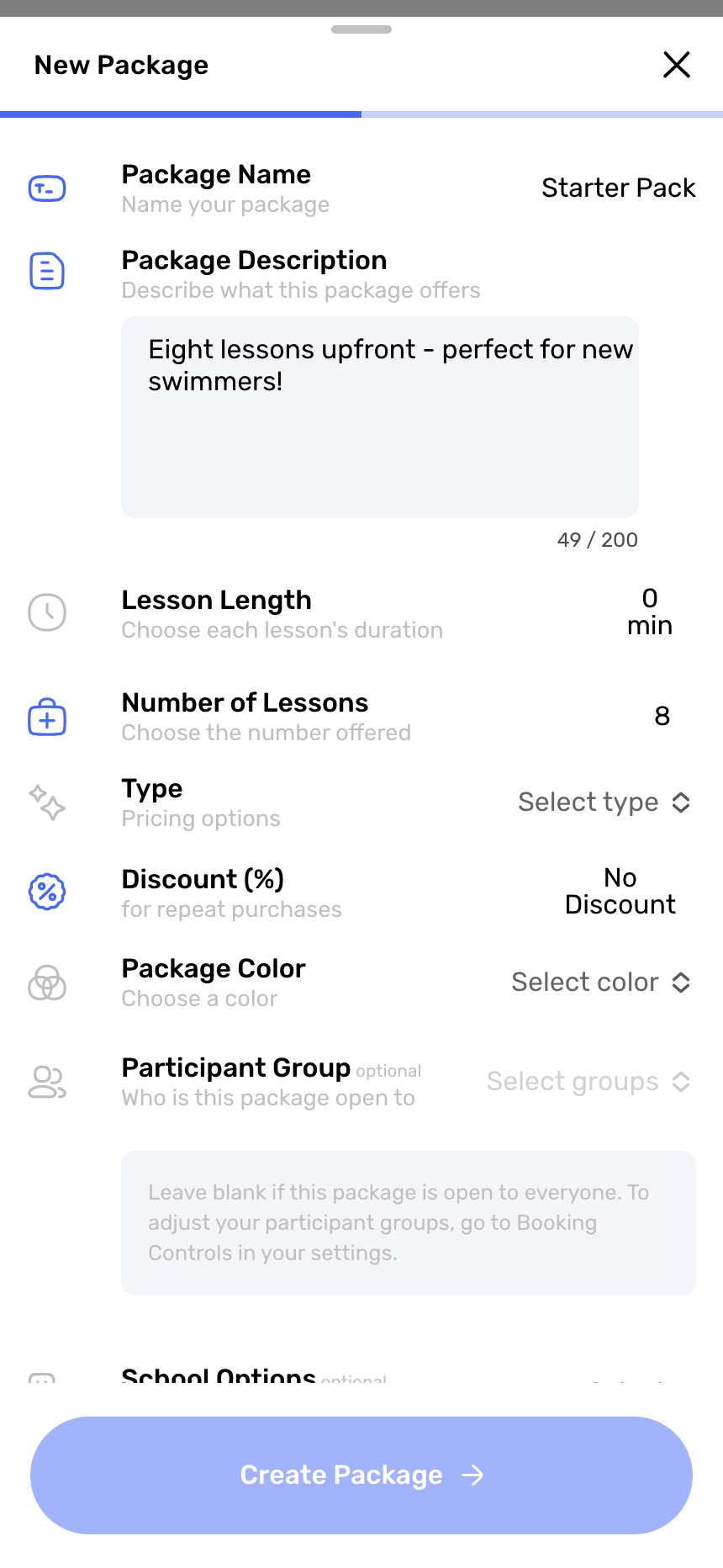
Access: Pricing -> Packages/Credits -> New Package
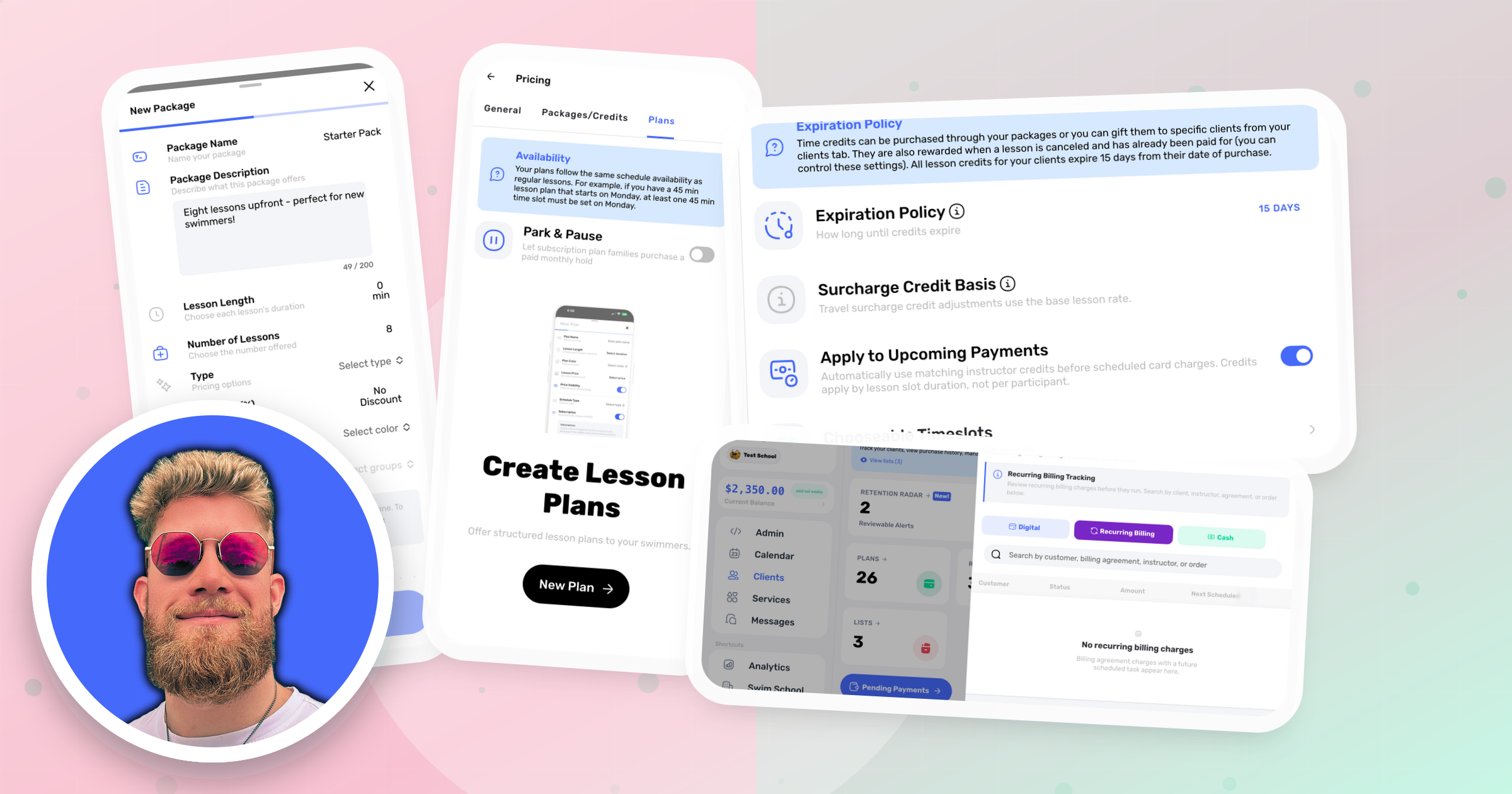
Packages can now refill either time credits or class credits automatically. Choose a weekly, every-two-weeks, monthly, or custom refill cadence so families can keep a usable credit balance without purchasing the same package again each cycle.
2. Claim a Custom Link for Your Swim School
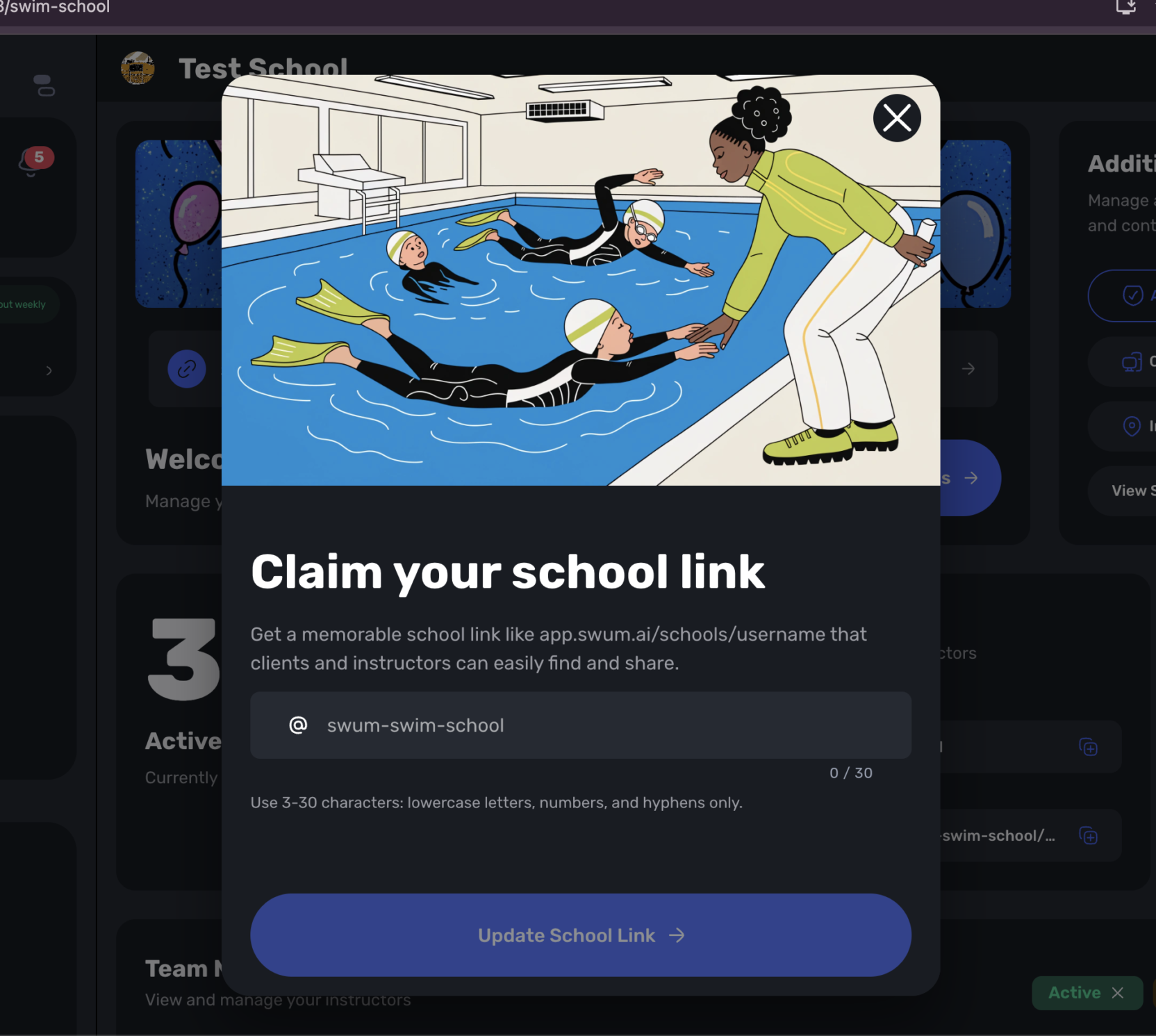
Access: Swim School -> School Details -> Claim your school link
Schools can claim a clean, memorable app.swum.ai/schools/your-name address instead of sharing a long generic URL. The link can be checked for availability, saved to the school, and used wherever families discover or book with the business.
3. Attached Billing for Perpetual Class Series
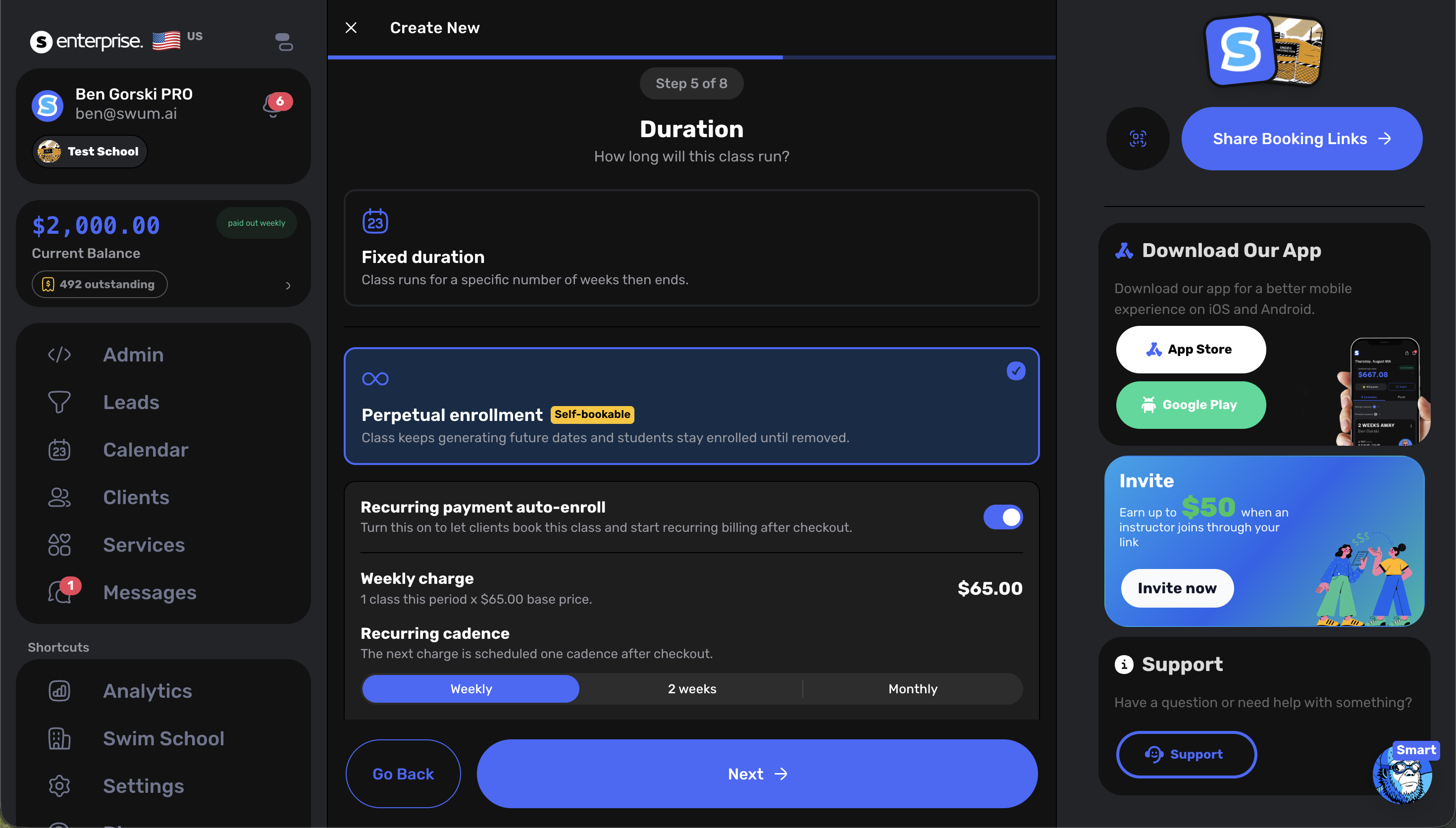
Access: Groups & Classes -> Create Class -> Class Series -> Perpetual Dates -> Attached Billing
Building on perpetual enrollment from the last release, perpetual classes can now carry their billing directly inside the class-series builder. Set the base class price and a weekly, every-two-weeks, or monthly cadence; Swum calculates the period charge, keeps generating future class dates, and lets enrolled families stay active until they are removed or their enrollment is ended.
4. Reschedule a Future Plan Lesson Before It Is Created
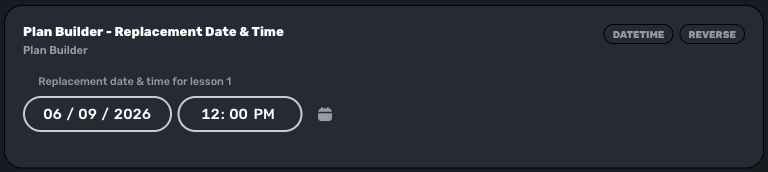
Access: Open a Subscription Plan as Its Owner or an Admin -> Schedule -> Manage Future Lessons
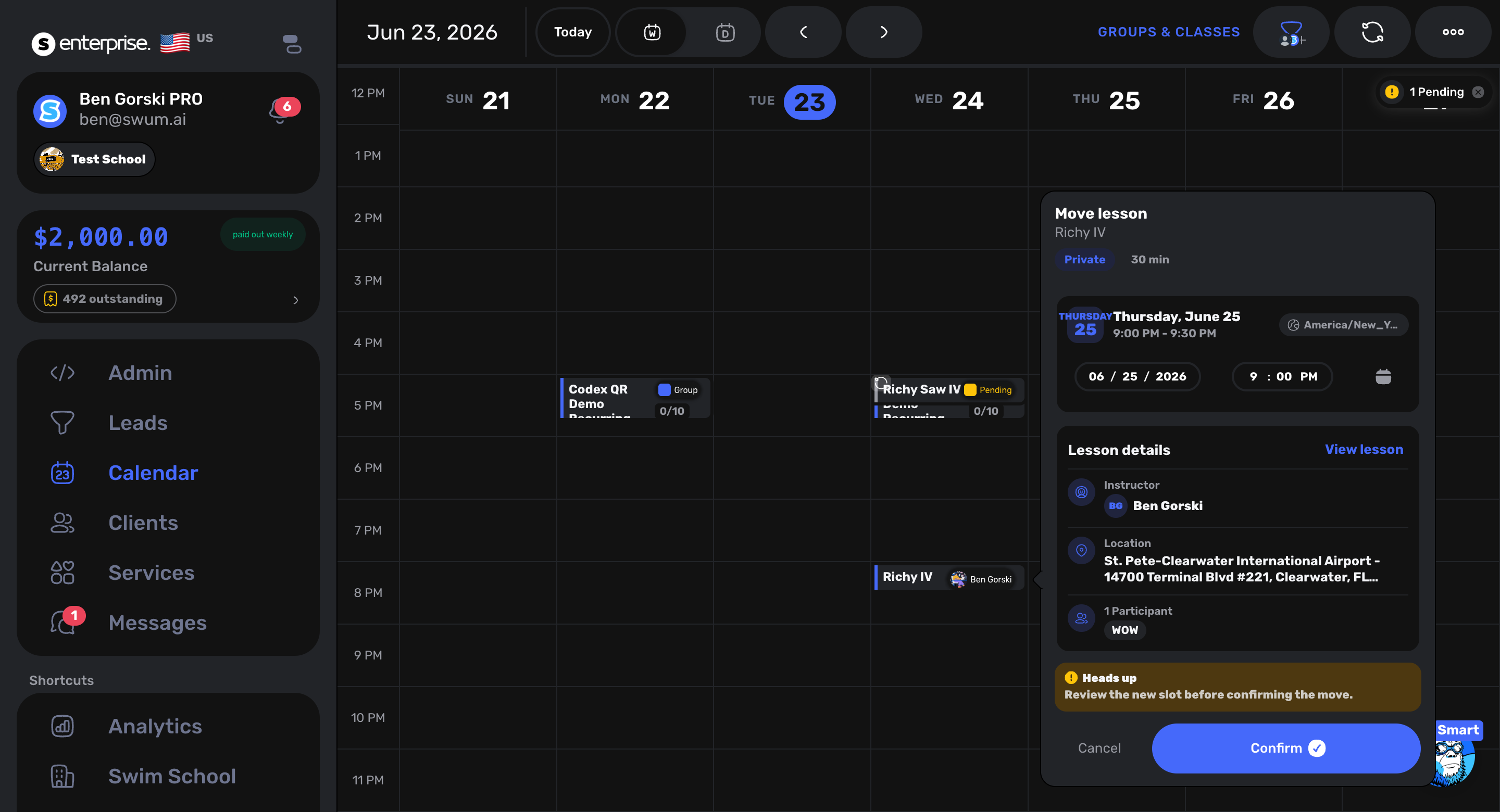
For plan owners and school admins, future plan management is no longer limited to blocking a date. Select an upcoming uncreated plan occurrence, choose Reschedule, and give it a replacement date and time so the recurring plan can continue without losing that lesson.
5. Recommended Addresses During Manual Booking
Access: Clients -> Book -> Private Lesson -> Choose Location
When an instructor books for an existing client, Swum now checks that client's past lessons and marks the most recently used valid location as Recommended. It is a small shortcut that prevents repeat families from having to search for the same address every time.
6. Add Photos and Videos to Your Profile
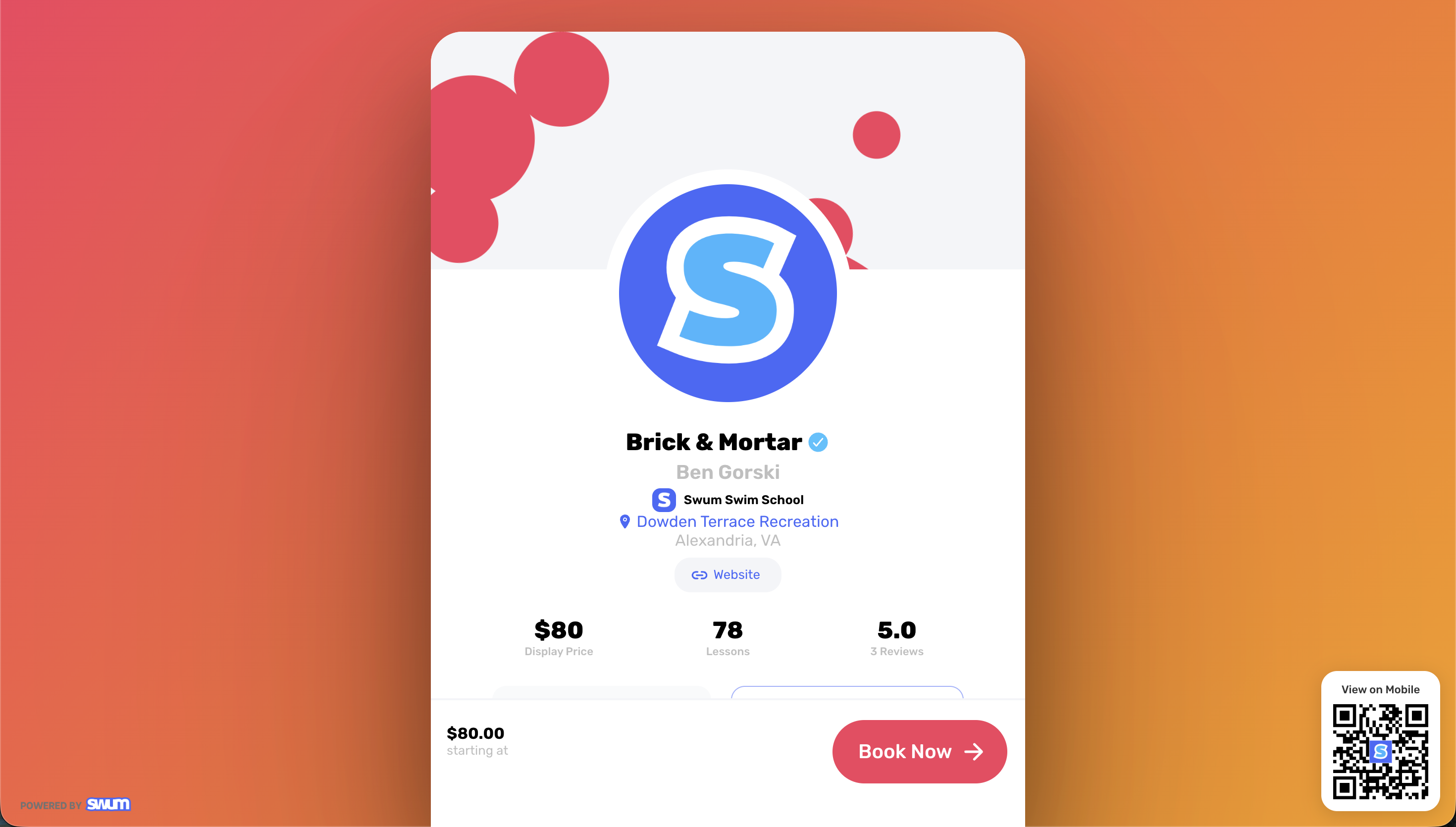
Access: Settings -> Personal Info -> Media
Instructor profiles can now include a photo and video gallery. Add media from the new Media section, manage it in one grid, and give families a better feel for your lessons, teaching environment, and personality before they book.
7. Customize Weekly Days During Manual Subscription-Plan Enrollment
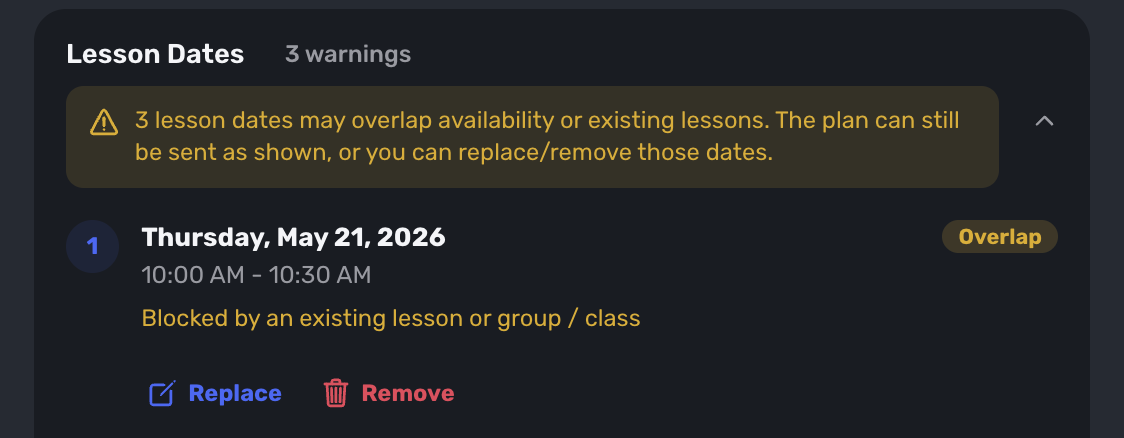
Access: Clients -> Book -> Subscription Plan Enrollment -> Renewal Schedule
When staff manually enroll a client in a subscription plan, they can now build a custom weekly pattern instead of forcing every renewal to reuse one rigid day. Expand the renewal schedule to change the weekday and time for each recurring lesson, or replace and remove individual dates before sending the enrollment.
Client, School, and Scholarship Operations
8. See Scholarship Lesson Value and Outstanding Revenue
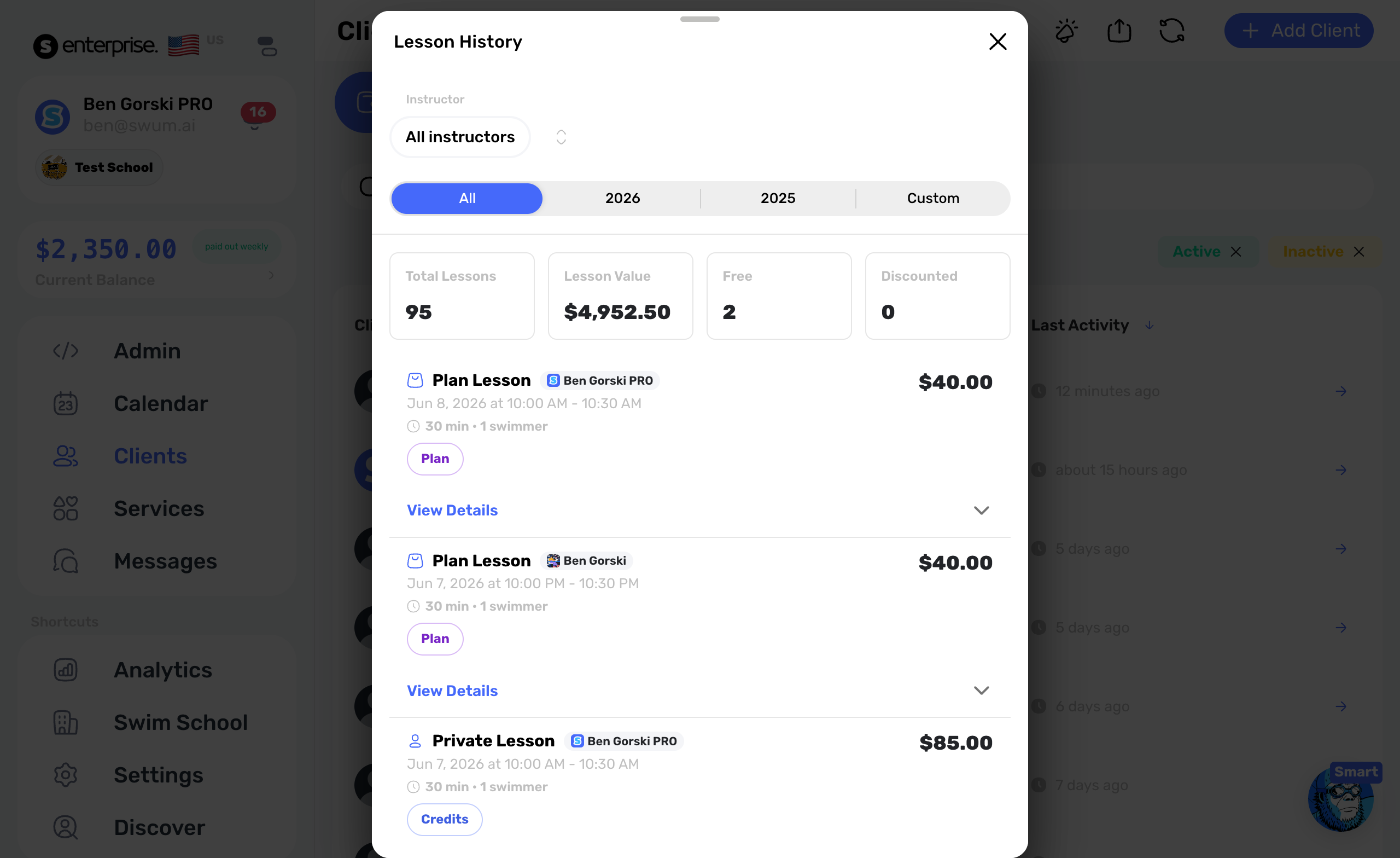
Access: Clients -> Client Profile -> Lesson Tracker
Scholarship and externally funded lesson programs now have a clearer financial view inside the new Lesson Tracker. See the value of lessons provided, how much has been received outside Swum, and what is still outstanding without treating those families like ordinary card purchases.
9. Add a School Support Email and Phone Number
Access: Swim School -> School Settings -> Support
School owners can set a dedicated support email and support phone number. Those contacts are used in family-facing help surfaces, keeping client questions routed to the school instead of defaulting to an individual instructor or a generic address.
10. Customize Booking Messages by Instructor
Access: Booking Controls -> Requirements -> Booking Message
Booking messages can now apply to everyone or to one specific instructor. Choose the instructor, select the relevant locations, and add the message or files families should see so a multi-instructor school can give the right instructions for each booking context.
11. Require a Package Before New Clients Book Private Lessons
Access: Pricing -> Packages/Credits -> Package Purchase Required
Schools that sell private lessons through packages can now protect that flow. When this setting is on, a new client sees packages first; after Swum finds package purchase history, the normal private-lesson option becomes available.
12. Set a Minimum Number of Lessons Per Booking
Access: Booking Controls -> Client Controls -> Minimum Lessons
Set a minimum of one to five lessons for paid private individual and package bookings. A family redeeming enough time credits to cover the booking can still use those credits without being forced to add extra lessons, so the rule protects paid checkout without blocking existing value.
13. Combine or Delete Participant Profiles
Access: Clients -> Client Profile -> Participants -> Participant Options
Instructors can now clean up participant records for coach-managed clients and for client accounts that granted checkout permission. Combine a duplicate swimmer into the correct participant or delete a profile that should not be there, with a preview and confirmation before the change is applied.
14. Record Scholarship Payments Received Outside Swum
Access: Clients -> Client Profile -> Lesson Tracker -> Edit -> Payment Tracking
Lesson Tracker also includes a dated payment ledger for scholarship checks, reimbursements, and other money collected outside Swum. Add each received amount and the tracker recalculates the remaining balance against the value of lessons already provided.
15. Email Everyone Affected by a Canceled Lesson Day
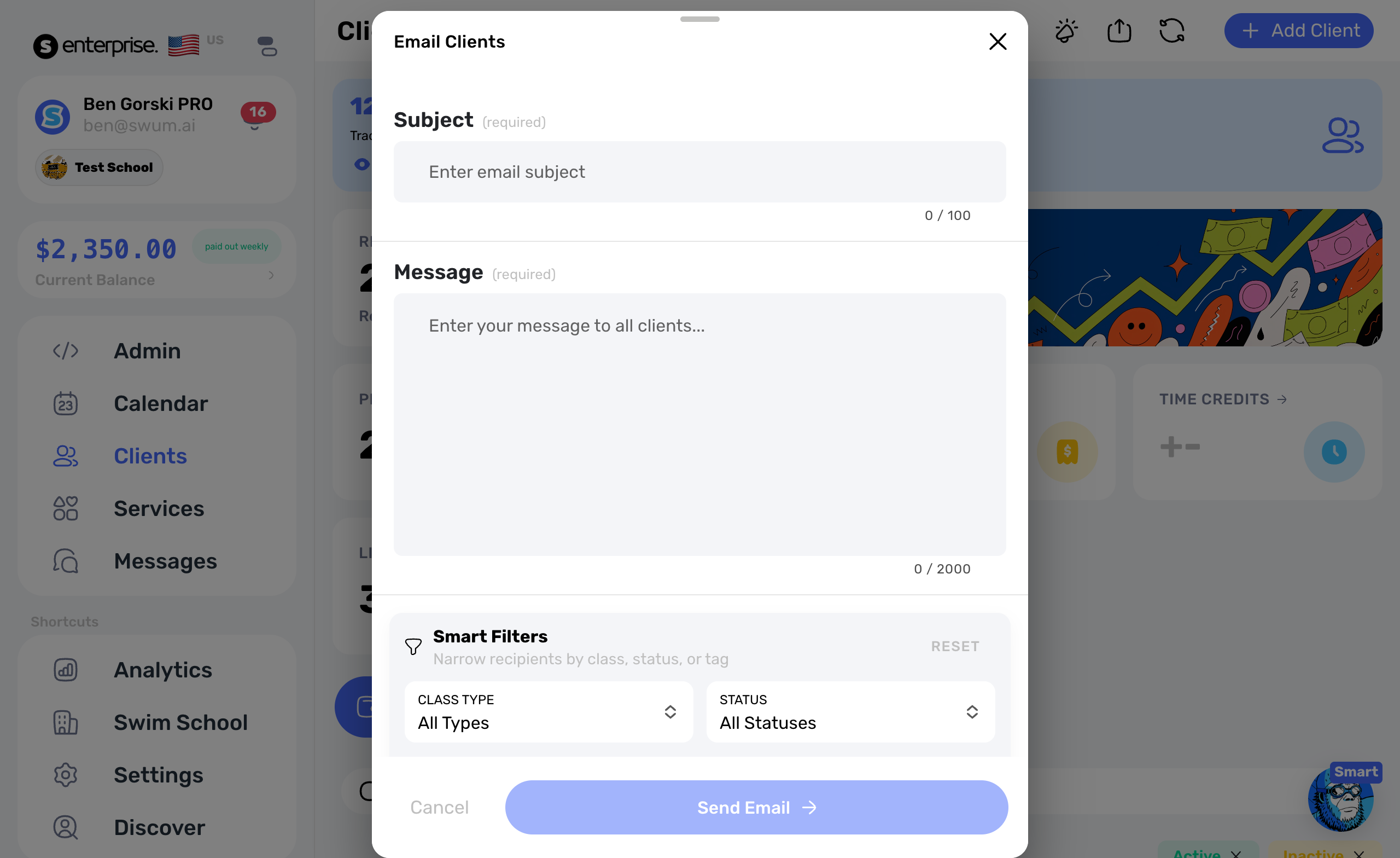
Access: Clients -> Email Clients -> Smart Filters -> Canceled Lesson Date
The email composer now includes a canceled-lesson-date audience filter. Choose the date and Swum builds the affected client audience for you, so schools can send weather notices, makeup instructions, credit information, or next steps without manually finding every family from that day's calendar.
16. Add Expiration Dates to Enrollment Requests
Access: Clients -> Book -> Class, Plan, or Package Enrollment Request
Coach-created enrollment requests can now expire automatically. Set the Expires By date and time before sending the request—seven days is the default—so unaccepted class, plan, and package offers do not remain open forever.
Invoices, Payments, Waivers, and Lesson Tracking
17. Roll Plan Lessons Into Fewer Invoices
Access: Pricing -> Plans -> Payment Timing -> Invoice Frequency (Weekly)
Eligible invoice-based plan lessons can now consolidate into one weekly family invoice instead of creating a separate invoice for every lesson. Swum keeps the rollup scoped to the same parent, coach, plan, and currency, producing a cleaner payment request without combining unrelated charges.
18. Pay Eligible Outstanding Invoices in One Checkout
Access: Open an unpaid invoice -> Pay All Outstanding Invoices
Families can now bundle eligible outstanding invoices into one payment. The checkout lists the included invoices, base total, fees, and final bundle total, while authorized staff can process the group from the coach side. Invoices with a different billing owner, currency, payout destination, or an active payment attempt remain separate.
19. Customize the Registration Fee for One Client
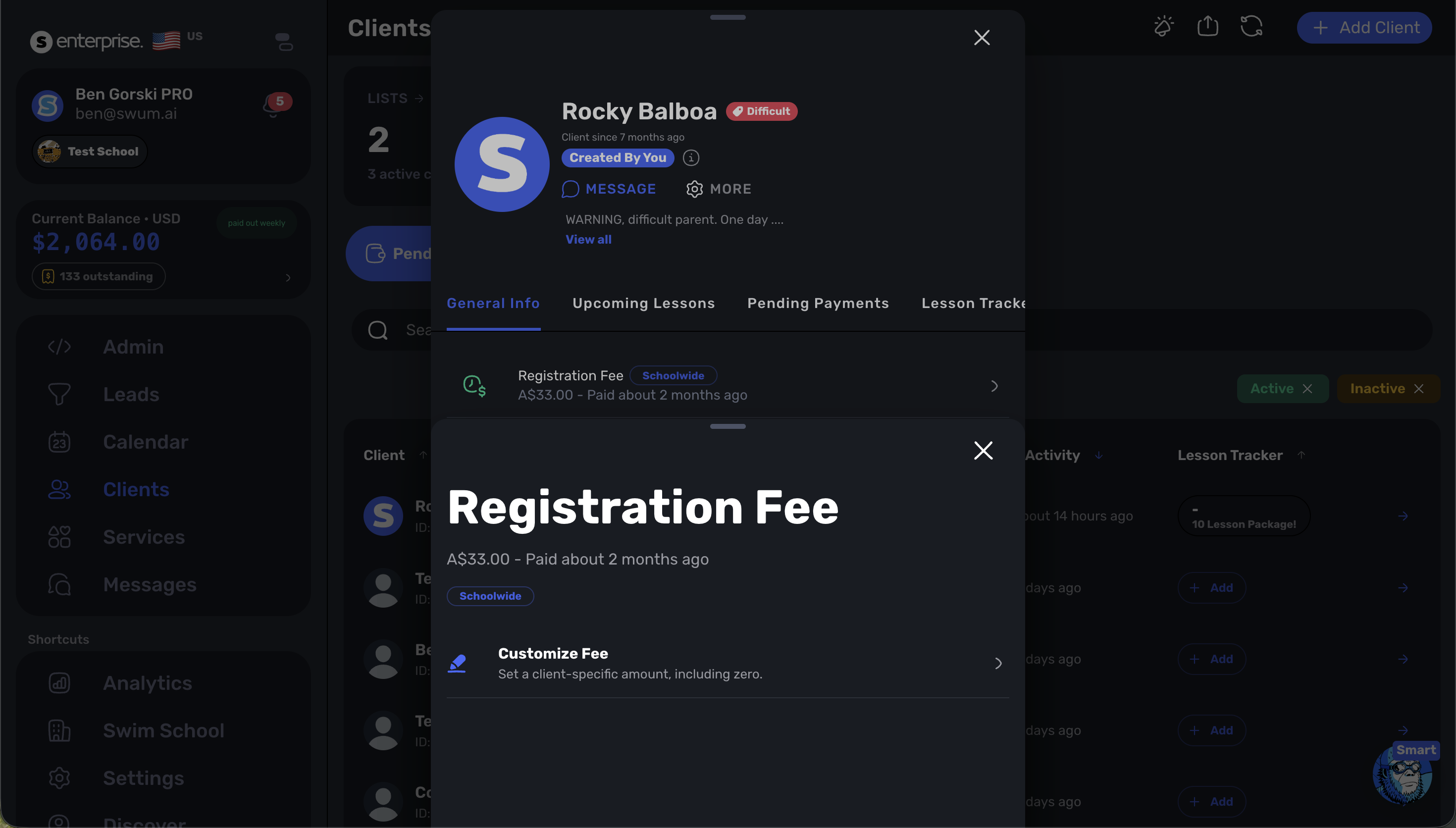
Access: Clients -> Select a Client -> General Info -> Registration Fee -> Customize Fee
Keep your schoolwide registration fee as the default, then set a different amount for an individual client when needed. The client-specific amount can even be zero to waive that client’s fee on future checkouts.
20. Add a Lesson From a Simple Calendar Popup
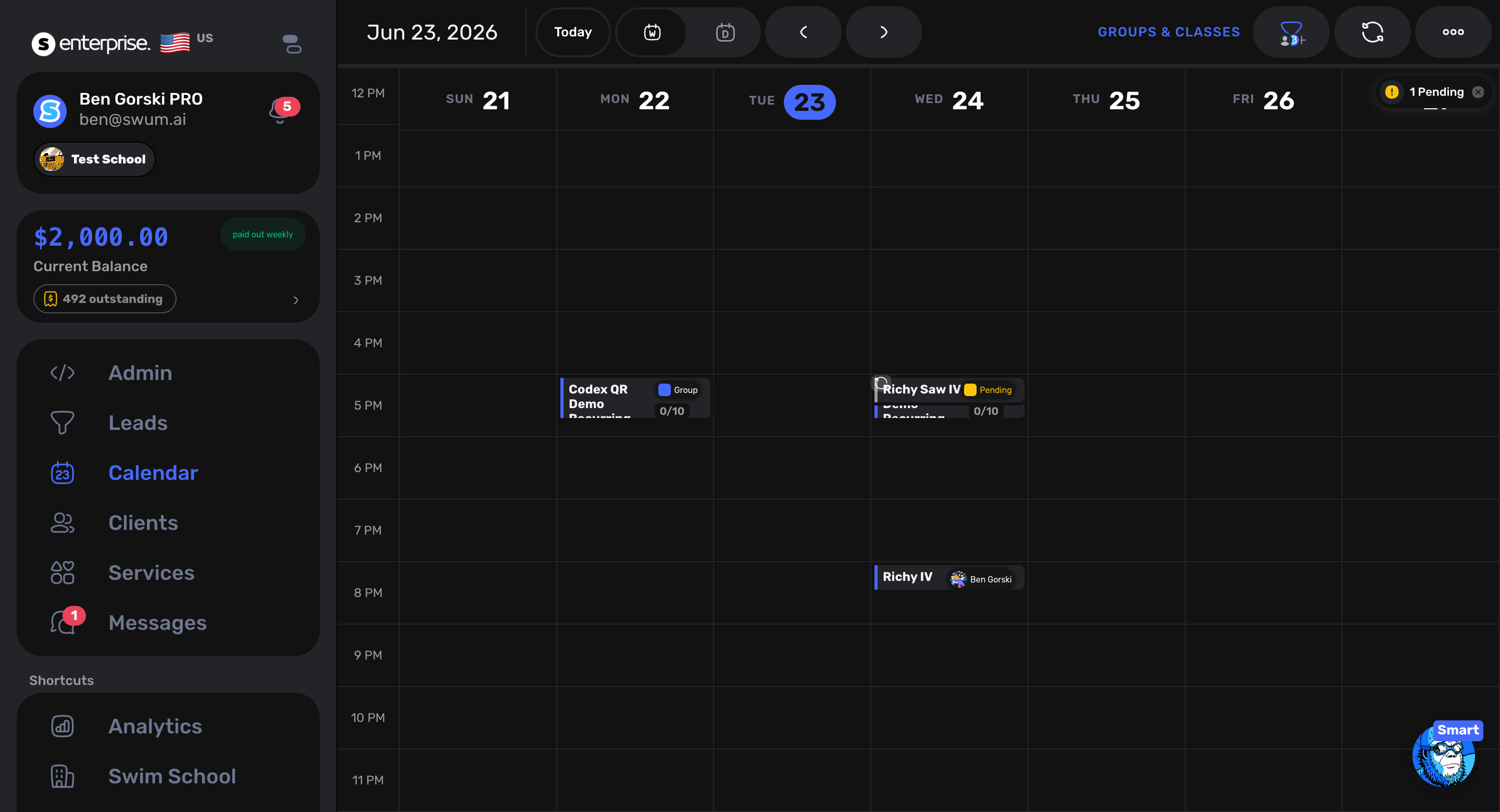
Access: Calendar -> Click an Empty Time Slot
Quick booking now starts with a simple in-calendar popup. Click an opening and the date and time are already filled in; choose the client, participant, location, and lesson type, then create the lesson or open the full setup when the booking needs more detail.
21. Create a Secure Waiver Link to Share by Text or Email
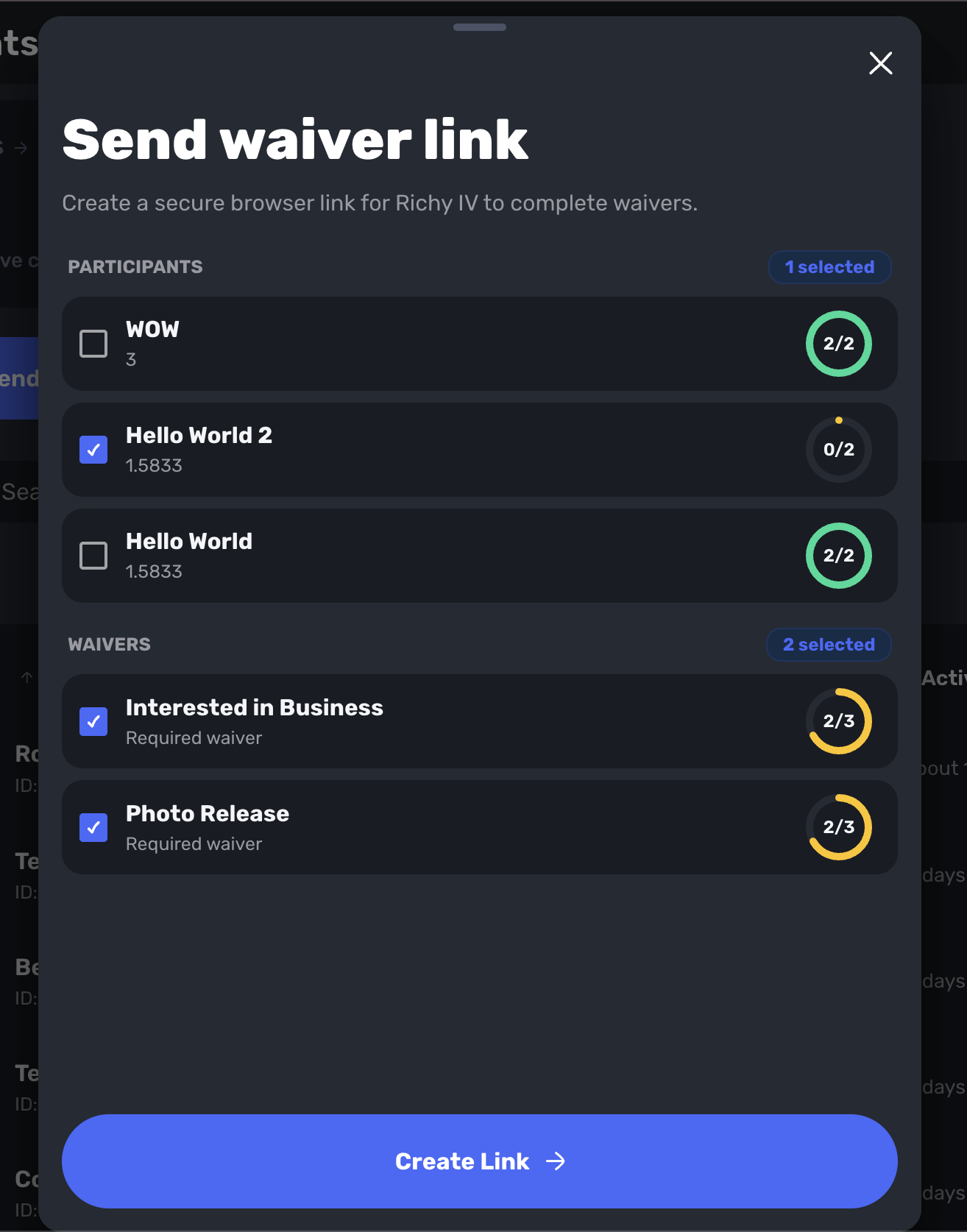
Access: Clients -> Select a Client -> Waivers -> Send Link
Choose the participants and waivers, then select Create Link. Swum generates a secure URL and QR code that you can copy into an email or text. The link opens a guided waiver page, records completed responses back in Swum, and remains available for 14 days.
22. Open the New Lesson Tracker From Any Client
Access: Clients -> Client Profile -> More -> Lesson Tracker
Lesson Tracker is the new home for programs that need to count delivered lessons and reconcile outside funding. Track lesson progress, the value provided, payments received outside Swum, the amount still outstanding, and the individual lessons behind those totals.
23. Mark Lessons Complete or Incomplete—and Hold Payouts Until Complete
Access: Calendar -> Past Lesson -> Lesson Flags; Swim School -> School Settings
Past lessons can now be marked Completed or Incomplete from the lesson workflow. After a school enables Enforce Lesson Notes, it can also turn on Withhold Payout Until Completed, which keeps a private-lesson contractor payout waiting until the instructor confirms that the lesson happened.
Calendar Cleanup, Safety, and Staff Pay
24. Remove Rescheduled Badges and Clean Up Canceled Lessons
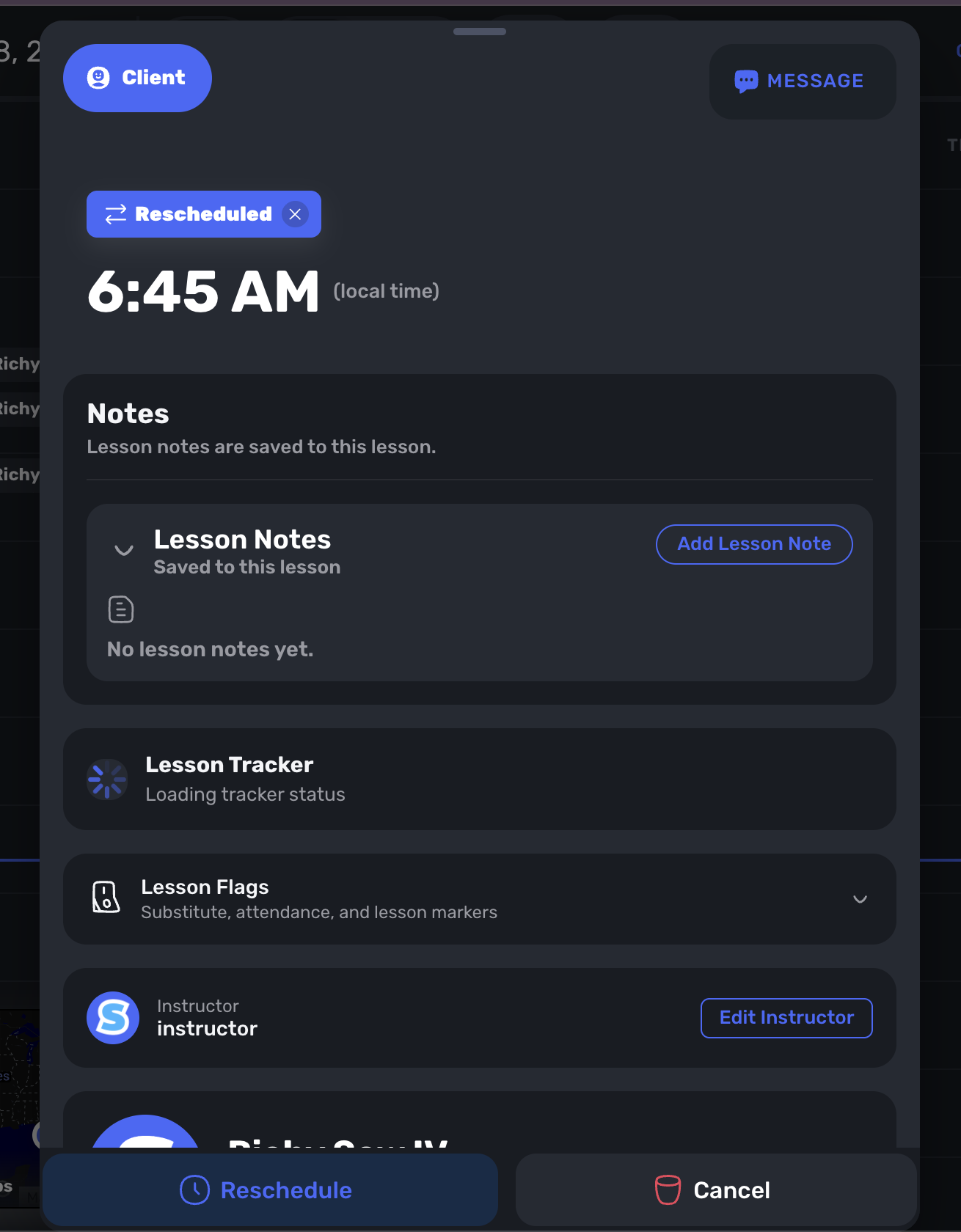
Access: Calendar -> Open a Lesson
Coaches can dismiss a Rescheduled badge once it no longer adds useful context. Canceled lessons also include Permanently Delete to remove the visible canceled record from working history; Swum still keeps an internal audit copy for operational safety.
25. Require Client Questions From the Home Screen
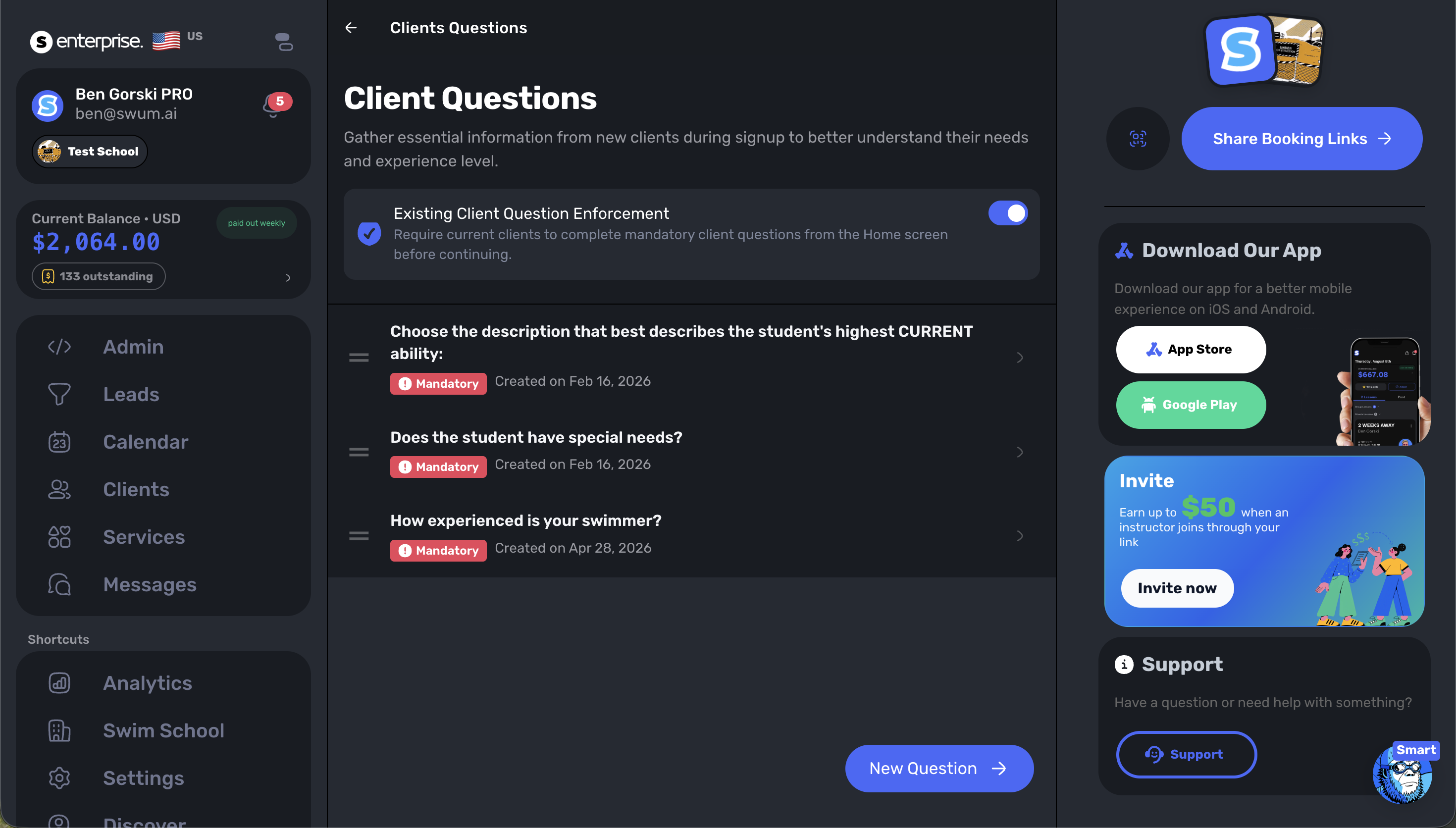
Access: Settings -> Client Questions -> Existing Client Question Enforcement
Turn on Existing Client Question Enforcement to require current clients to answer mandatory questions from Home before continuing. Responses stay organized by participant, and the Home prompt remains in place until the required answers are saved.
26. Smarter Primary-Card Handling and Backup Payment Recovery
Access: Wallet -> Payment Methods
Families can choose a new Primary payment method, and scheduled-payment recovery now tries enabled backup cards with the primary card first after an eligible decline. Swum does not blindly rewrite every existing order the moment the primary changes; when a backup succeeds, that working method is saved to the affected order for future attempts.
27. Cancel Matching Lessons While Adding Blocked Dates
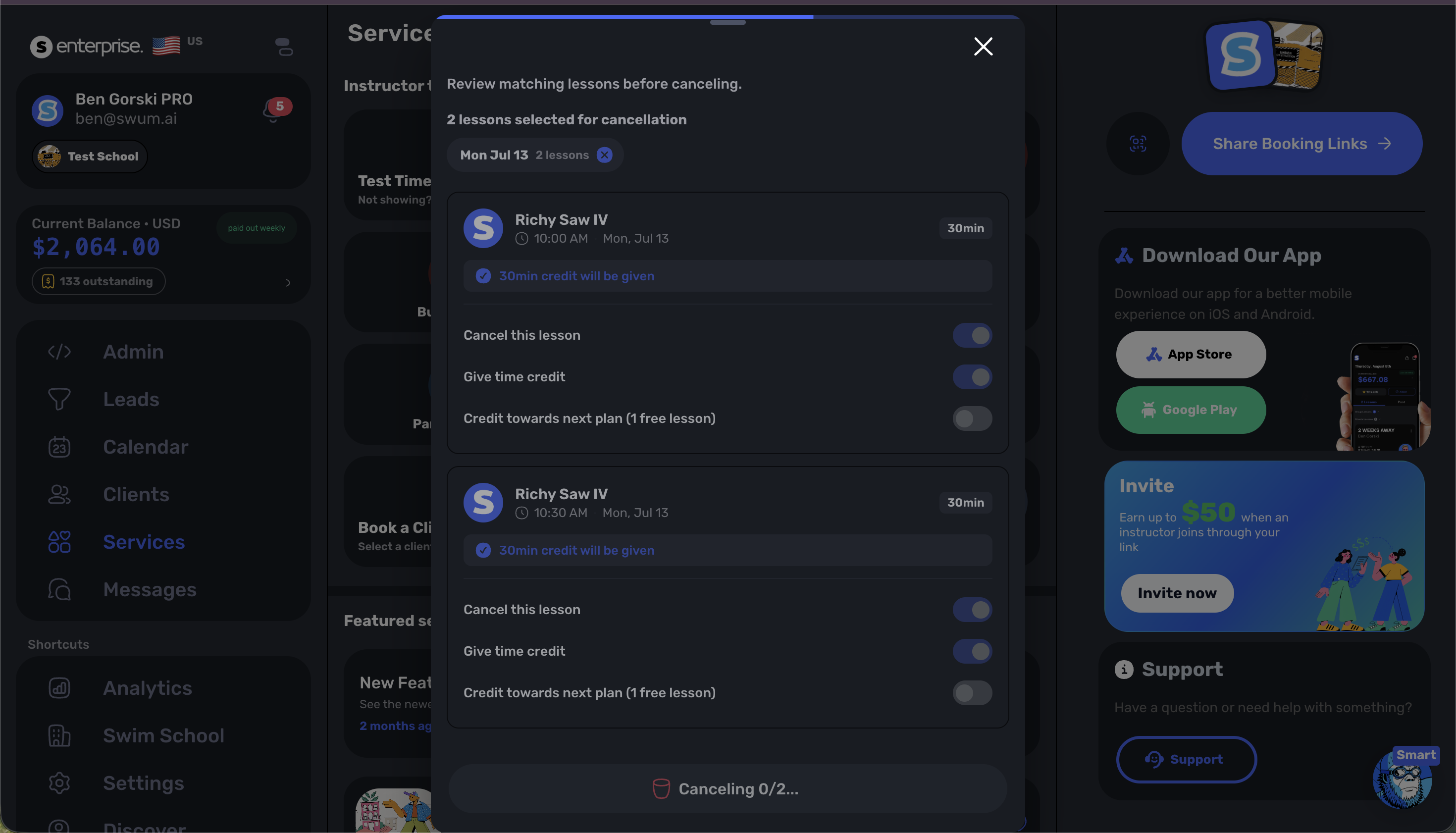
Access: Availability -> Blocked Dates -> Add New Blocked Time Range
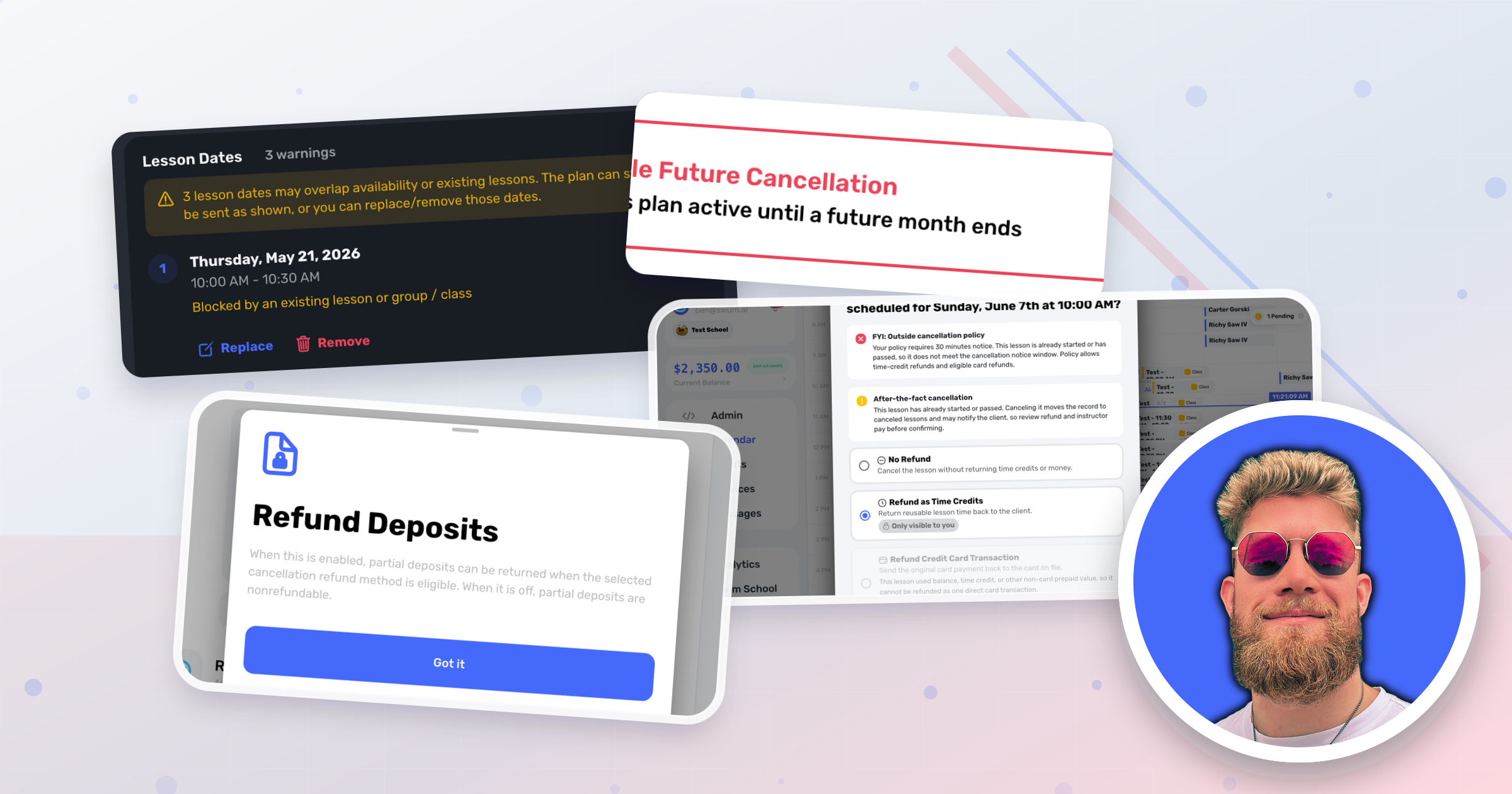
Turn on Cancel Existing Lessons to review private, plan, and pending lessons that overlap a new blocked range before acting. Group and class controls can also cancel overlaps, issue the appropriate series credits, and notify affected clients from the same workflow.
28. Adjust Instructor Pay When Canceling One Lesson
Access: Open a Past Lesson Assigned to an Instructor -> Cancel
Beyond the default instructor pay rates introduced earlier, school owners can now make a one-time pay decision while canceling a past lesson. Swum shows whether that lesson's payout is pending, scheduled, or already recorded; choose to keep none, all, or a custom portion—such as $25 of $50—and Swum adjusts the linked payout records instead of leaving staff pay to a separate cleanup process.
July's Theme: Fewer Side Spreadsheets, Fewer One-Off Fixes
These releases keep more of the real swim-school workflow inside the same system: renewing credits, running perpetual classes, handling scholarship programs, collecting invoices and waivers, cleaning client records, reacting to cancellations, and paying instructors correctly.
The result is not just more settings. It is fewer moments where the office has to remember what happened in a text thread, a spreadsheet, or a separate payment note before the next lesson can move forward.