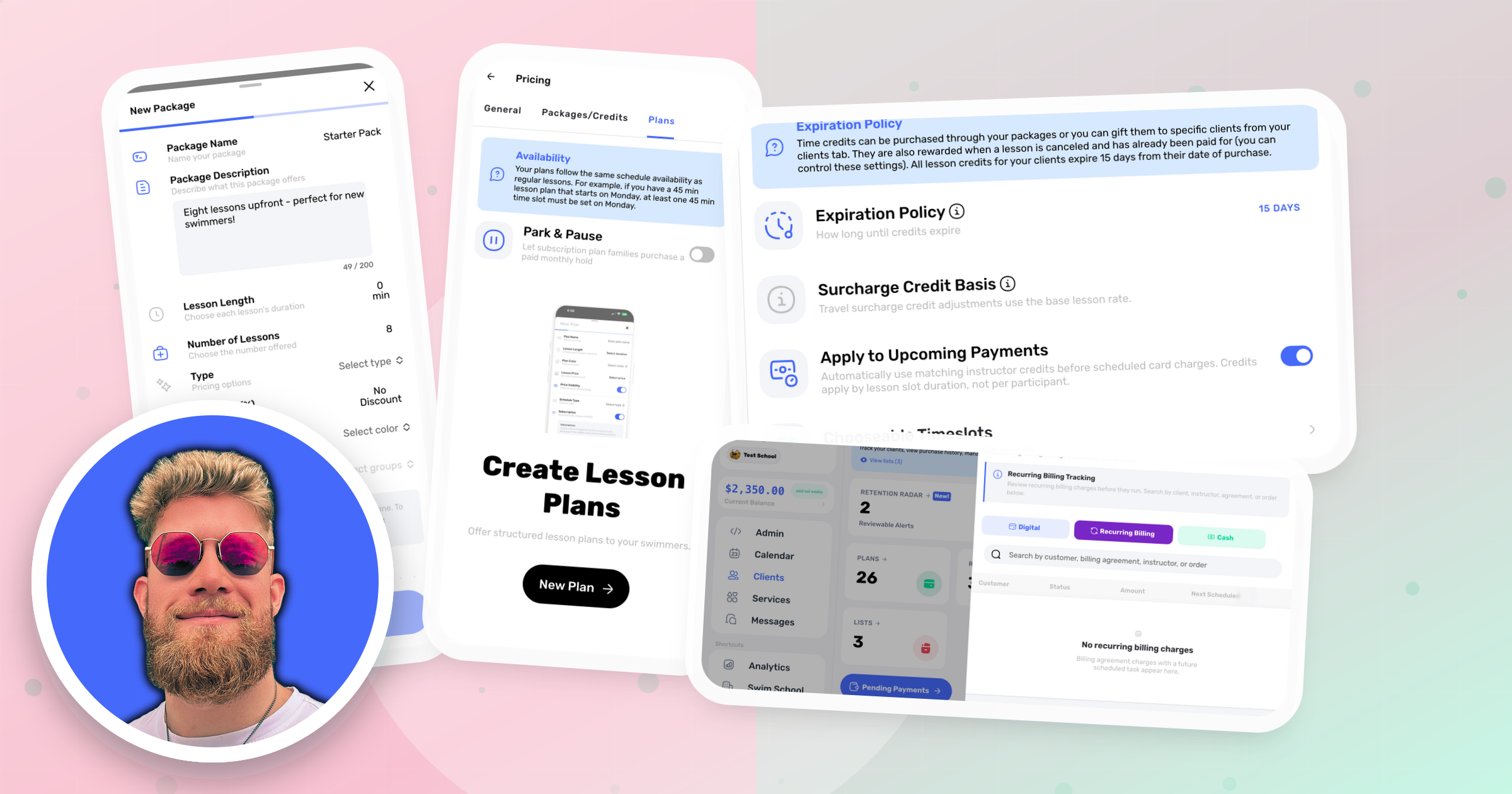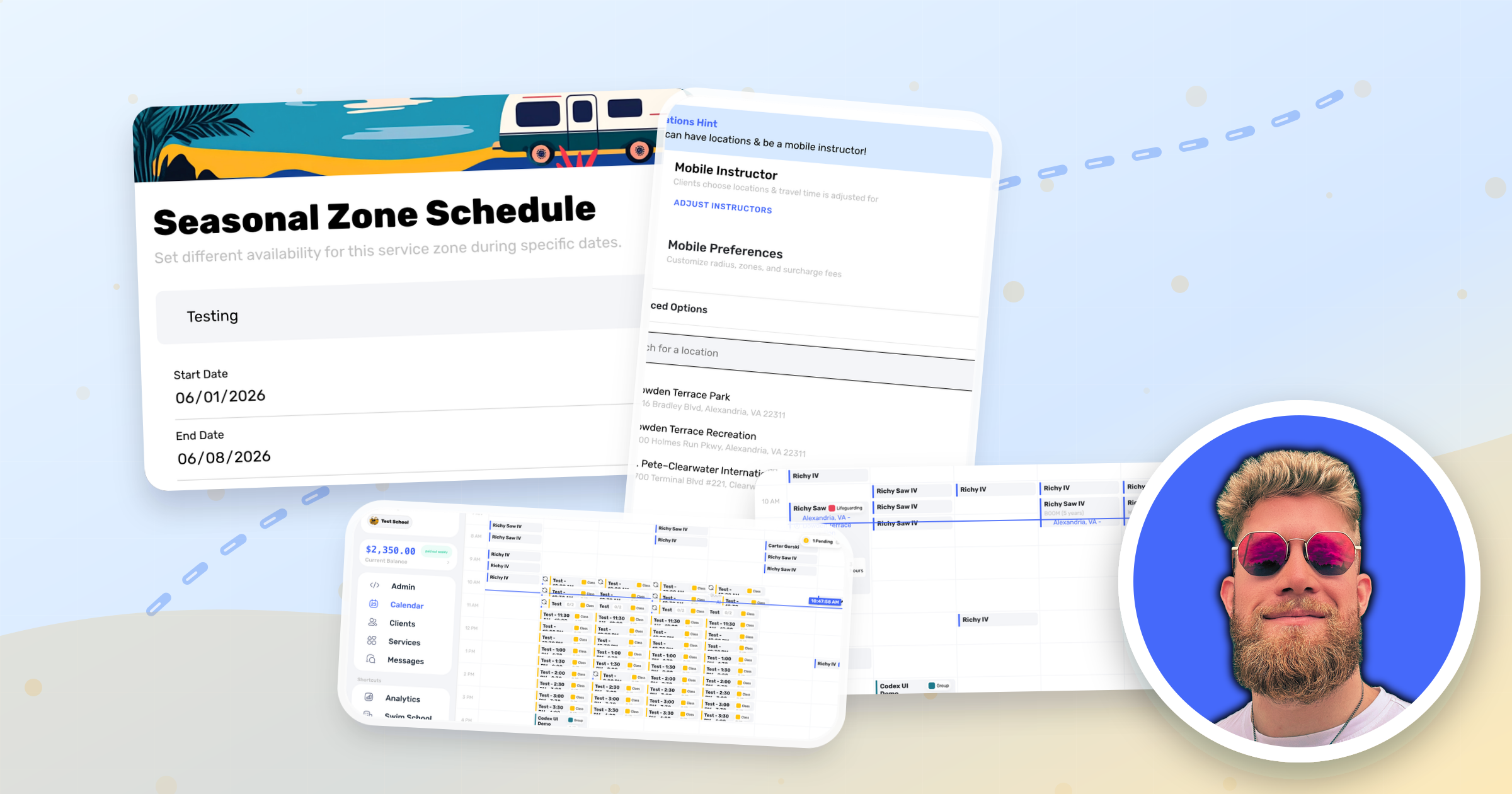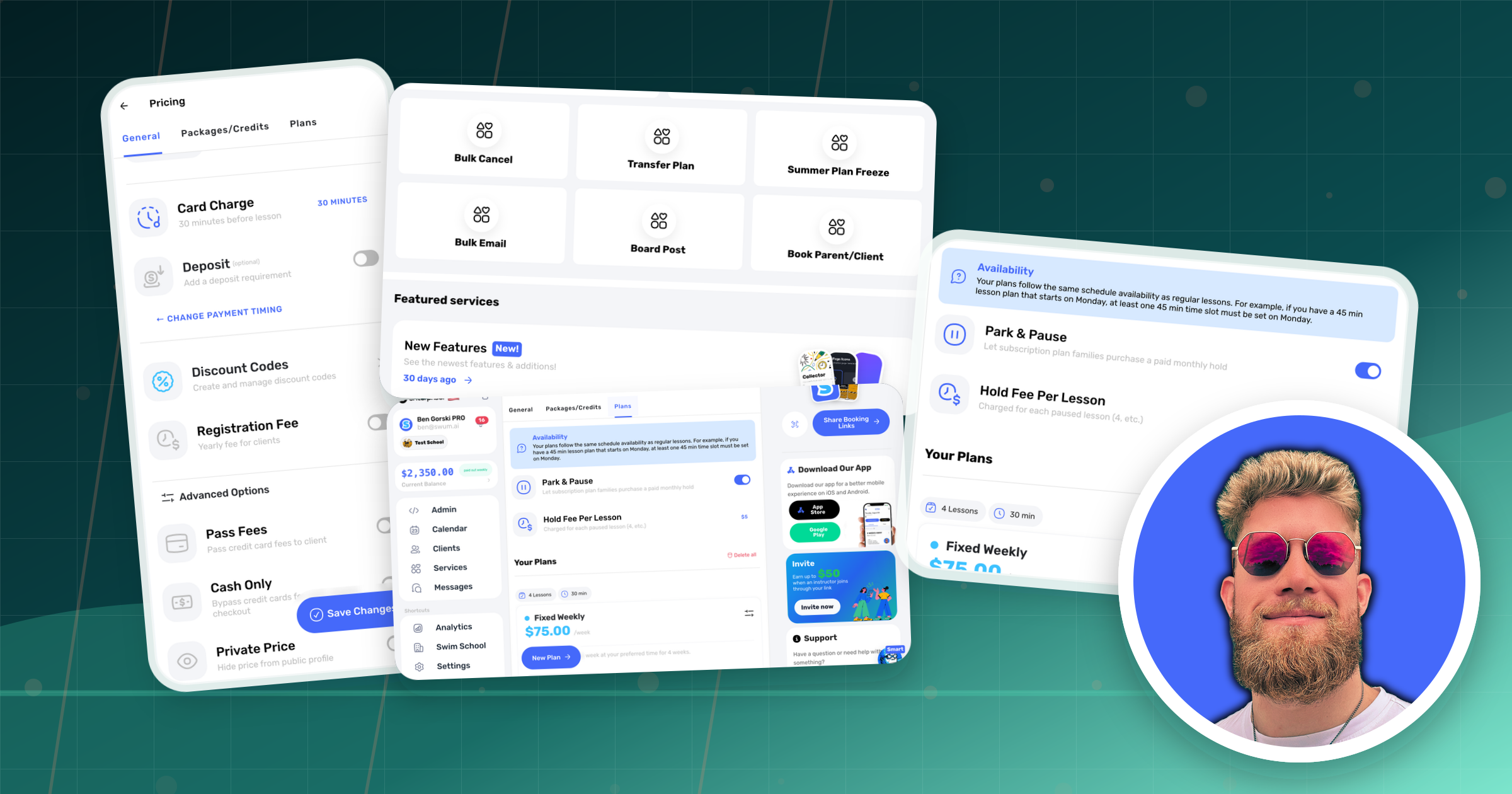
This is our biggest update yet. We've been heads down building, and February delivers a massive wave of 26 new features spanning everything from how you manage your service areas to how your clients pay. Whether you're a solo mobile instructor or running a full swim school, there's something here for you.
Here's what's new for February:
1. Service Area Zones
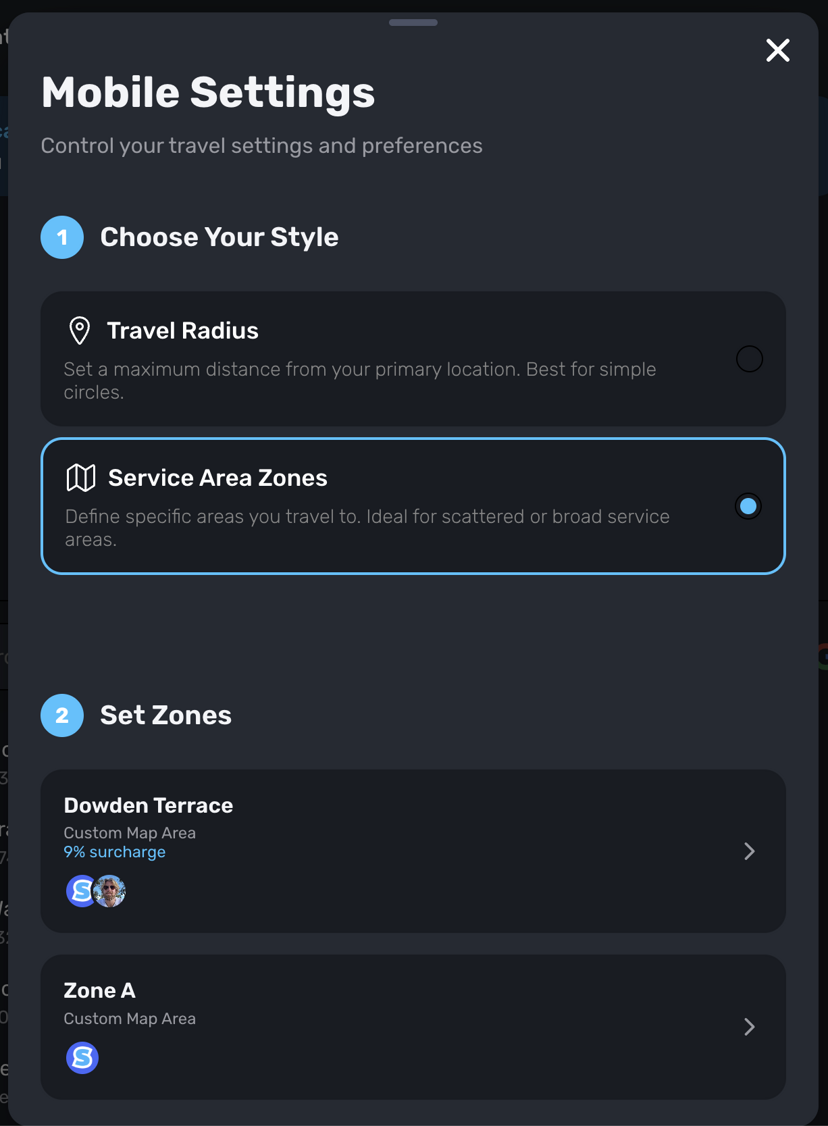
Access: Settings → Mobile Settings
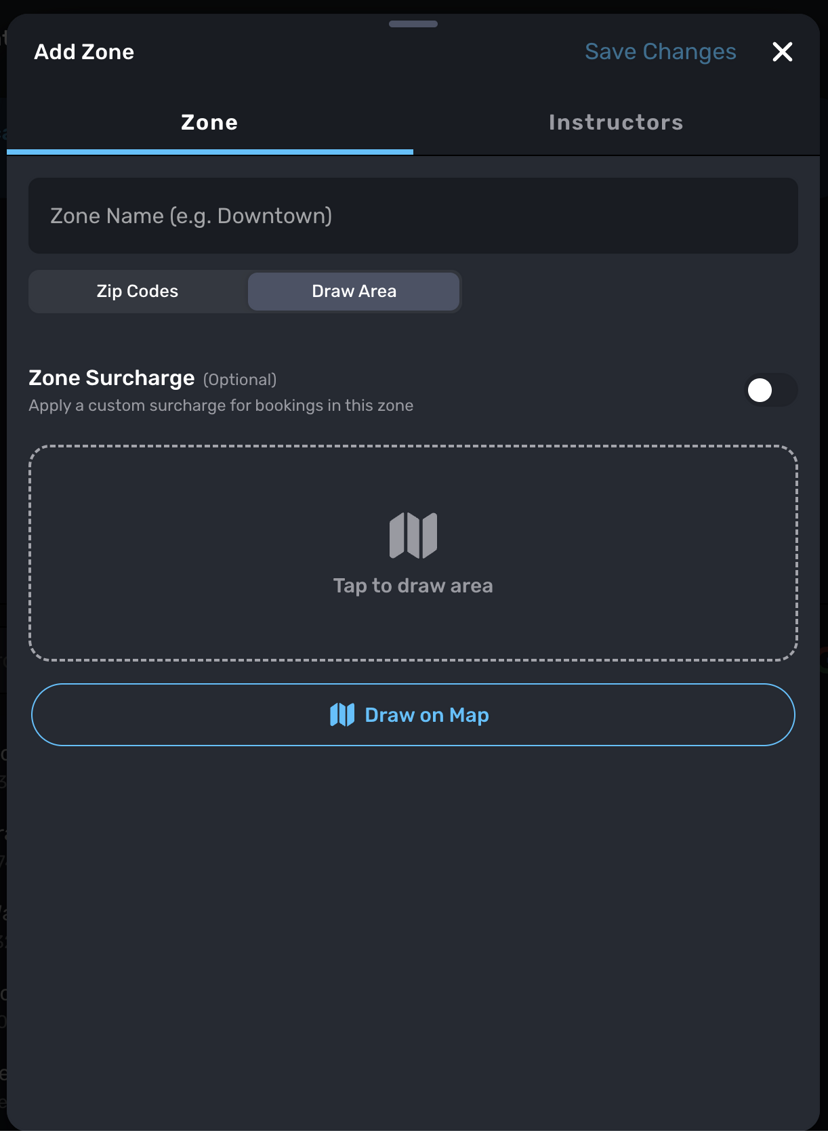
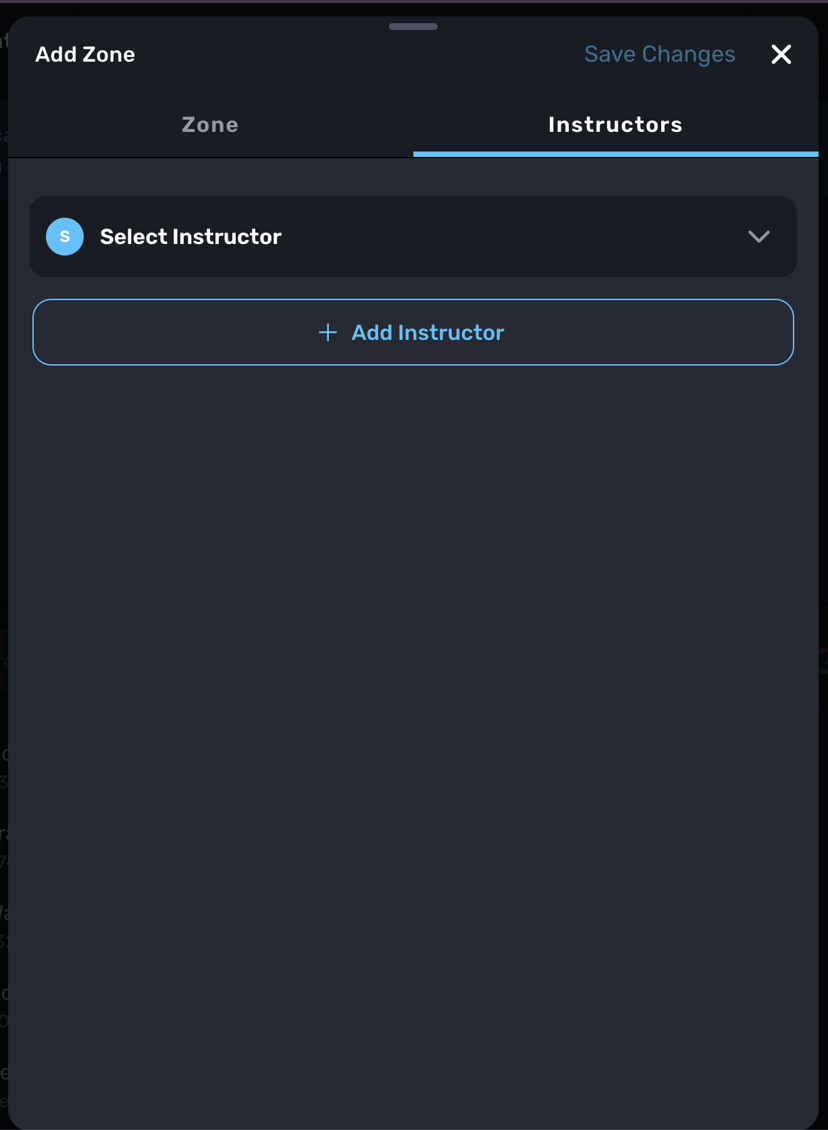
A game-changer for mobile instructors. You can now create designated service area zones based on zip codes or by drawing directly on a map. Each zone can have its own surcharge, be offered on specific days of the week, and be assigned to specific instructors. For example, you can work in the north side of the city on Monday and Tuesday, and the south side Wednesday through Friday. Our original travel radius approach still works great for simple setups, but zones give you the fine-tuned control that growing operations need.
2. Location Request Heat Map
Access: Analytics → Location Requests
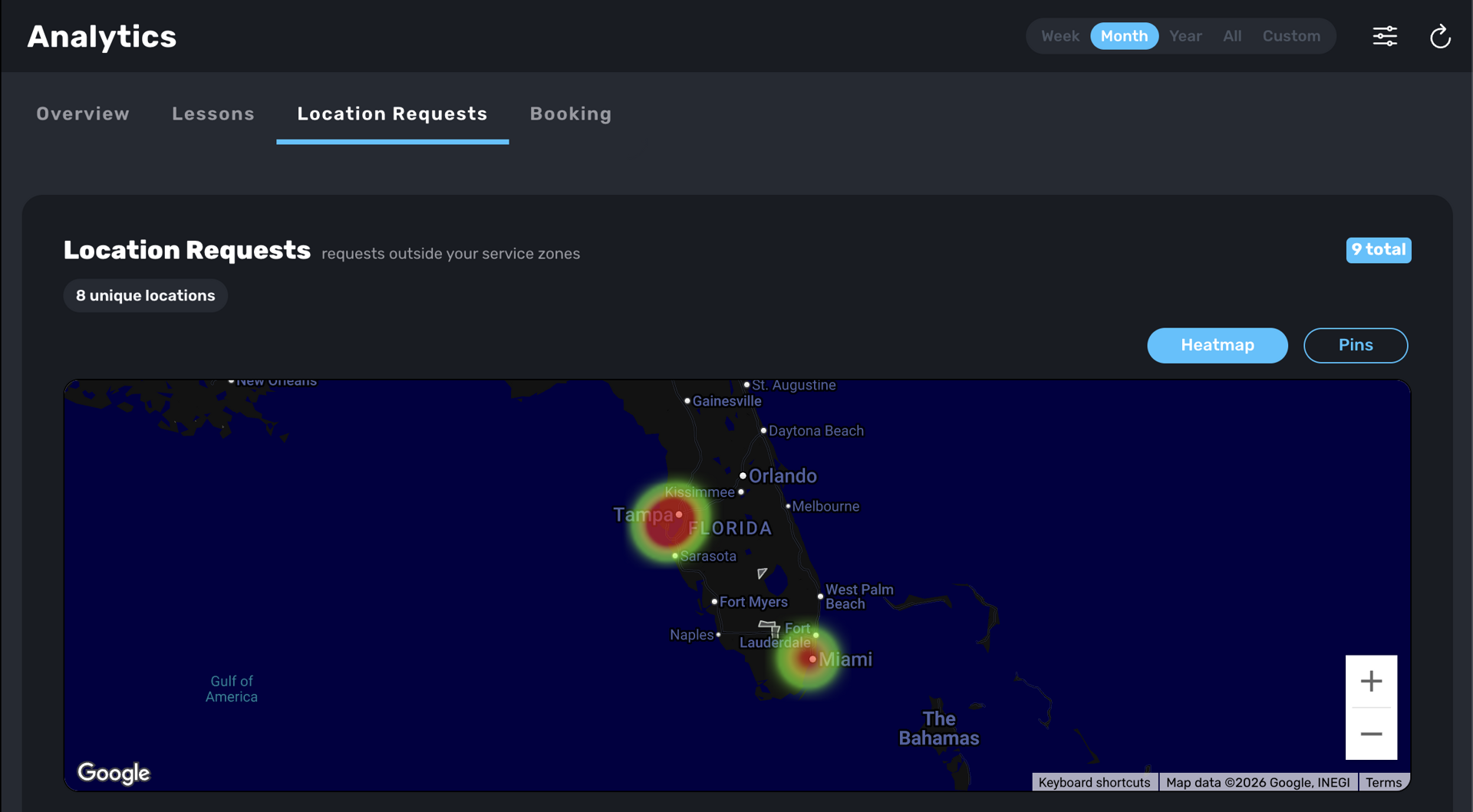
Think strategically about your next expansion. When clients attempt to book from areas you don't currently serve, we now collect their requested addresses and display them on a heat map. This gives you real data on where demand is coming from so you can make informed decisions about where to grow your operations next.
3. Custom Username Handles
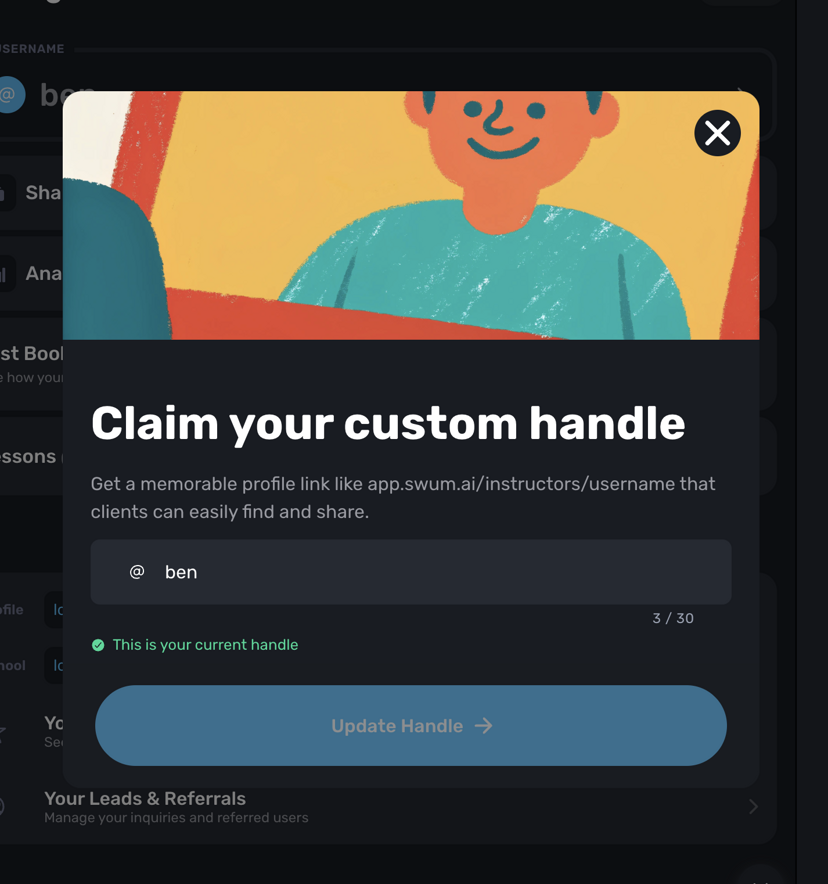
Access: Settings → Username
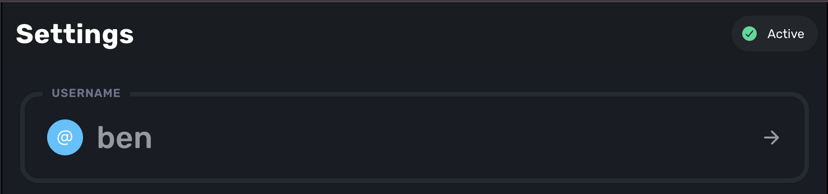
You can now claim a custom username handle for your share link. Instead of a long, unmemorable URL, your link becomes something like app.swum.ai/instructors/yourname — making it far easier to share with clients verbally or on business cards. All your old links still work perfectly fine, so there's no need to update anything you've already shared.
4. 2x Calendar Height
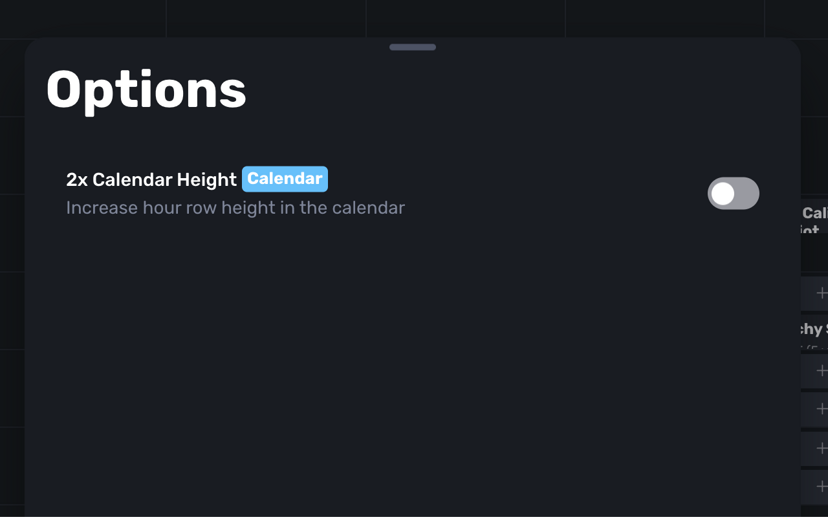
Access: Calendar → Options
A simple but impactful quality-of-life improvement. You can now double the height of your desktop calendar rows, making it significantly easier to read and manage a busy schedule. This is completely optional — toggle it on or off anytime from the calendar's options.
5. Meet Swummy — Your AI Personal Assistant
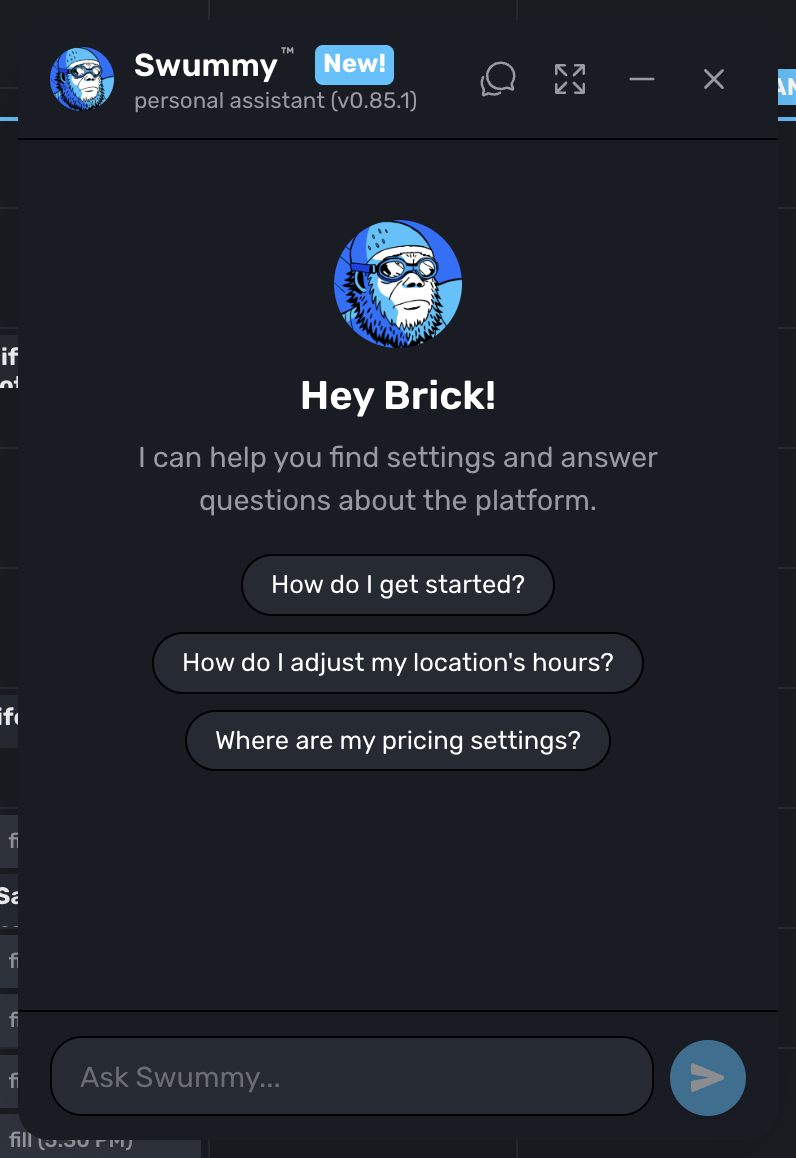
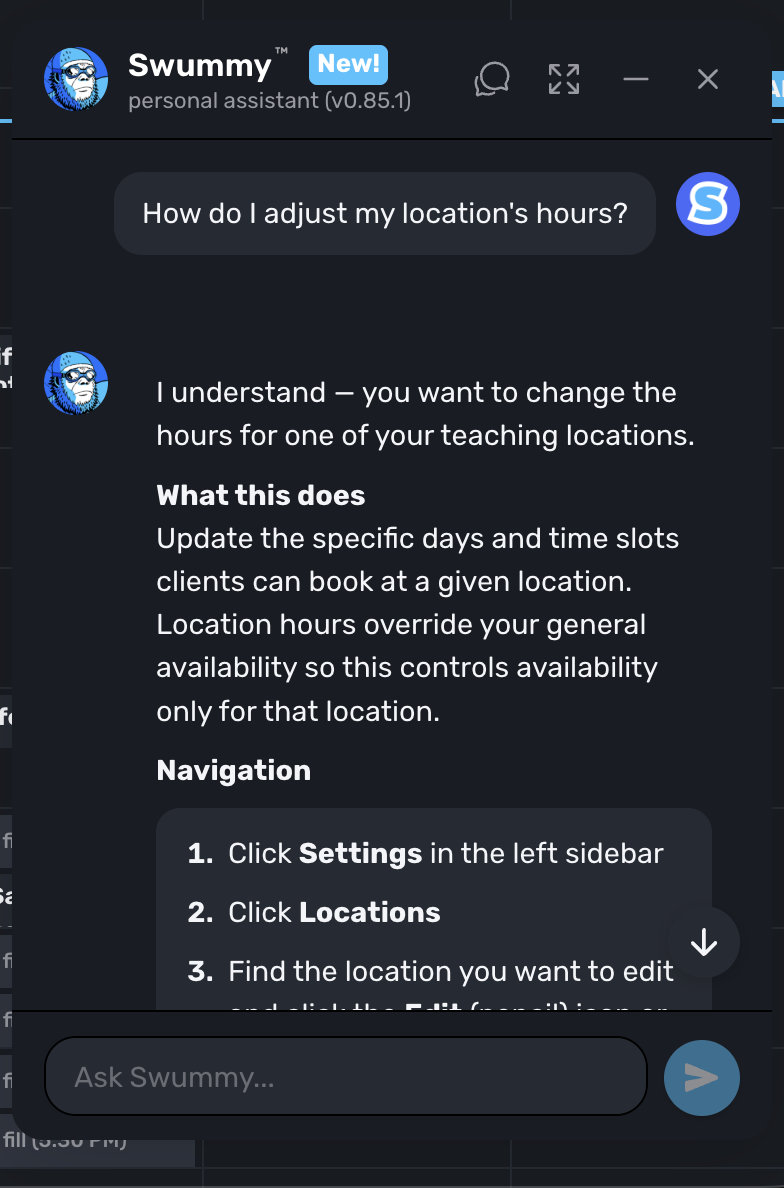
Access: Bottom-right corner of the app
Say hello to Swummy, your new AI-powered personal assistant built right into Swum. Swummy helps you find where settings are in the app, answers questions about the platform, and guides you step-by-step to the right place. No more hunting through menus — just ask Swummy and get there fast.
6. Birthday Notifications on Calendar
Your calendar just got a little more personal. You'll now receive notifications when one of your clients has an upcoming birthday. It's a small touch that goes a long way toward building relationships with your families and showing them you care.
7. Customizable Themes and Colors
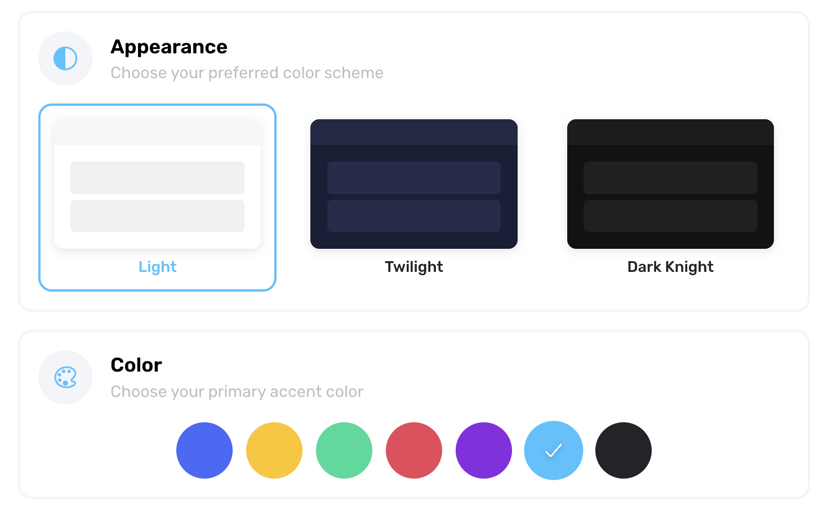
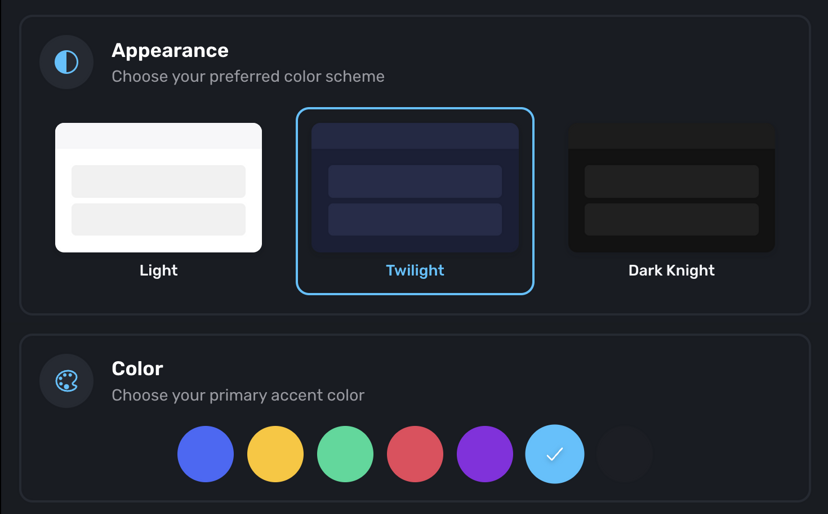
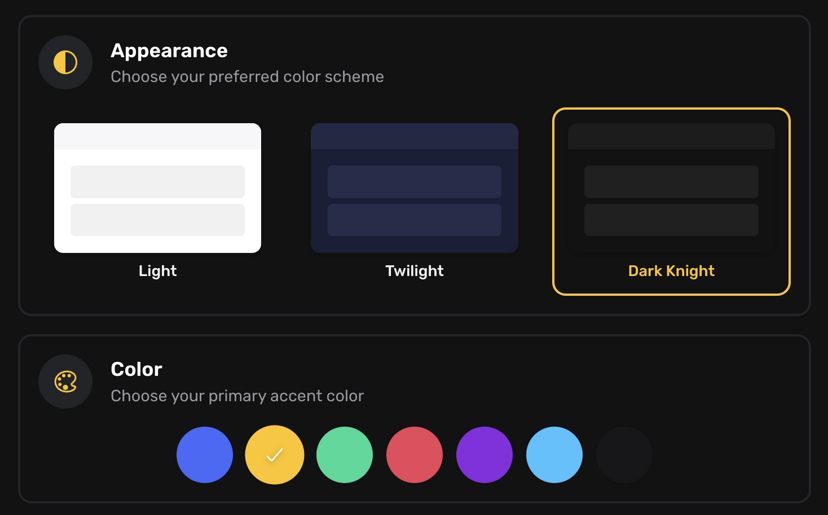
Access: Settings → Appearance
Make Swum truly yours. Choose from three themes — Light, Twilight, and Dark Knight — and pick your preferred accent color from a range of options. Whether you prefer a clean white workspace or a deep dark interface, it's entirely up to you.
8. Customizable Profile Page Design
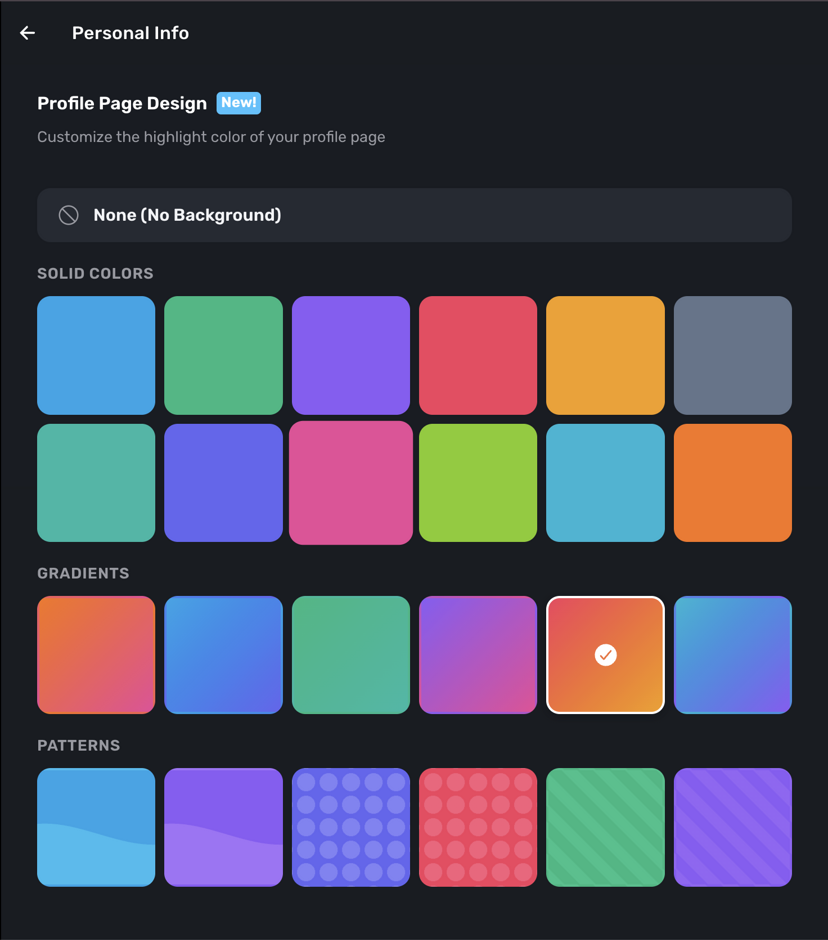
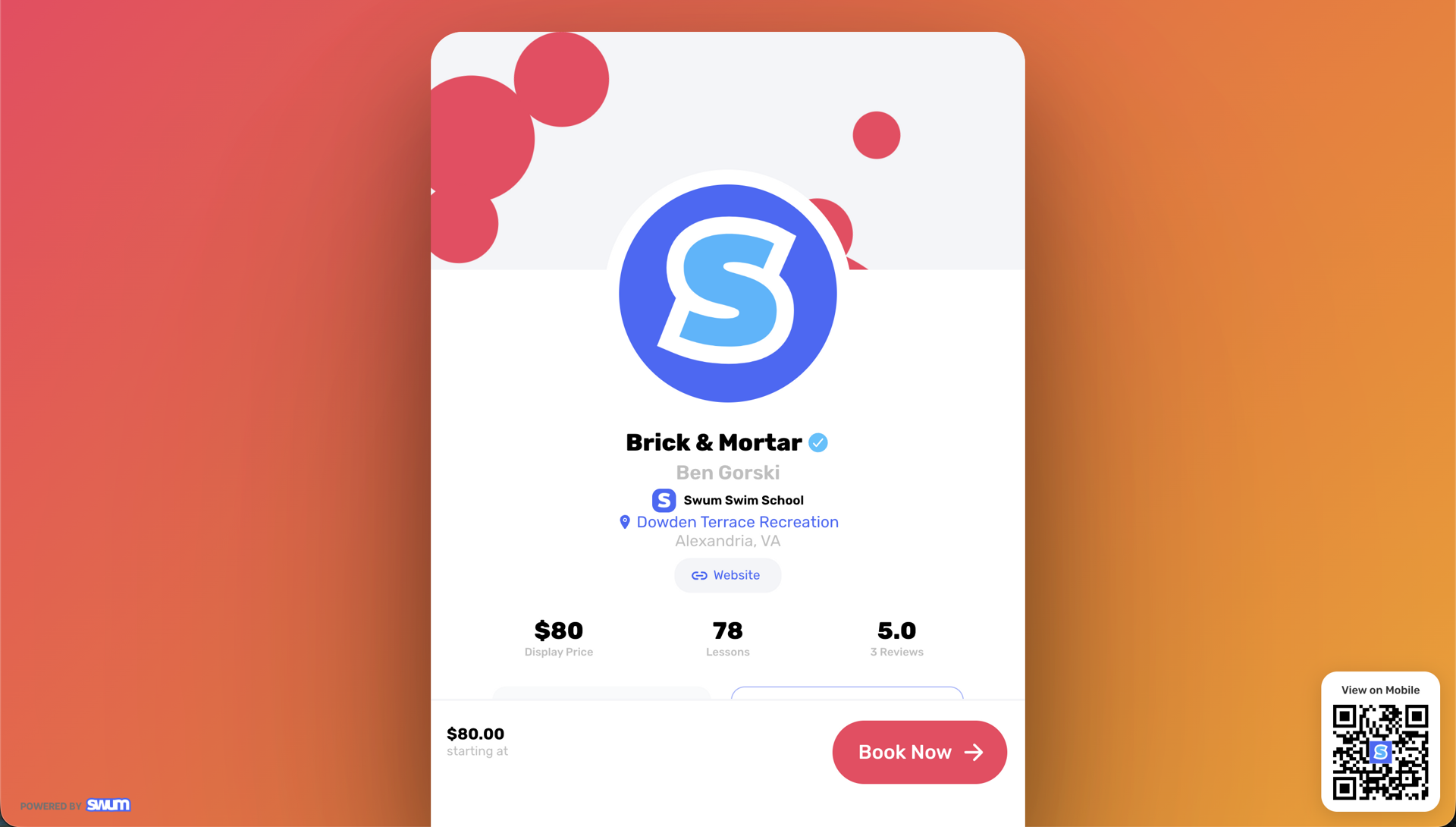
Access: Settings → Personal Info → Profile Page Design
Take control of how your profile looks to customers. Choose from pre-set solid colors, gradients, and patterns to give your public booking page a unique and professional feel. Stand out from the crowd and make a strong first impression.
9. Update Contractor Time Slots from Your Settings
Access: Settings → Availability
Swim school operators, this one's for you. You can now directly update your contractor's time slots from your own Availability settings — just like you manage your own schedule. No need to have them do it themselves or navigate between multiple screens.
10. Partial Payments with Time Credits
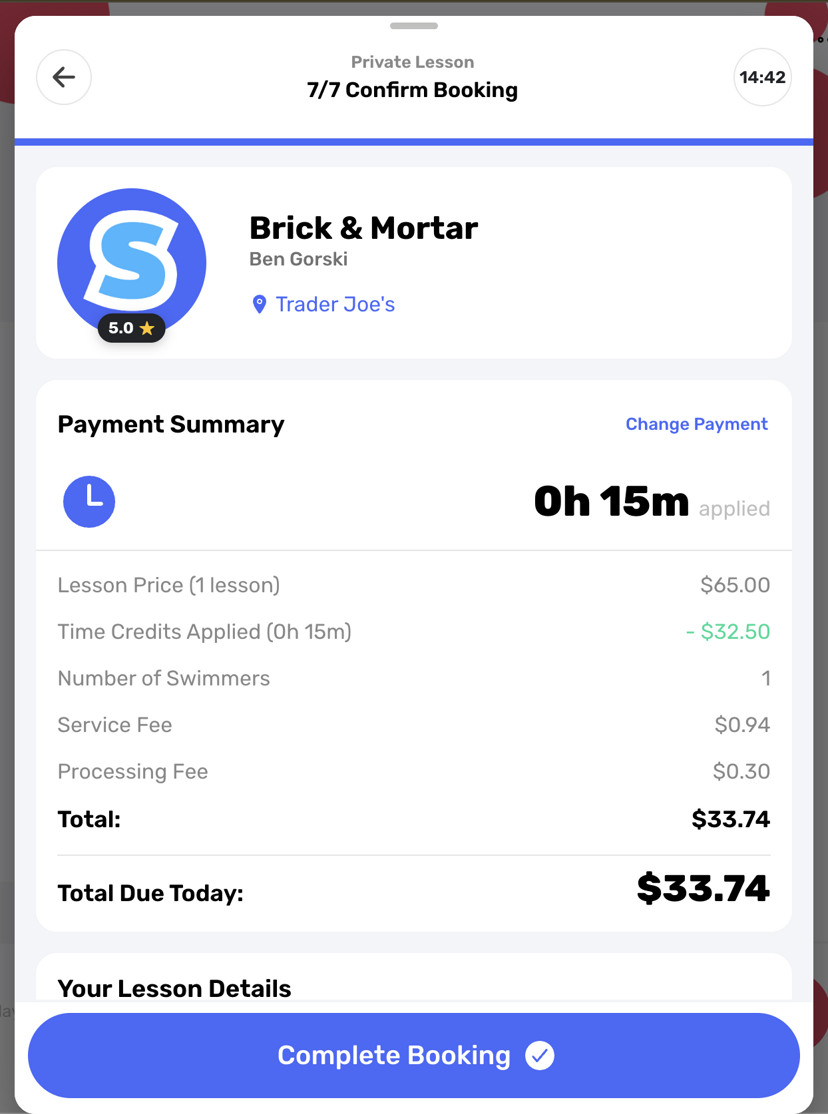
Access: Booking Checkout
Clients can now use existing time credits for partial payment when booking private lessons, with the remaining balance charged to their credit card. This is perfect for situations where a client's time credits don't cover the full lesson length — no more awkward "all or nothing" situations.
11. ACH Payments
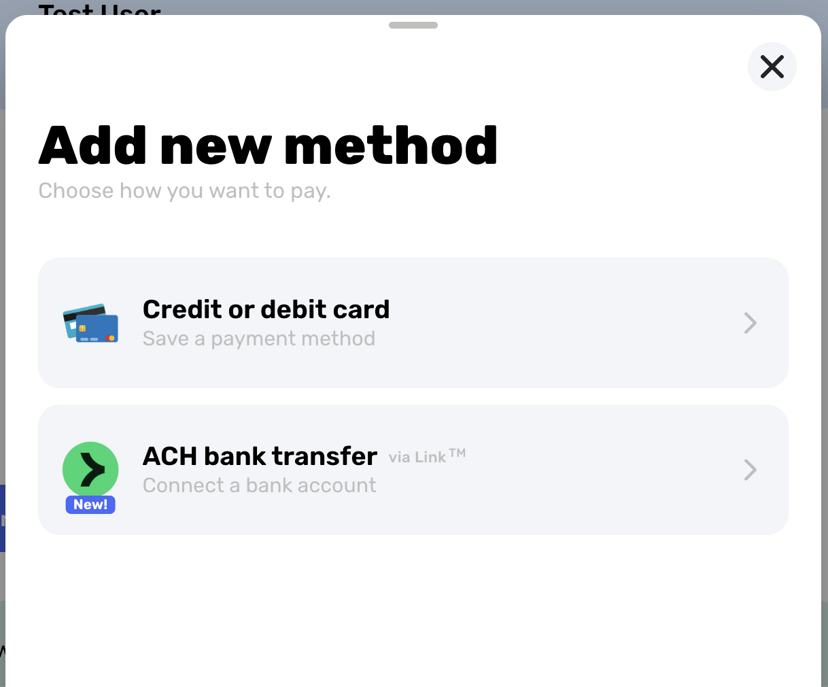
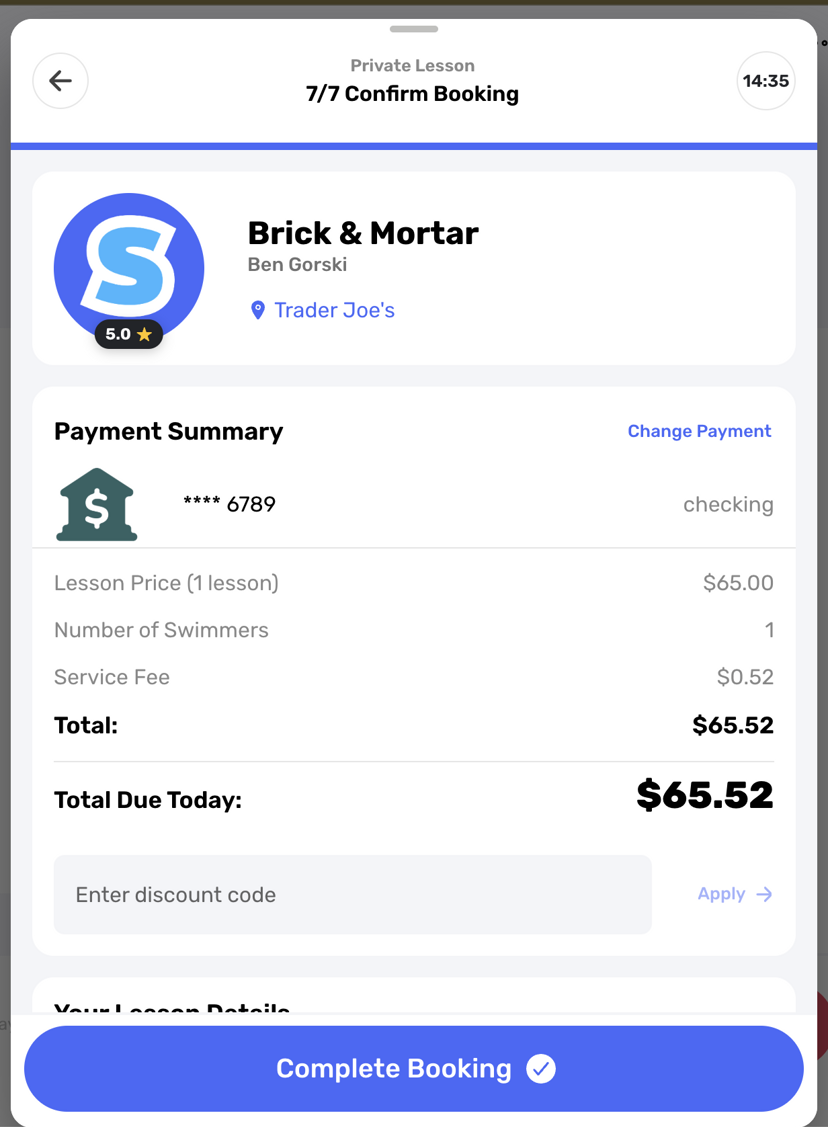
Access: Booking Checkout → Payment Methods
We've added ACH bank transfer as a payment option for your clients. Bank account payments come with significantly reduced processing fees — 0.8% vs. the typical 2.9–3.0% for credit cards. That's real savings for both you and your families, especially on recurring lessons.
12. Taxes Section
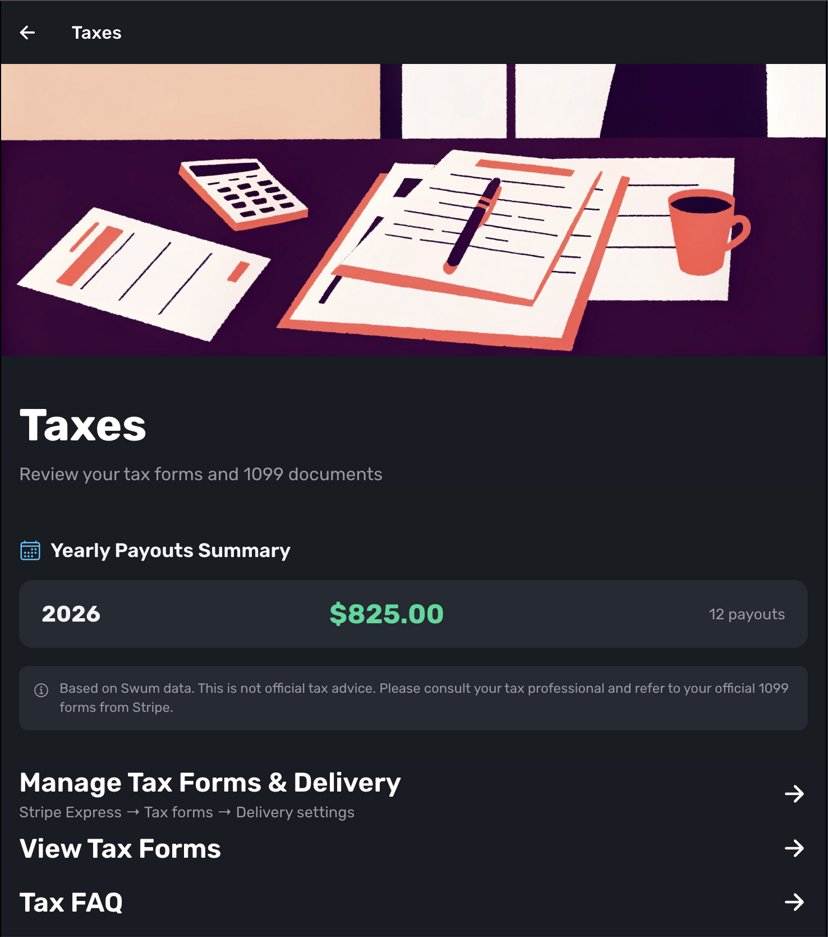
Access: Settings → Taxes
We've added a dedicated Taxes section to make it easier to get everything in order come end of year. View your yearly payouts summary, manage your tax forms and delivery preferences, and access tax FAQs — all in one place.
13. Lesson Analytics
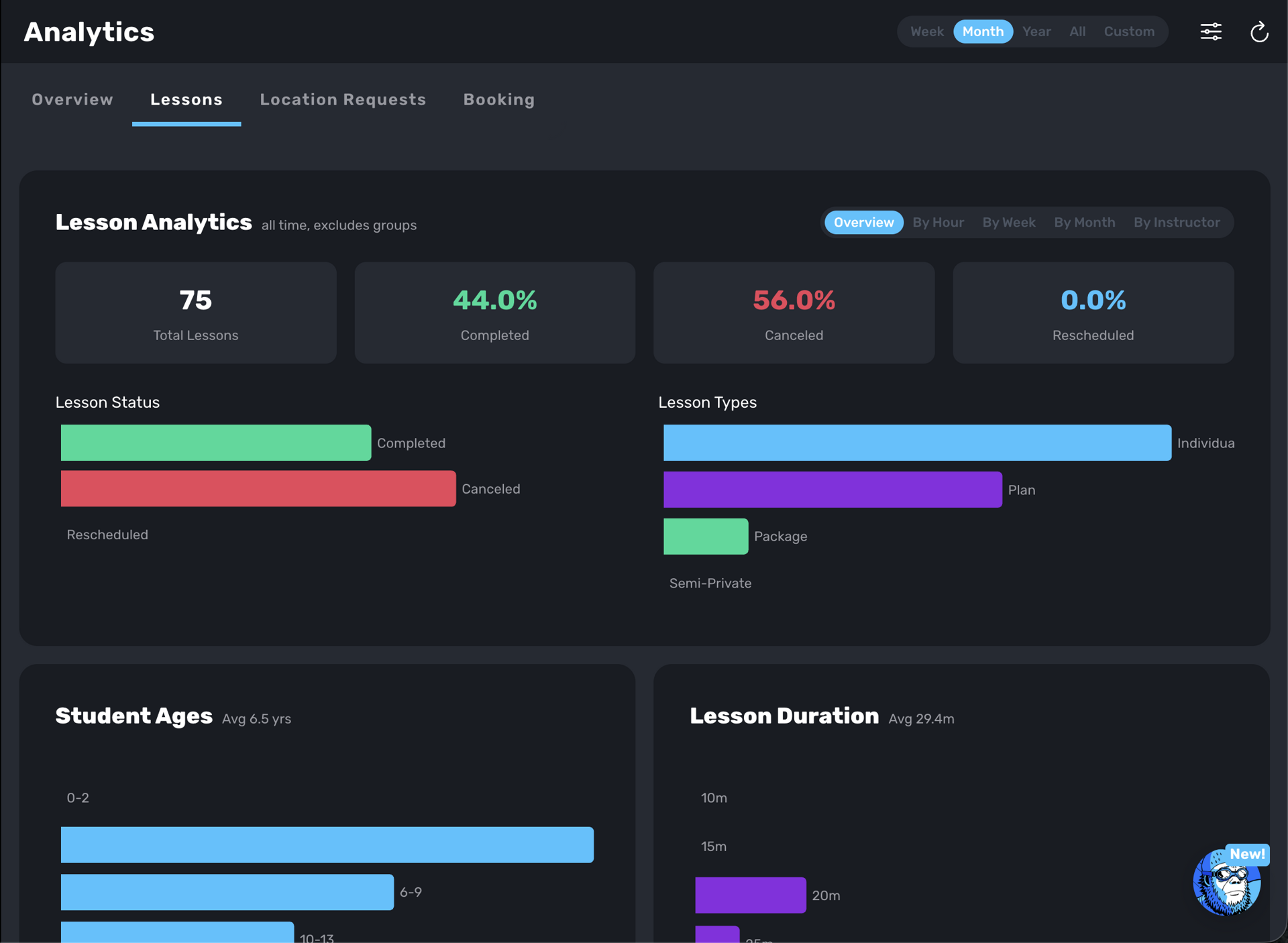
Access: Analytics → Lessons
Get a detailed breakdown of your lesson data. See total lessons, completion vs. cancellation vs. reschedule rates, lesson type distribution (Individual, Plan, Package, Semi-Private), student age demographics, average lesson duration, and more. Filter by hour, week, month, or instructor to uncover trends and optimize your schedule.
14. Split Bank Account Payments by Pool or Travel
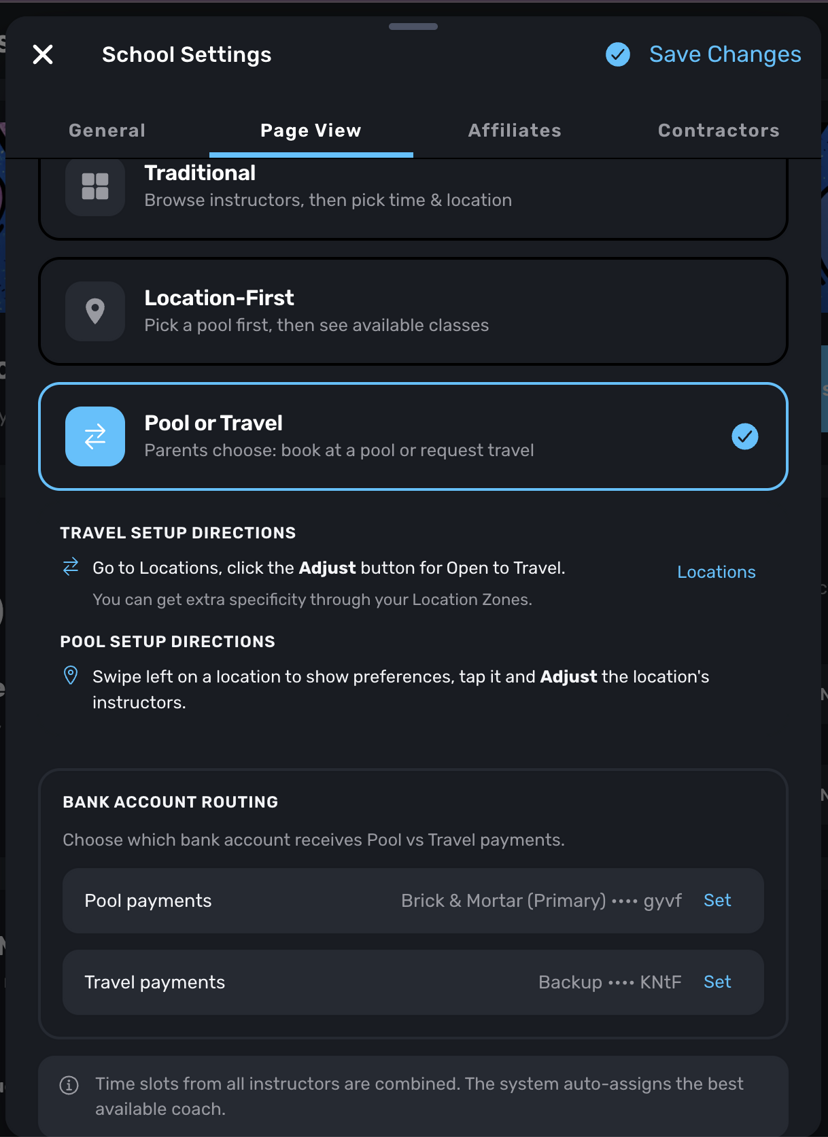
Access: School Settings → Page View
This is a specialized feature for swim schools that operate both a brick-and-mortar pool facility and a mobile travel business. You can now specify which product type (pool or travel) routes payments to which bank account, allowing clean separation of your business finances.
15. Lesson "Booked At" Timestamp
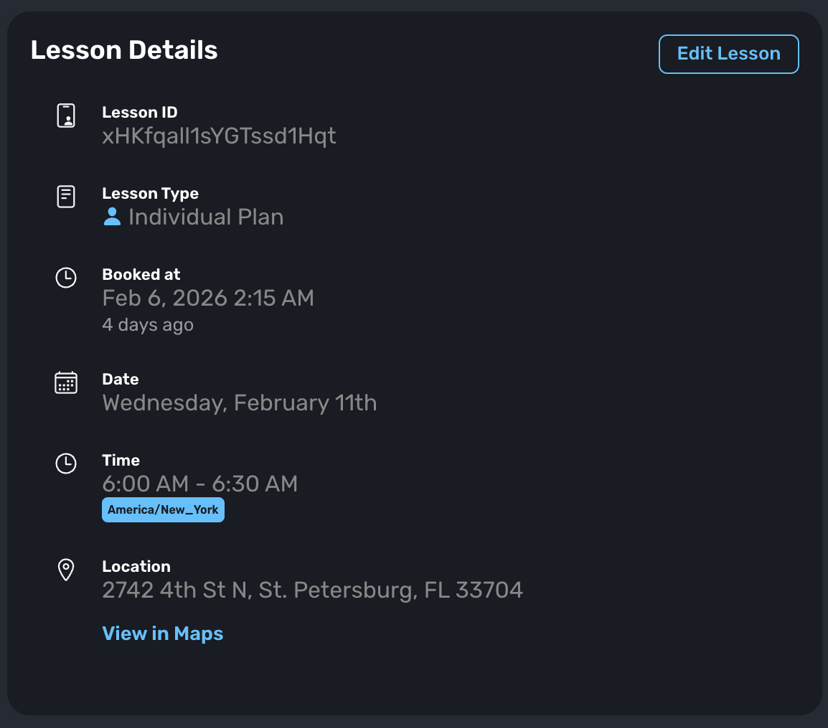
Access: Lesson Details
You can now see exactly when a lesson was booked. The new "Booked at" field in lesson details shows the precise date and time, plus a relative indicator like "4 days ago." This is incredibly helpful for understanding whether a booking was made recently or months in advance.
16. Searchable Notifications
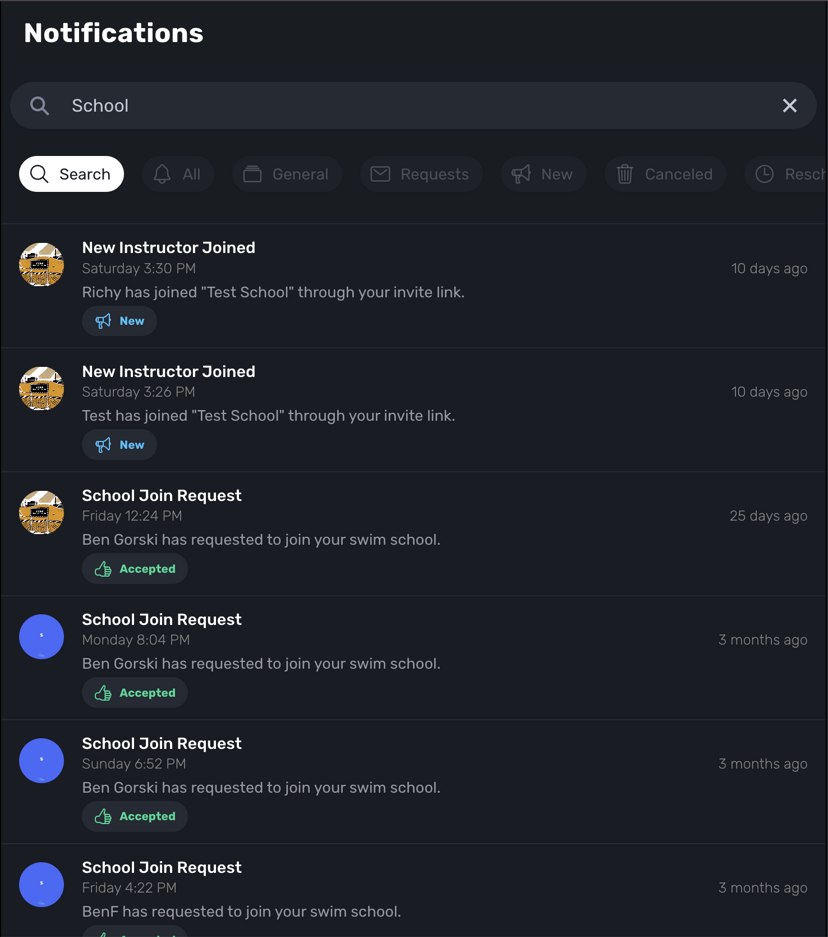
Access: Notifications
You can now search your notifications by any keyword — instructor name, client name, time, and more. Quickly find that specific notification you're looking for instead of scrolling through your entire history.
17. School-Wide Waivers (Sign Once)
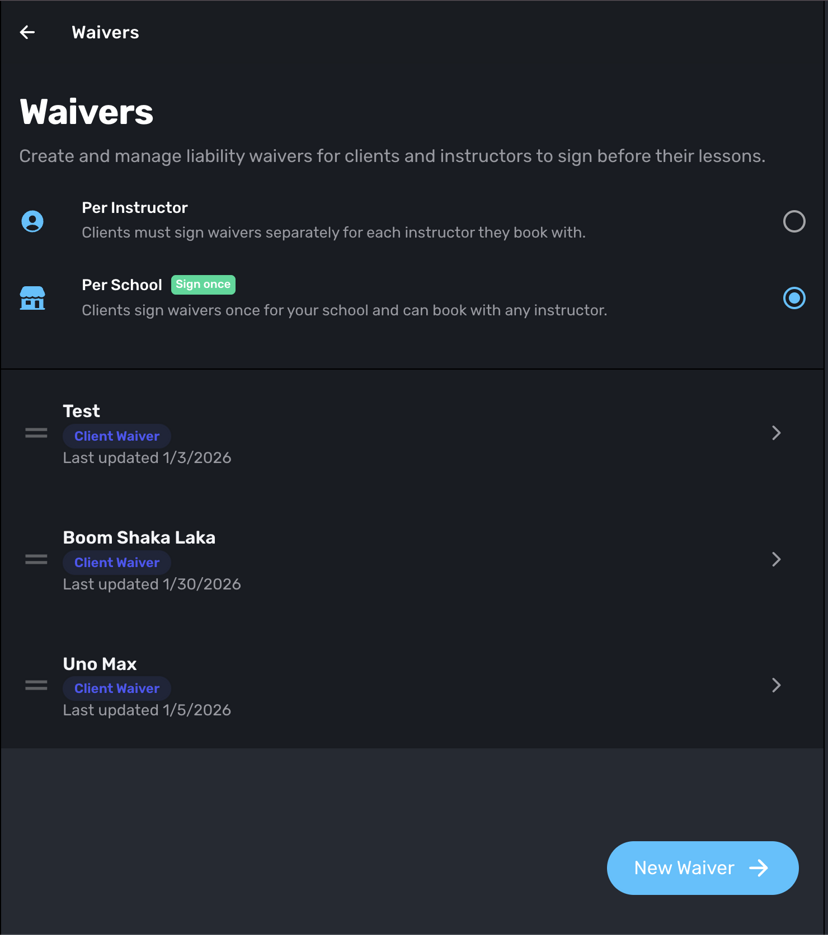
Access: Settings → Waivers
Waivers can now be designated as "Per School," meaning clients sign once and it applies across all of your instructors. No more prompting families to re-sign the same waiver every time they book with a different instructor in your school. Less friction, better experience.
18. Mark a Lesson as Substitute
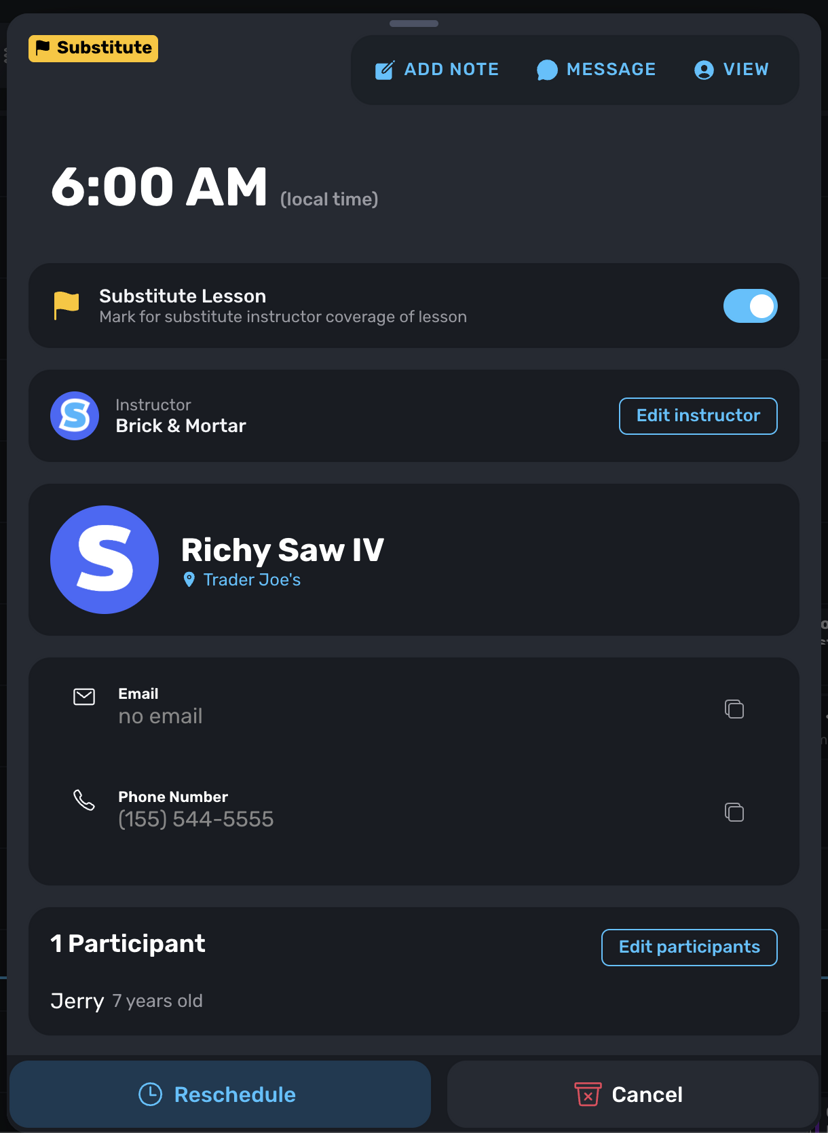
Access: Lesson Details
If you need to swap in a different instructor, you can now mark any lesson as a substitute. The lesson gets a clear "Substitute" badge so both you and your clients stay in the loop about who's teaching. This keeps things transparent and avoids confusion.
19. Scheduled Timeslots

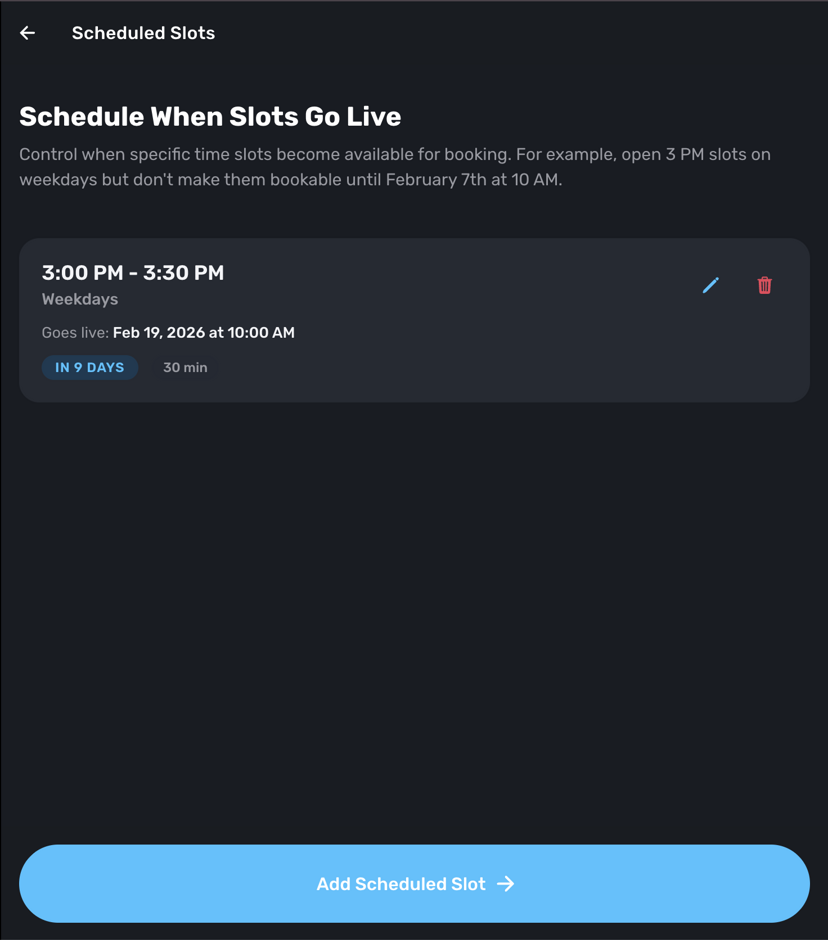
Access: Settings → Availability → Scheduled Slots
You can now schedule when certain timeslots go live for booking. For example, set your 3 PM weekday slots to become bookable on February 19th at 10 AM. This is fantastic for controlling the flow of who signs up when, maintaining structured, organized calendar management.
20. Bookable Time Range for Plans
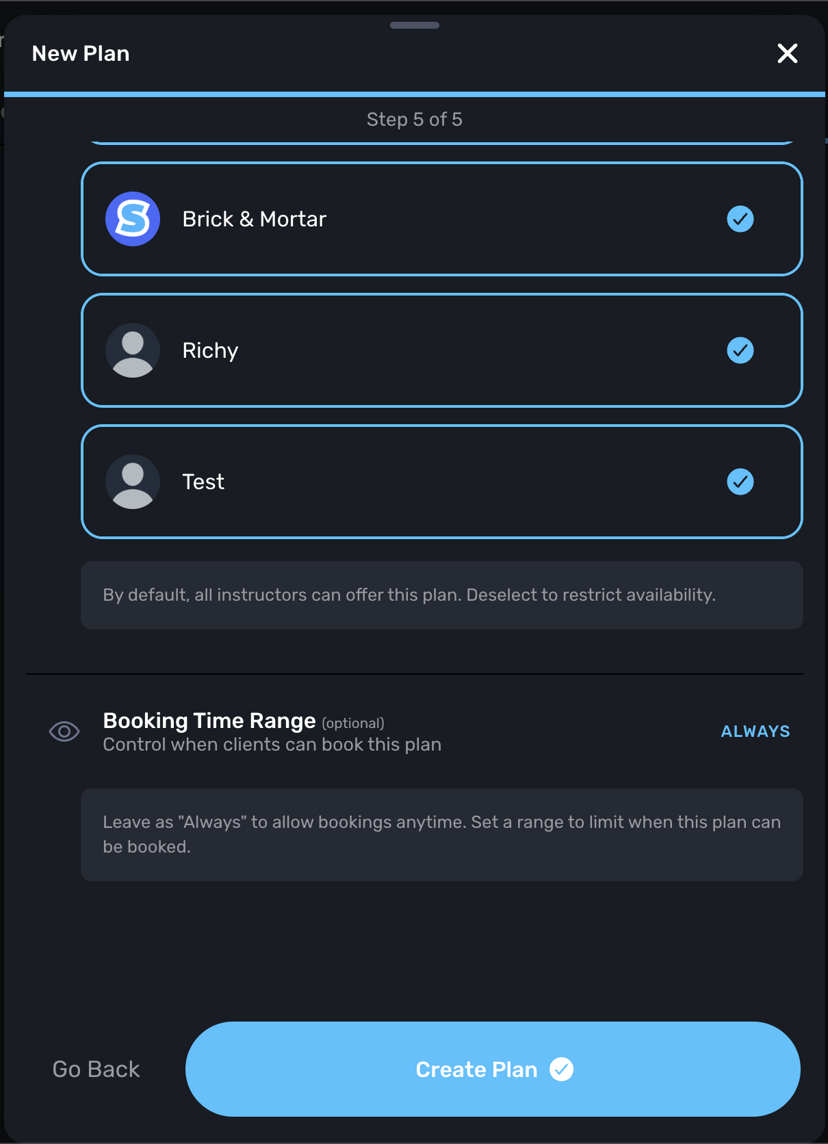
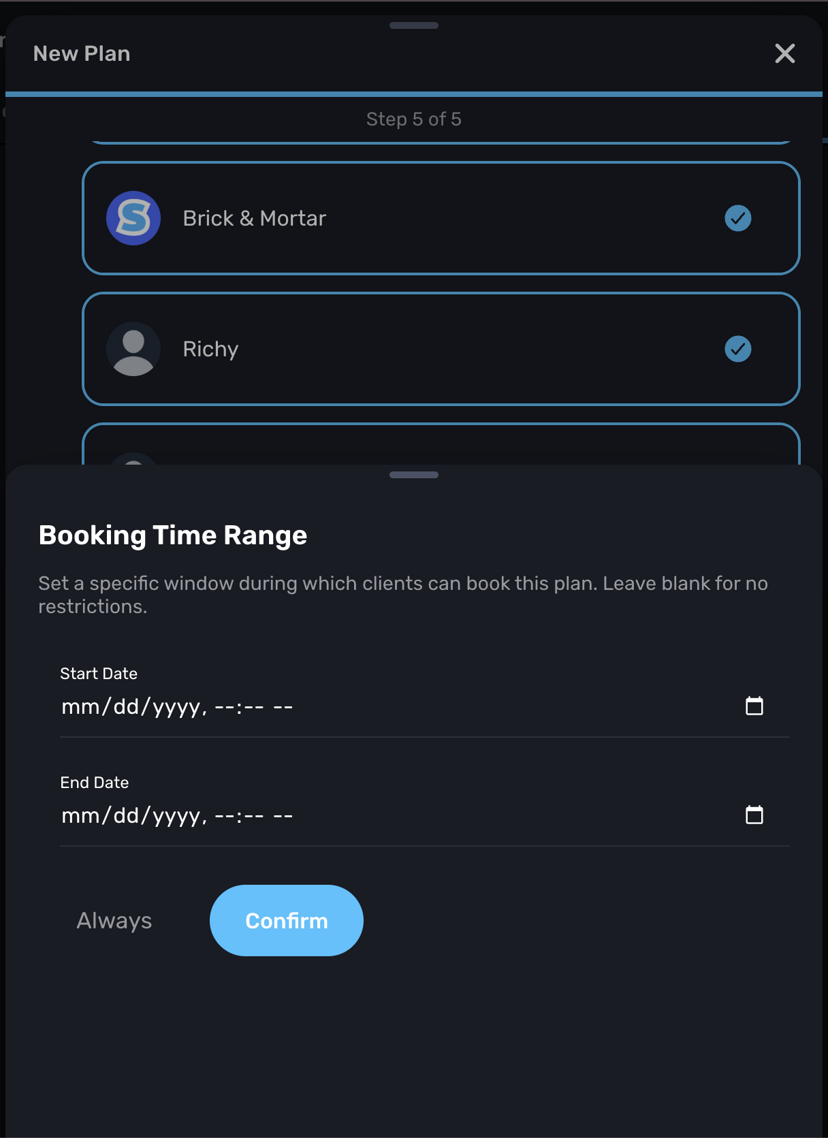
Access: Plans → New Plan → Step 5
You can now restrict when a plan can be booked by setting a specific booking time range. This is perfect for seasonal offerings — create your summer plans in February, let clients book only during the last week of May, and prevent anyone from booking for March or April. Full control over when your plans open for enrollment.
21. Choose When Groups & Classes Go Live
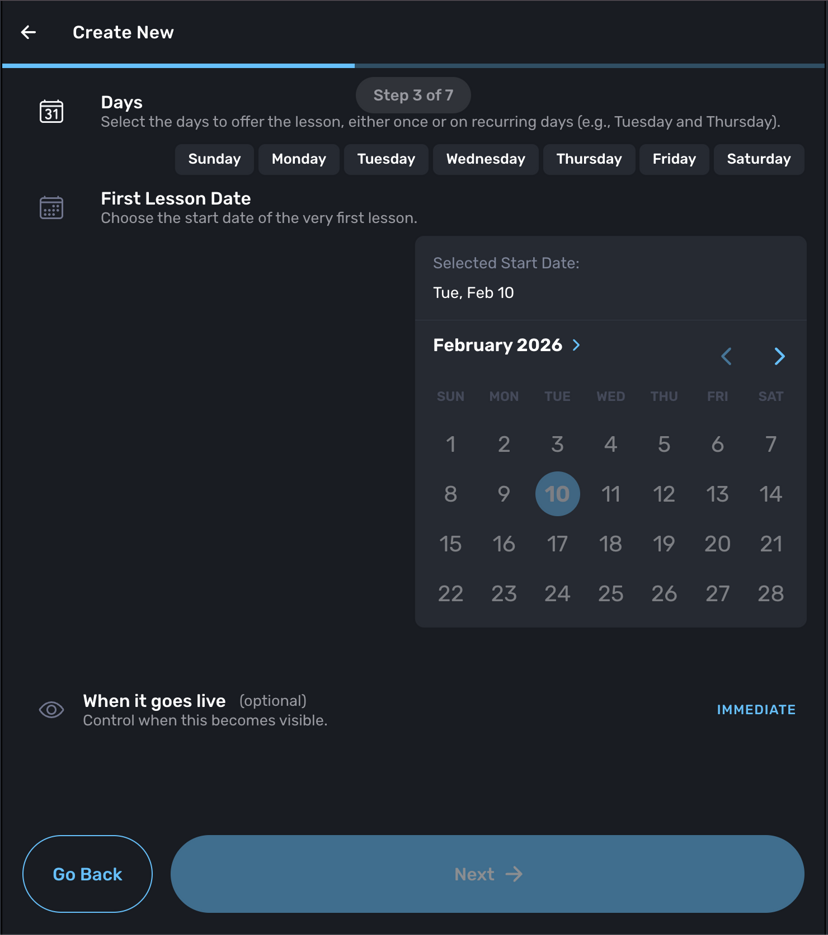
Access: Groups → Create New → Step 3
You can now create a group or class and set a specific date for when it goes live. Build it out weeks or months in advance, and it drops the moment you designate — instead of scrambling to create it at the last second just to control when clients can start booking.
22. Transfer a Lesson Plan to Another Family
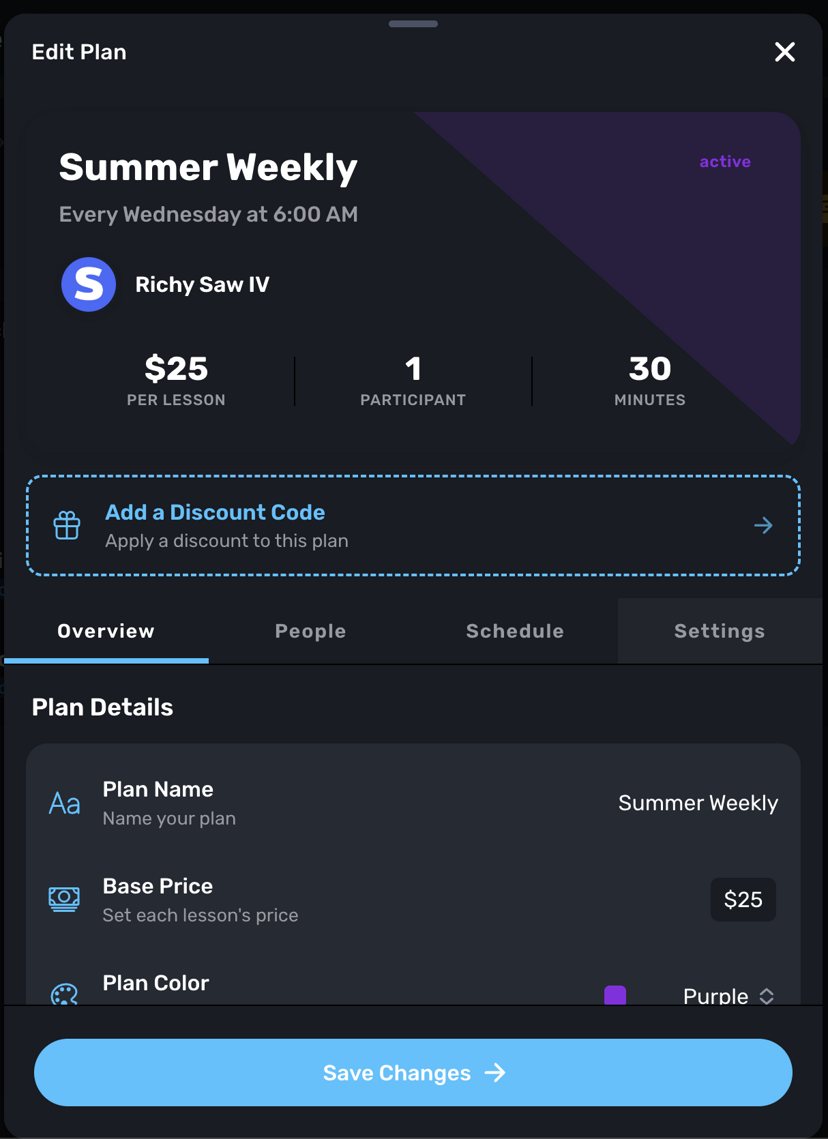
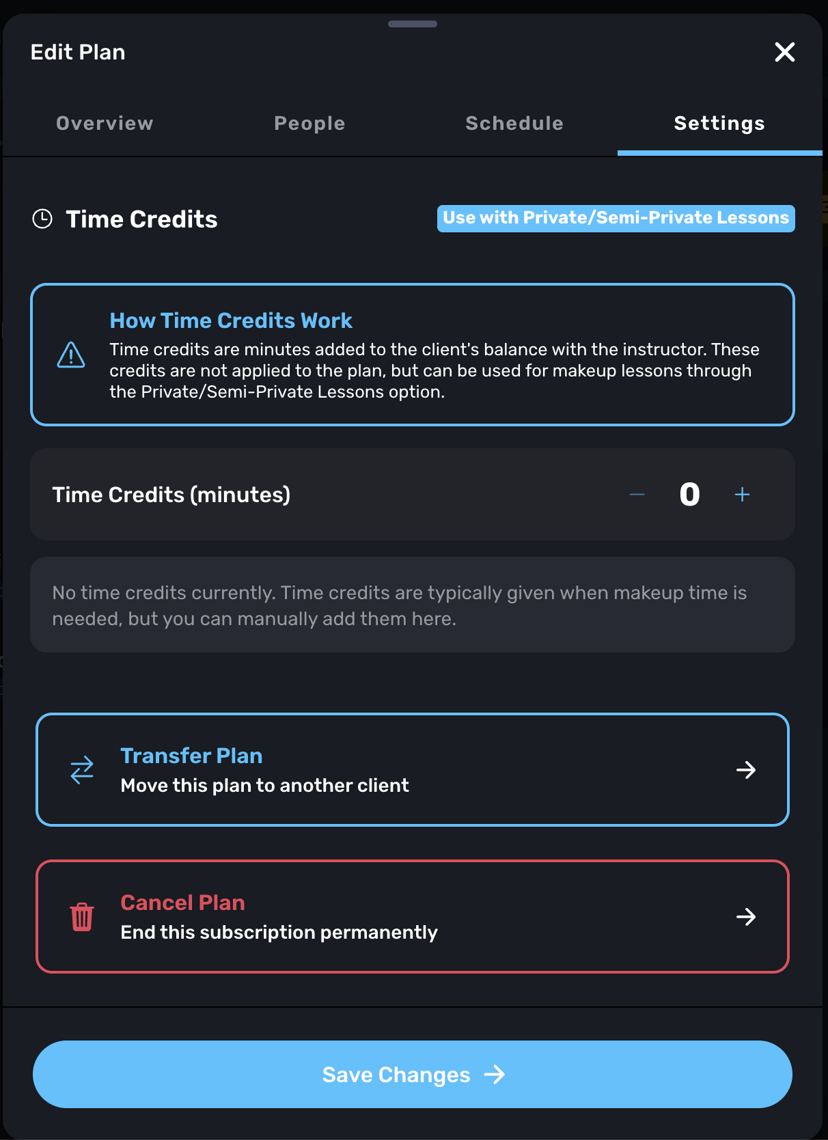
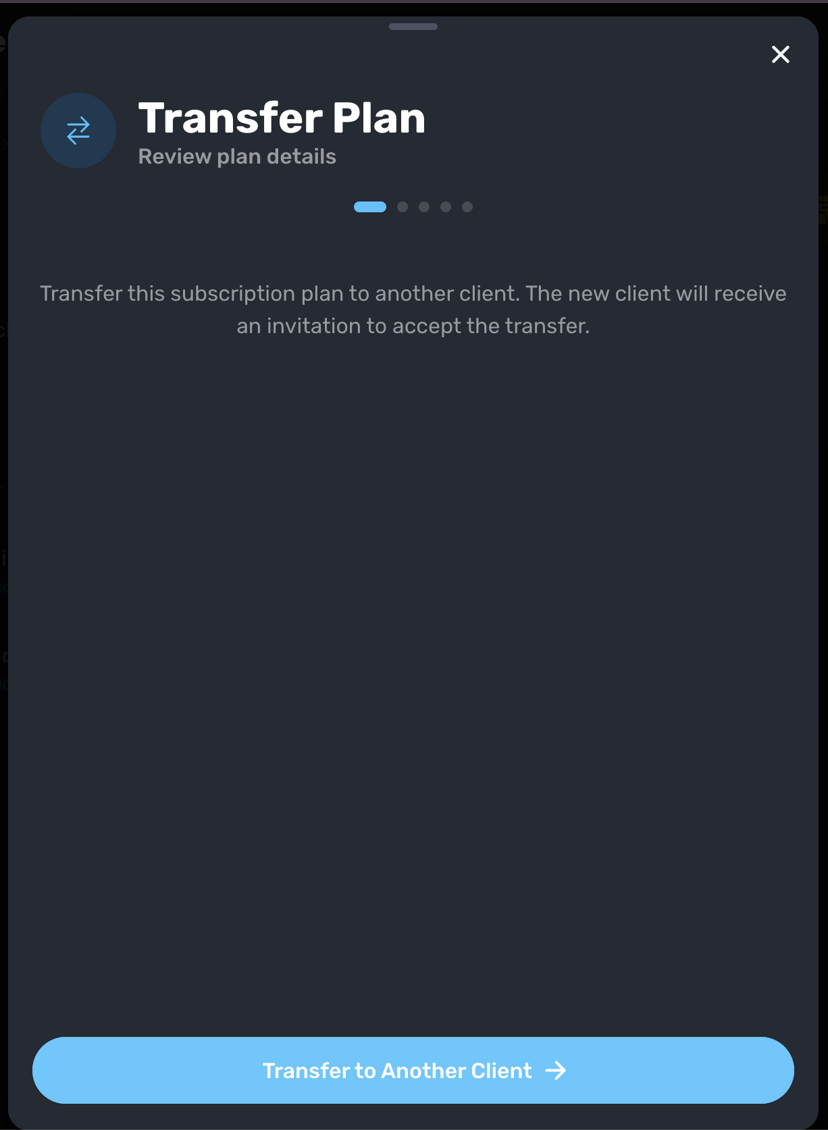
Access: Plan Details → Settings → Transfer Plan
You can now transfer an existing lesson plan to a different family. If a plan is already on the calendar and you know a specific family you'd like to move it to, just hit Transfer. The new client will receive an invitation to accept. Making both your and your client's lives easier.
23. Request Payouts Early
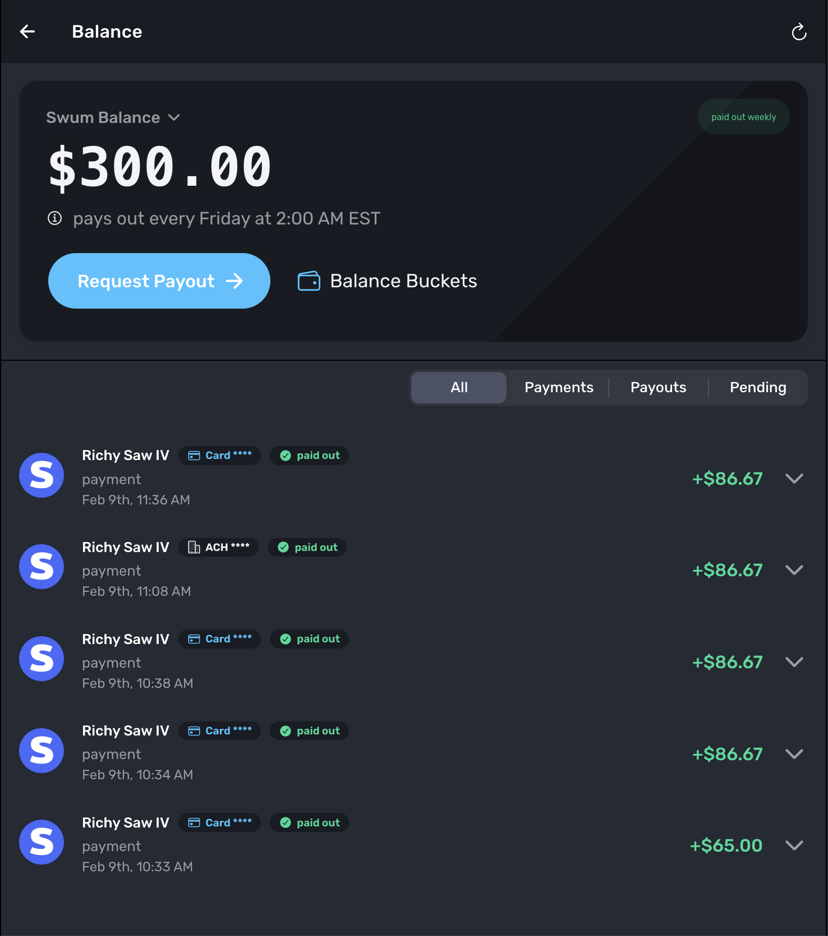
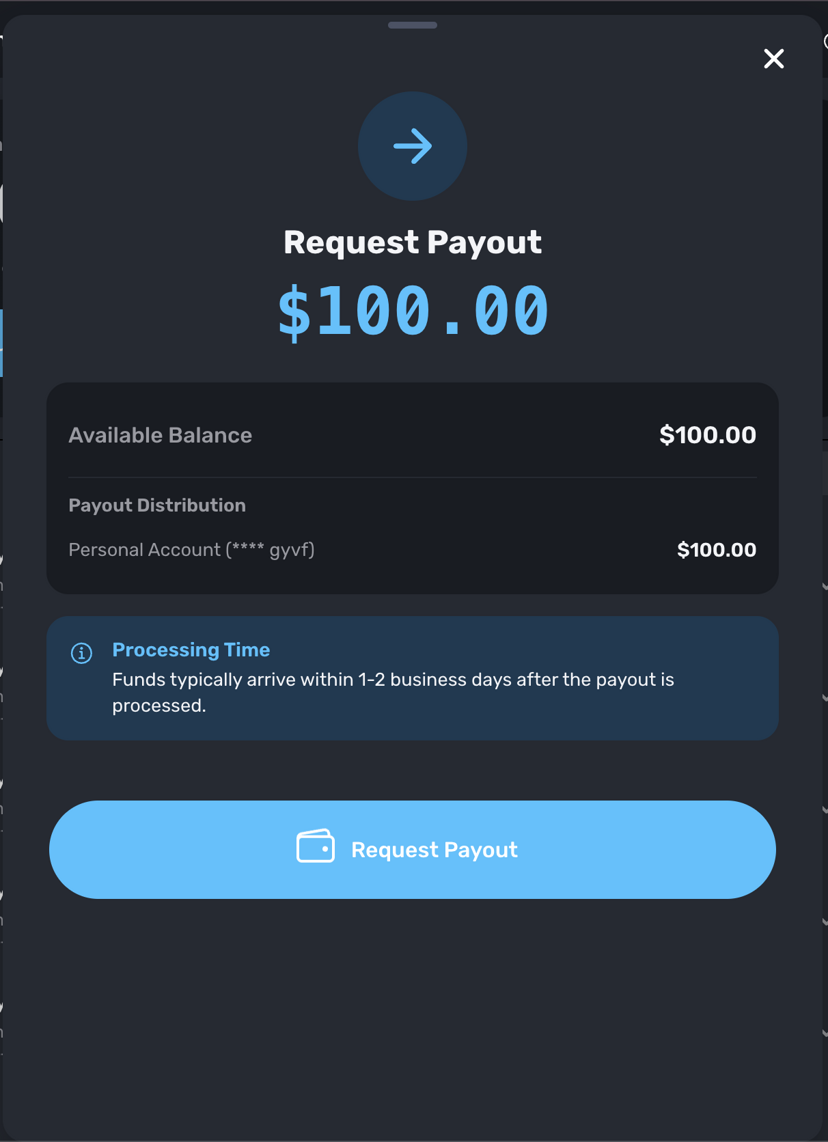
Access: Balance → Request Payout
For payments that have been cleared, you no longer have to wait a full week for the scheduled payout. You can now request an early payout at any time, and funds typically arrive within 1–2 business days after the request is processed.
24. Waiver Yes or No Requirement
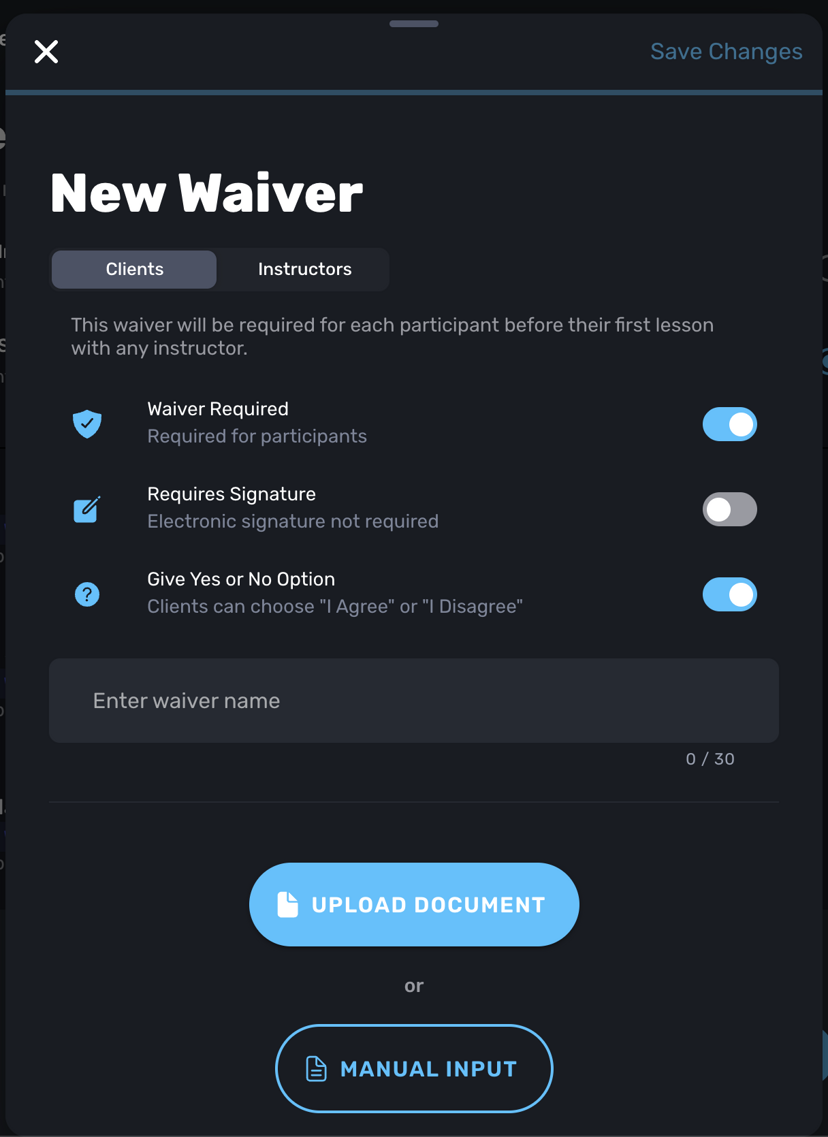
Access: Settings → Waivers → New/Edit Waiver
Waivers can now be configured to require a definitive "I Agree" or "I Disagree" response, instead of being optional. This ensures clients explicitly acknowledge your terms before proceeding with their booking.
25. Delay Group Questions Until After Selection
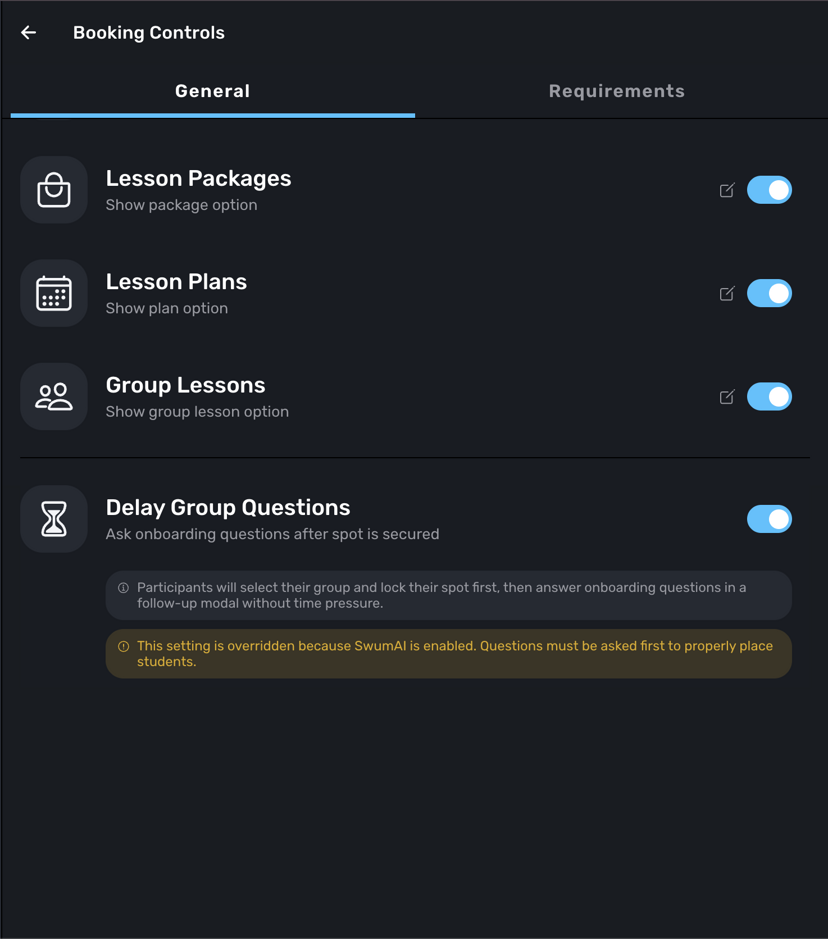
Access: Settings → Booking Controls → General
For eager parents who want to lock in a group class spot quickly, you can now delay onboarding questions until after the group has been selected. Participants will choose their group and lock their spot first, then answer questions in a follow-up modal without time pressure. No more rushing through important questions just to secure a slot.
A Record-Breaking Month
26 new features in a single update — that's a new record for us. Every one of these was shaped by feedback from our community of instructors and swim school operators. We're building the tools you actually need, and we're just getting started.
If you have any questions or need help with the new features, reach out anytime at support@swum.ai. Let's make 2026 your best year yet!